5-31
Arranging
Using the Tempo View
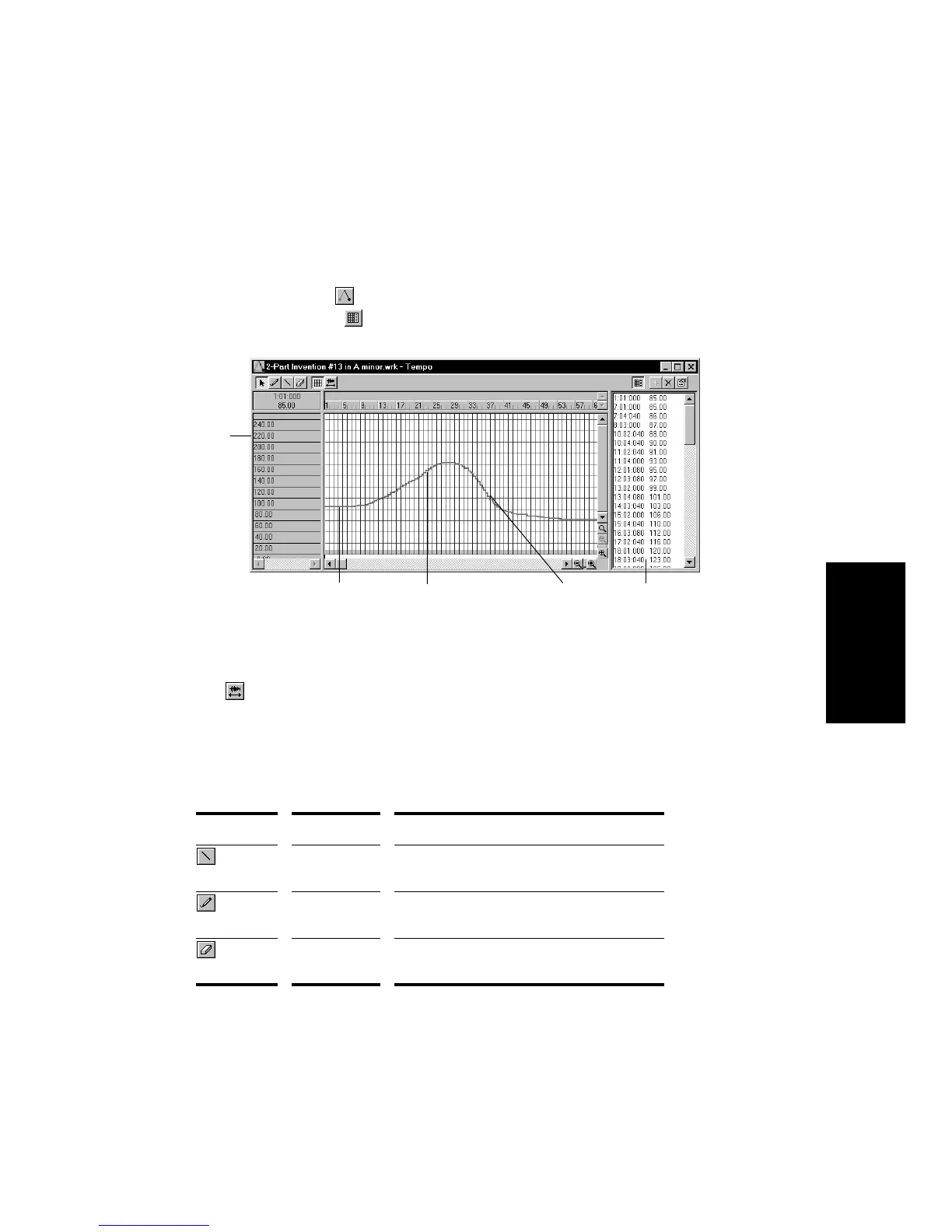
The Tempo view provides both a graphic display of the tempo and a list
of all tempo changes in your project. In the graphical display you can use
your mouse to draw tempo changes directly onto the graph. In the tempo
list, you can insert, edit, and delete individual tempo changes. Choose
View-Tempo or click on the toolbar to display the Tempo view. Click
the Tempo List button to display or hide the tempo list.
If an entire project has a single tempo, the graph shows a straight
horizontal line, and a single tempo in the list.
The button in the toolbar determines whether or not audio will be
modiÞed. If the button is depressed, audio will be stretched when you
introduce tempo changes. If not, audio material will not be affected by
tempo changes.
The graph has several tools you can use to add or modify tempo changes:
Tool… Name… What it’s for…
Line Draw a straight line indicating a steady
increase or decrease in tempo
Draw Draw a custom curve indicating changes in
tempo
Erase Eliminate tempo changes already in place for
some portion of a project
Tempo
(beats per minute)
Accelerando
Ritardando
Constant tempo
Tempo change
list



 To Next Page