7-24
Equalizing Audio Data
Equalization lets you boost or decrease the volume of sounds at different
frequencies. For example, you can boost the bass, cut high-frequency
hiss, or brighten mid-range vocals.
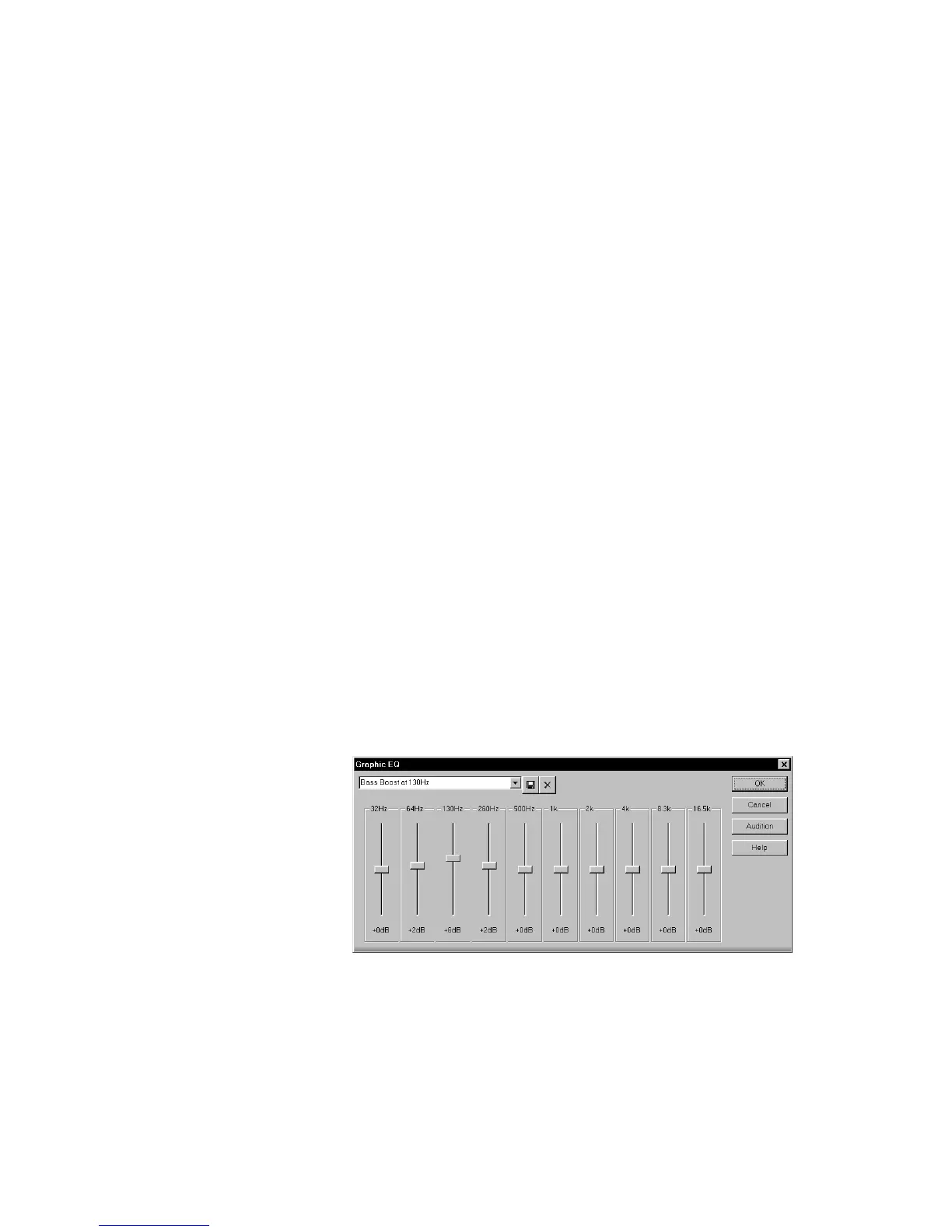
Pro Audio provides a graphic equalizer that lets you boost or decrease
the volume of audio events in ten frequency bands. The width of each
band doubles as you go from low to high frequencies; thus, the centers of
the bands are each an octave apart.
Boosting the audio signal too much may result in clipping or distortion.
If this occurs, you may need to undo the command, then decrease the
volume one or more times with the 3dB Quieter command before
equalization.
To Reverse Audio Data...
1. Select the audio data to be affected.
2. Choose
Edit-Audio-Reverse
, or right-click and choose
Reverse
from the menu.
Pro Audio reverses the selected audio data.
To Equalize Audio Data...
1. Select the audio data to be modified.
2. Choose
Edit-Audio-Graphic EQ
, or right-click and choose
Graphic EQ
from the menu, to open the Graphic EQ dialog box.
3. Choose a preset, or adjust the sliders to the desired equalization.
4. Click Audition to hear a preview of the first three seconds of the
selected audio with the equalization applied.



 To Next Page