11-12
Control Settings
The controls in a StudioWare panel are designed to send and receive
various types of MIDI information. This information can be transmitted
to two possible destinations:
¥ A speciÞc track in your project
¥ A MIDI output port
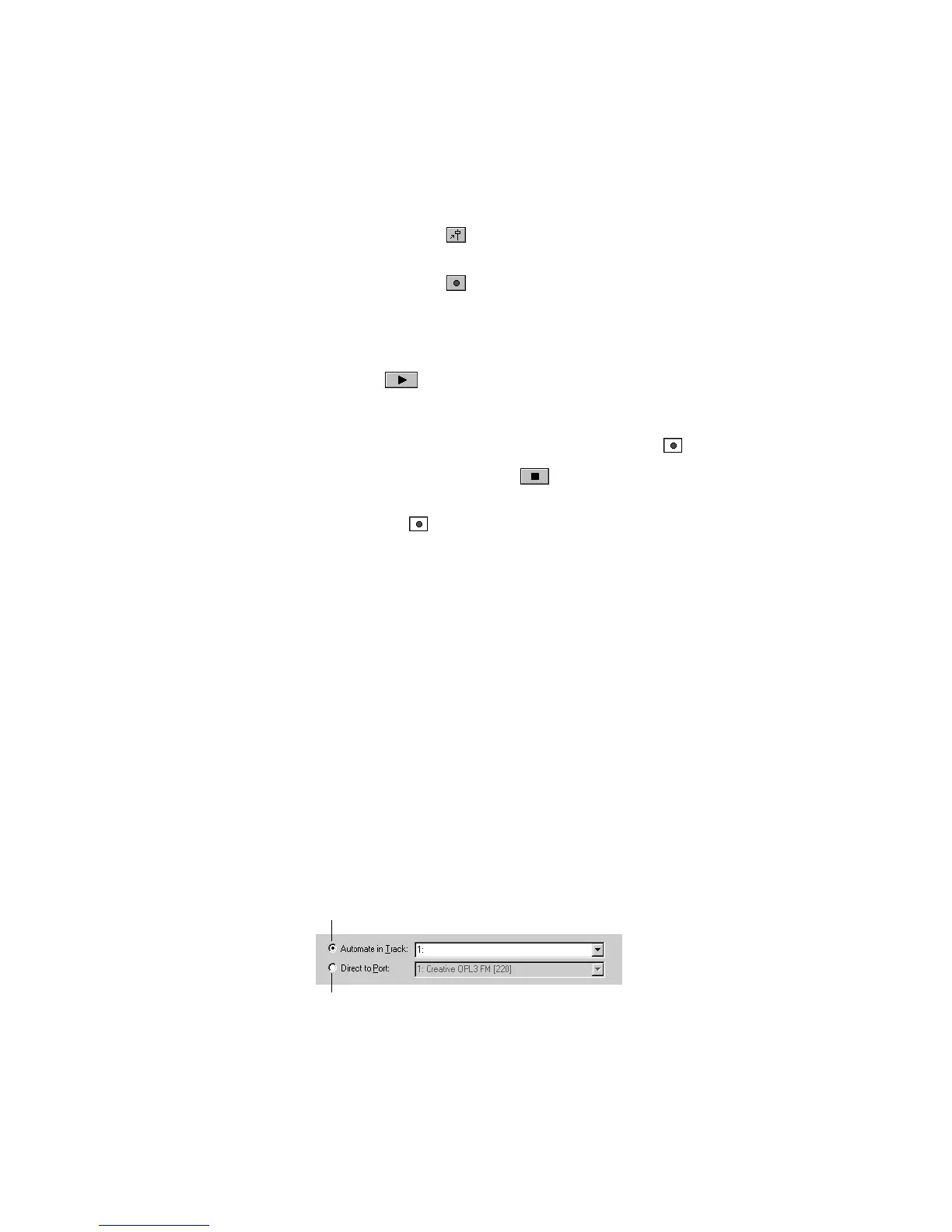
When you want to record the movements of controls within a panel, you
must make sure that MIDI data from the control are directed to a track
and not to a MIDI port. To Þnd out where the data from a control are
headed, be in design mode, right-click on the control to display the
Control (Widget) Properties dialog box, and check the list:
To Record Control Changes in Real Time...
1. Make sure the button in the StudioWare toolbar is pressed so
that Update is enabled.
2. Make sure the button in the StudioWare toolbar is pressed so
that recording is enabled.
3. Set the Now time to a few bars or seconds before the time at
which you want to record control movements.
4. Click or press the Space bar to start playback. (Note: Do not
press the Record button in the Transport toolbar!)
5. Adjust the controls as you wish while playback is in progress.
Each time you adjust a control, the Record tool is activated.
6. When you are done, click or press the Space bar to stop
playback.
7. Click the button in the StudioWare toolbar to turn off real-time
recording.
Pro Audio records the control changes that you entered while
playback was in progress.
Data from this control are routed to a track
and can be recorded
Data from this control are routed to a MIDI
port and cannot be recorded.



 To Next Page