3-6
Controlling Playback
Controlling playback is very simple, and you have your choice of tools,
menu commands, and shortcut keys for most common operations.
When you start playback, the Now time updates continuously to show
the current time. When you stop playback, the Now time stops at the
time you stopped. When you start playback again, it continues from the
same point.
If the Now time is advancing but you donÕt hear any sound, see Appendix
A: Troubleshooting. If you are using MIDI sync or MIDI time code sync,
Pro Audio waits to receive external timing data before it begins playing.
For more information, see Chapter 15, Synchronizing Your Gear.
Handling Stuck Notes
Under MIDI, the events that turn notes on are separate from the events
that stop notes from playing. Normally, when you stop playback, Pro
Audio attempts to turn off all notes that are still playing. Depending on
how your equipment is conÞgured, itÕs possible for notes to get stuck in
the ÒonÓ position. The Realtime-Reset command is used to stop all notes
from playing.
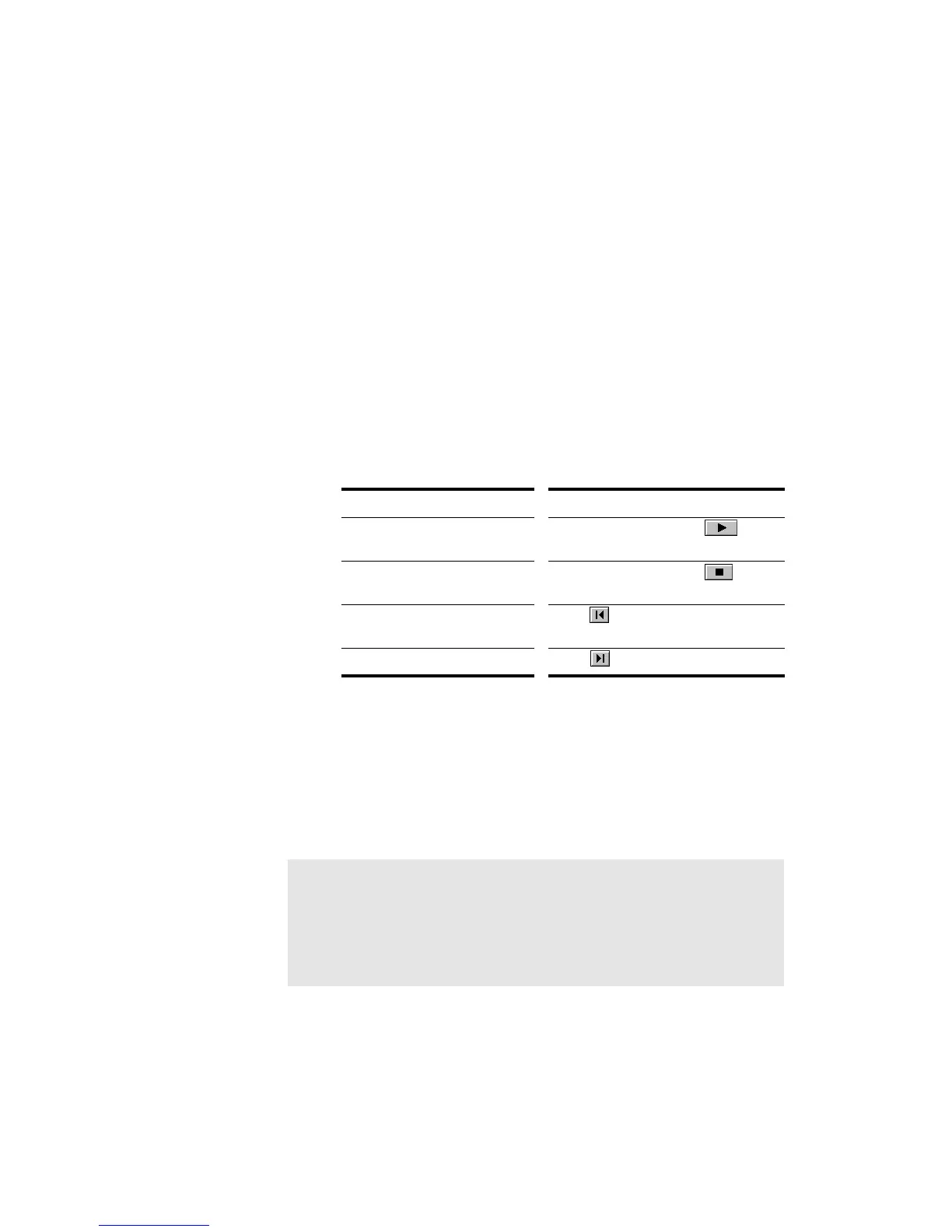
To Start and Stop Playback…
To do this… Do this…
Start playback Press the spacebar, click , or
choose
Realtime-Play
Stop playback Press the spacebar, click , or
choose
Realtime-Stop
Rewind to the start of the
project
Click , press the W key, or choose
Realtime-Rewind
Skip to the end of the project Click
Note:
You can control the MIDI messages that are sent by the Realtime-
Reset command. See Appendix E: Initialization Files for more
information.



 To Next Page