2-7
Getting Started
Changing the Tempo
If the song is having trouble keeping up with you (or if you're having
trouble keeping up with the song!), you can easily speed up or slow down
the song. There are two ways to do this: you can change the tempo, or
you can change the tempo ratio, which determines the tempo by
multiplying it by a user-deÞned amount. The controls for either method
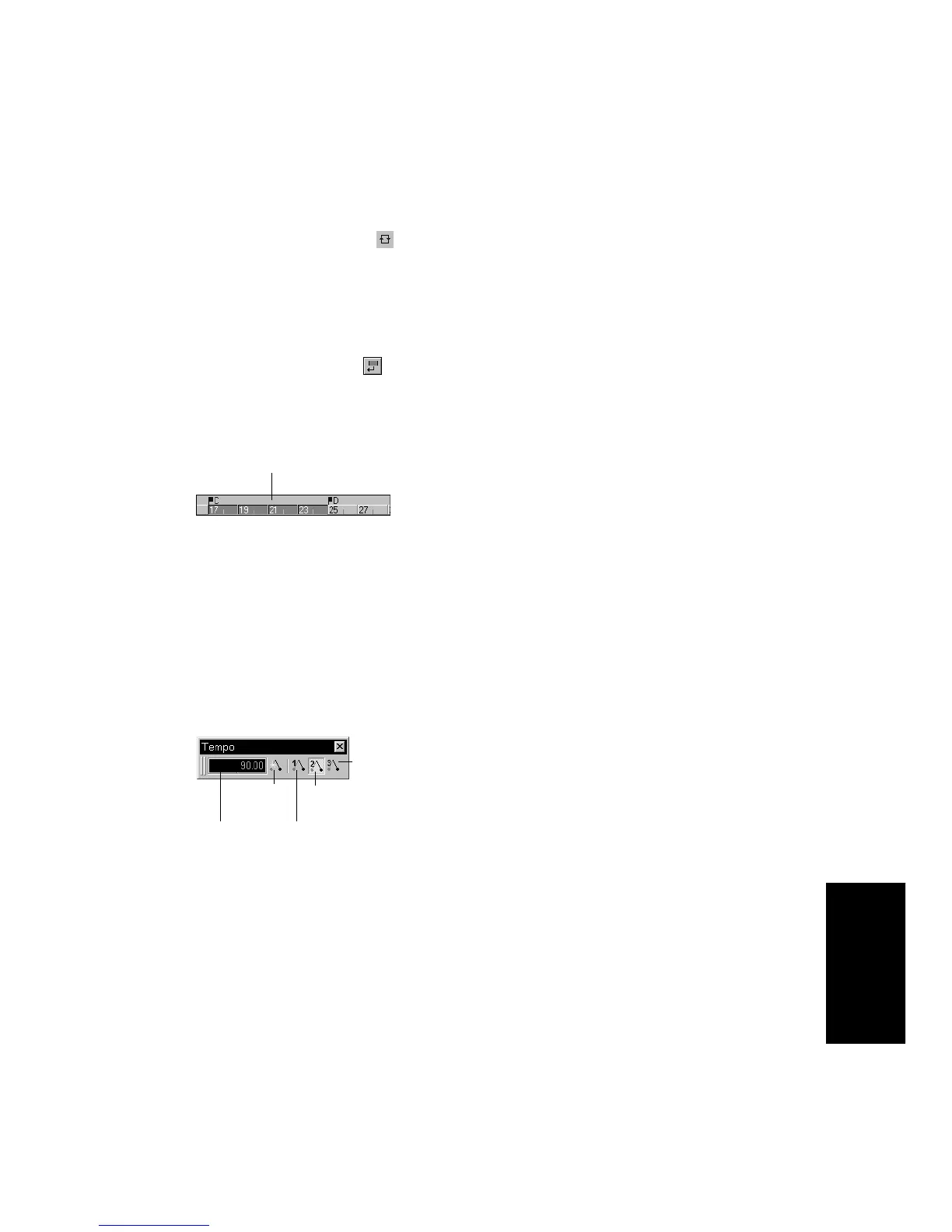
are found on the Tempo toolbar. If you donÕt see this toolbar, choose
View-Toolbars and check Tempo.
Setting the Tempo
LetÕs pick up the pace a little. Do the following:
6. In the Markers dialog box, select marker D and click OK.
7. Click the Loop button to enable looping.
8. Click Rewind. The song rewinds to the Loop From time.
9. Click Play.
A quicker way of selecting the loop times in the preceding example
would be to simply click in the area between the markers at the top of
the Clips pane, then click to copy the selection start and end times
to the Loop/Auto Shuttle toolbar.
1. With the song playing, click on the tempo. The tempo will be
highlighted and spin controls will appear.
2. Use the spin controls to increase the tempo to 100 beats per
minute.
3. Press Enter. The song will play a little faster.
Click here to select the portion of the song
between markers C and D
Insert
tempo
Tempo
Tempo ratio 1
Tempo ratio 2
Tempo ratio 3



 To Next Page