5-32
If you make a mistake using any of these tools, you can use Undo to
correct the error. When you use the Draw tool, the speed with which you
drag the mouse determines the density of tempo events. To insert a
larger number of relatively small tempo changes, move the mouse slowly.
To insert a smaller number of relatively large tempo changes, drag the
mouse quickly.
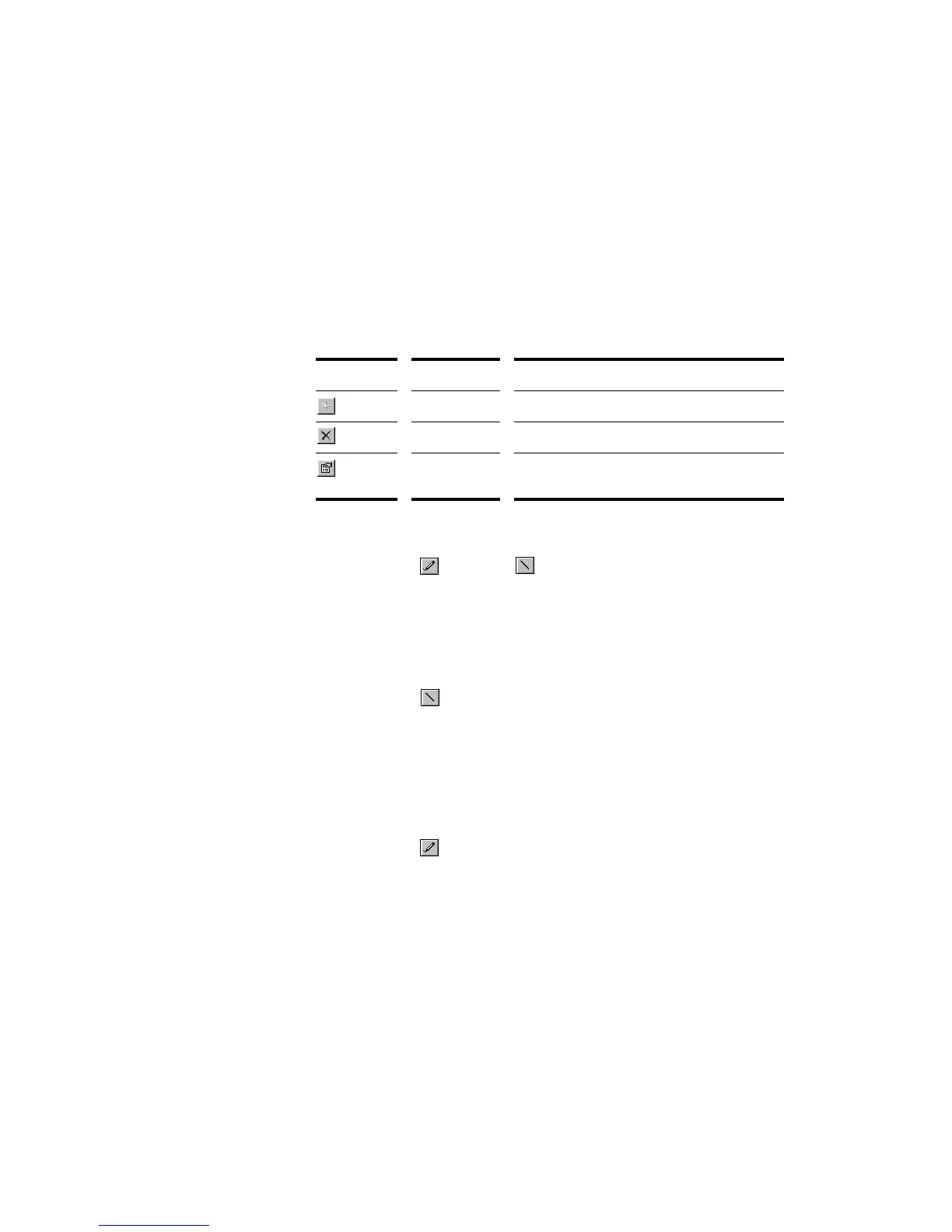
The Tempo List Pane has its own tools for editing tempo changes:
Tool… Name… What it’s for…
Insert Tempo Insert a new tempo change
Delete Tempo Delete a tempo change
Tempo
Properties
Edit a tempo change
To Insert a Tempo Change in the Graph…
1. Select the tool or the tool.
2. Click in the graph at any desired time point and tempo level.
Pro Audio introduces a tempo change at the indicated point.
To Steadily Increase or Decrease the Tempo…
1. Select the tool.
2. Drag a line in the graph from the starting time and tempo to the
ending time and tempo.
Pro Audio introduces a linear series of tempo changes.
To Draw a Series of Tempo Changes…
1. Select the tool.
2. Drag the cursor across the graph, adjusting the tempo level as
you move left to right.
Pro Audio introduces a series of tempo changes.



 To Next Page