8-43
Notation
To Add a Meter/Key Change...
1. Open the Meter/Key view.
2. Click Add , or choose
Insert-Meter/Key Change
, to open the
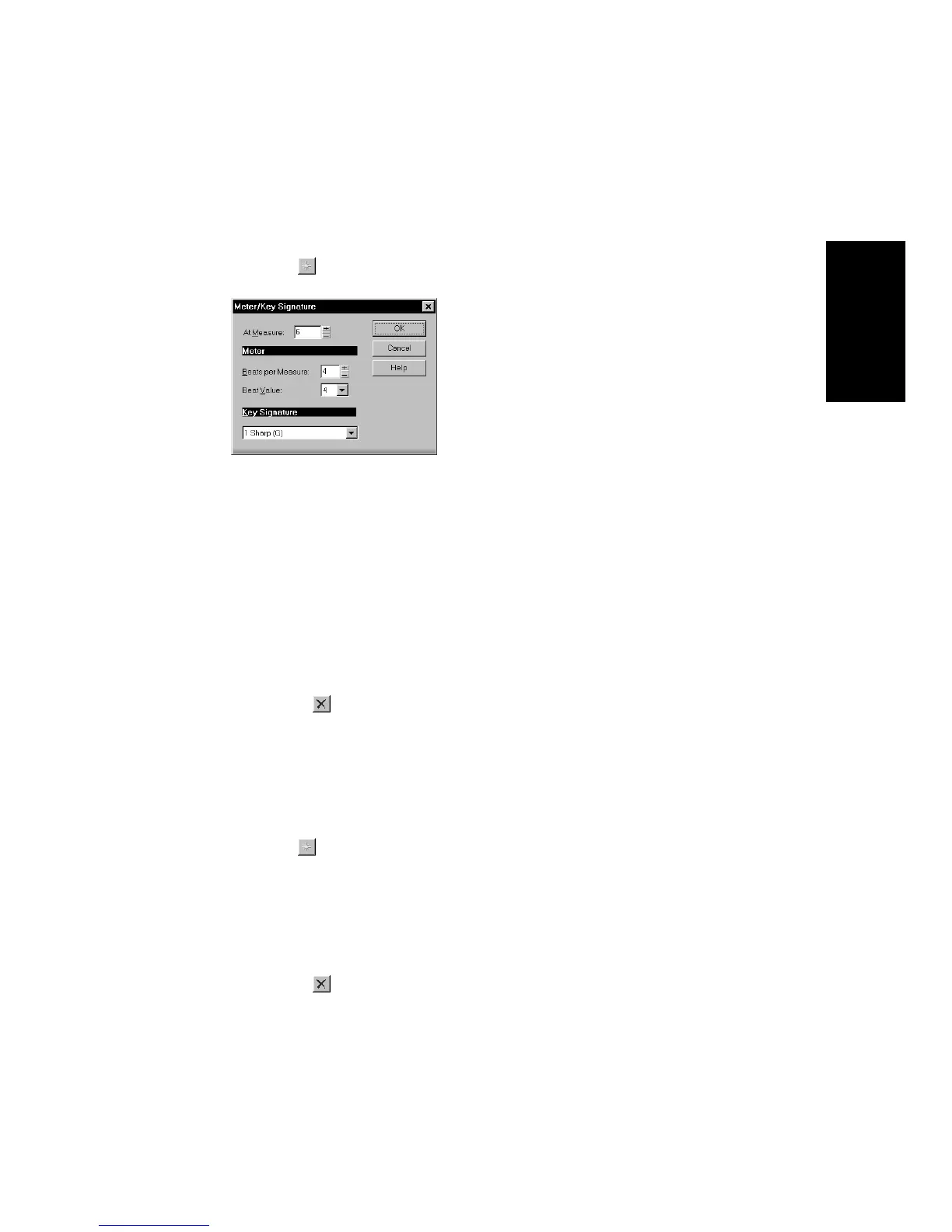
Meter/Key Signature dialog box.
3. Enter information about the new meter/key change.
4. Click OK.
Pro Audio inserts the meter/key change into the project. The meter/
key change will appear in the Staff view at the appropriate measure.
To Delete a Meter/Key Change...
1. Select the meter/key change to be deleted from the list.
2. Select additional meter/key changes by using Shift-click and Ctrl-
click.
3. Click Delete .
Pro Audio removes the meter/key change from the project. You
cannot delete the first meter/key change from measure 1 of a project.
To Move a Meter/Key Change...
1. Select the meter/key change to be moved.
2. Click Add .
3. Edit the Measure parameter to the meter/key change’s new
measure.
4. Click OK.
5. Select the original meter/key change again.
6. Click Delete .
Pro Audio removes the original meter/key change and inserts a copy
of it at the new measure.



 To Next Page