B-5
Tips & Tricks
editing. By default, the Virtual Jukebox plays all the Þles in the play list
in sequence. You can modify the playback mode for all Þles at once or for
each individual Þle. If your play list includes Þles that contain any MIDI
data, you must choose a MIDI output device before you can play the Þle.
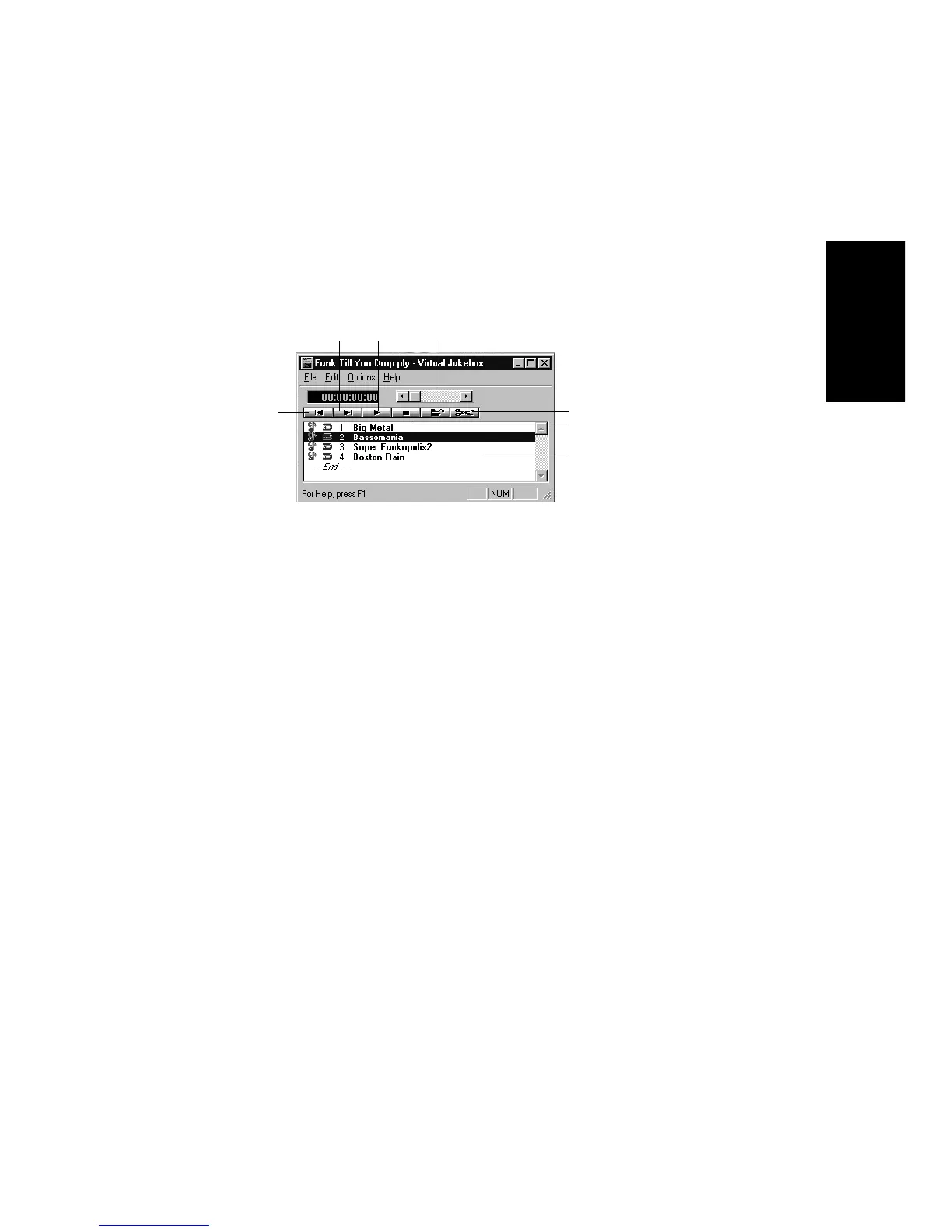
The Virtual Jukebox looks like this:
You can drag Þles from the Windows Explorer into the Virtual Jukebox.
The Þles that you drag into the Virtual Jukebox window are inserted
into the play list before the current selection.
You can also drag Þles from the Virtual Jukebox into Pro Audio as
follows:
¥ To open a project, drag the .wrk, .mid, or .bun Þle from the Virtual
Jukebox into Pro Audio
¥ To insert an audio event into a project, drag a .wav Þle from the
Virtual Jukebox to a speciÞc position in the Audio view
To Start the Virtual Jukebox…
1. In Pro Audio, choose
Tools-Virtual Jukebox
, or click the
Windows Start button and choose
Programs-Cakewalk-Pro
Audio 9-Virtual Jukebox.
To Choose a MIDI Output Device…
1. Choose
Options-Configure MIDI Devices
to open the MIDI Ports
dialog box
2. Choose a device from the Output Ports list, and click OK.
Previous song
Next Song
Play
Stop
Insert
Delete
play list



 To Next Page