C-15
Advanced Setup
Setting Up the MIDI In and MIDI Out Devices
When you start Pro Audio for the Þrst time, it checks your computer to
Þnd all the MIDI input and output devices you have installed (such as
sound cards and MIDI interfaces). However, sometimes you need to tell
Pro Audio exactly which devices you want it to use. If youÕre not getting
sound from your sound card or MIDI keyboard, or if you just want to
change the MIDI ports and devices that you are using, follow the steps in
this section.
Choose Options-MIDI Devices to open a dialog box in which you select
the MIDI In and MIDI Out devices that Pro Audio will use. Each item in
the list is a MIDI In or MIDI Out port from drivers installed using the
Windows Control Panel.
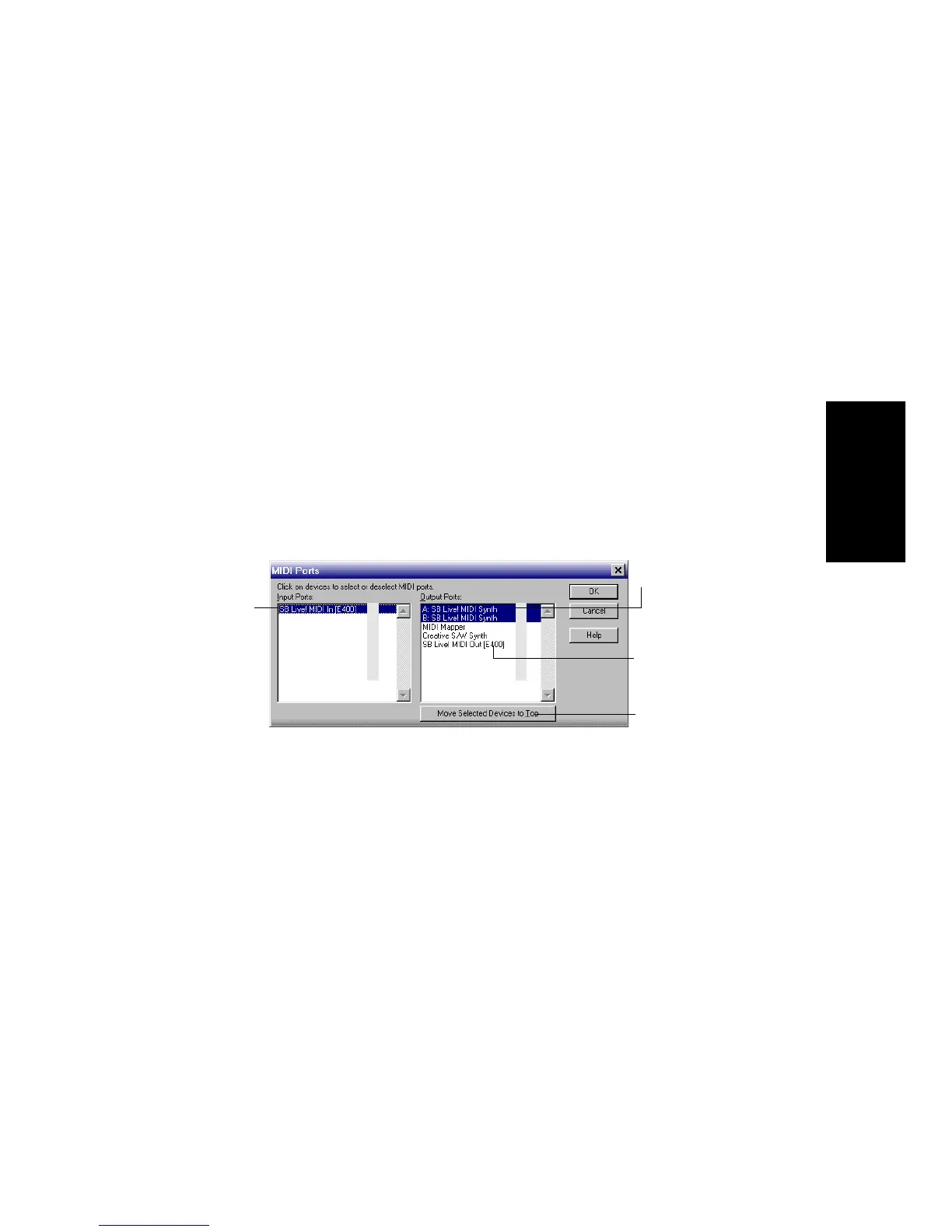
1. Go into Pro Audio, and choose
Options-MIDI Devices
. You will
see the MIDI Ports dialog box, which lets you choose
instruments on MIDI input and output ports:
2. Look at the left window. Notice that it shows devices on MIDI
Input Ports; make sure that all devices in this window are
highlighted. If a device isn’t highlighted, click on it once to select
it for MIDI Input.
3. Look at the window on the right. Notice that it shows devices on
MIDI Output Ports. Pro Audio numbers its MIDI Output Ports by
the order of the devices in this window. The device on top is on
Port 1, the one below it is on Port 2, and so on.
4. Highlight each device in the Output Ports window and click Move
Selected Devices to Top to change its order. Then highlight all the
devices that appear in the window to select them for output.
evice
elected for
IDI input
Device
selected for
MIDI output
Device not
selected for
MIDI output
Click here to
change order
of MIDI
devices



 To Next Page