2-18
Checking Your MIDI Device Settings
Let's make sure that Pro Audio is set up to receive MIDI data from your
instrument.
Setting Up Playback
During recording, Pro Audio will play the rest of the song as usual.
Depending on what instrumental part of the song you are going to
record, you may want to mute one or more tracks, or solo certain tracks.
For example, if you are going to record a new piano part, you might want
to mute track 1 so that you're not competing with the old piano part
while recording. To mute any track, click the track's Mute button .
You can also set other playback options, such as the Tempo ratio, to
make your recording session easier.
6. Deselect the Use MIDI Metronome option .
By disabling the Metronome During Record option, you cause the
metronome to turn off after the count-in measures. If you would prefer
to hear the metronome during the entire song while recording, enable
this option instead.
The metronome counts in for recording, not for playback.
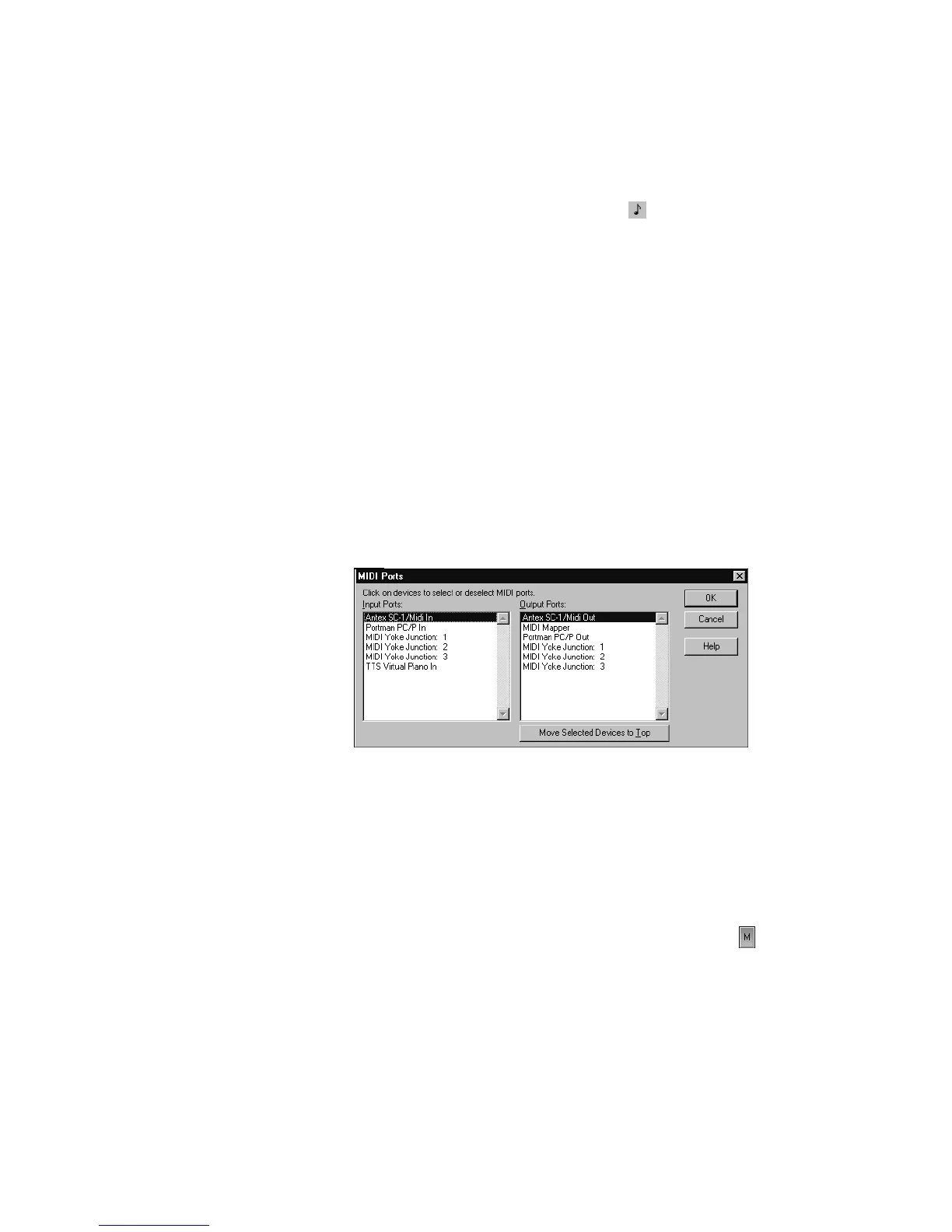
1. Choose
Options-MIDI Devices
to open the MIDI Ports dialog box.
2. In the Input Ports column, select your sound card's MIDI In device
or the MIDI In for your external MIDI interface. (If you will be
using the Virtual Piano, select the Virtual Piano device as well.)
For help with these settings, see “Setting Up the MIDI In and
MIDI Out Devices” on page C-15.
3. Click OK.



 To Next Page