2-22
Loop Recording
Finally, let's record our takes:
3. Double-click in the Source, Port, Channel, or Patch column to
open the Track Properties dialog box.
4. Set the Source to MIDI Omni.
5. Set the Port to your sound card's MIDI synthesizer.
6. Set the Channel to an unused channel or to the channel you used
for your earlier take(s).
7. For Patch, select any patch.
8. Click OK.
As usual, you could set the tracks to play back on your MIDI
instrument instead by specifying the appropriate port and channel.
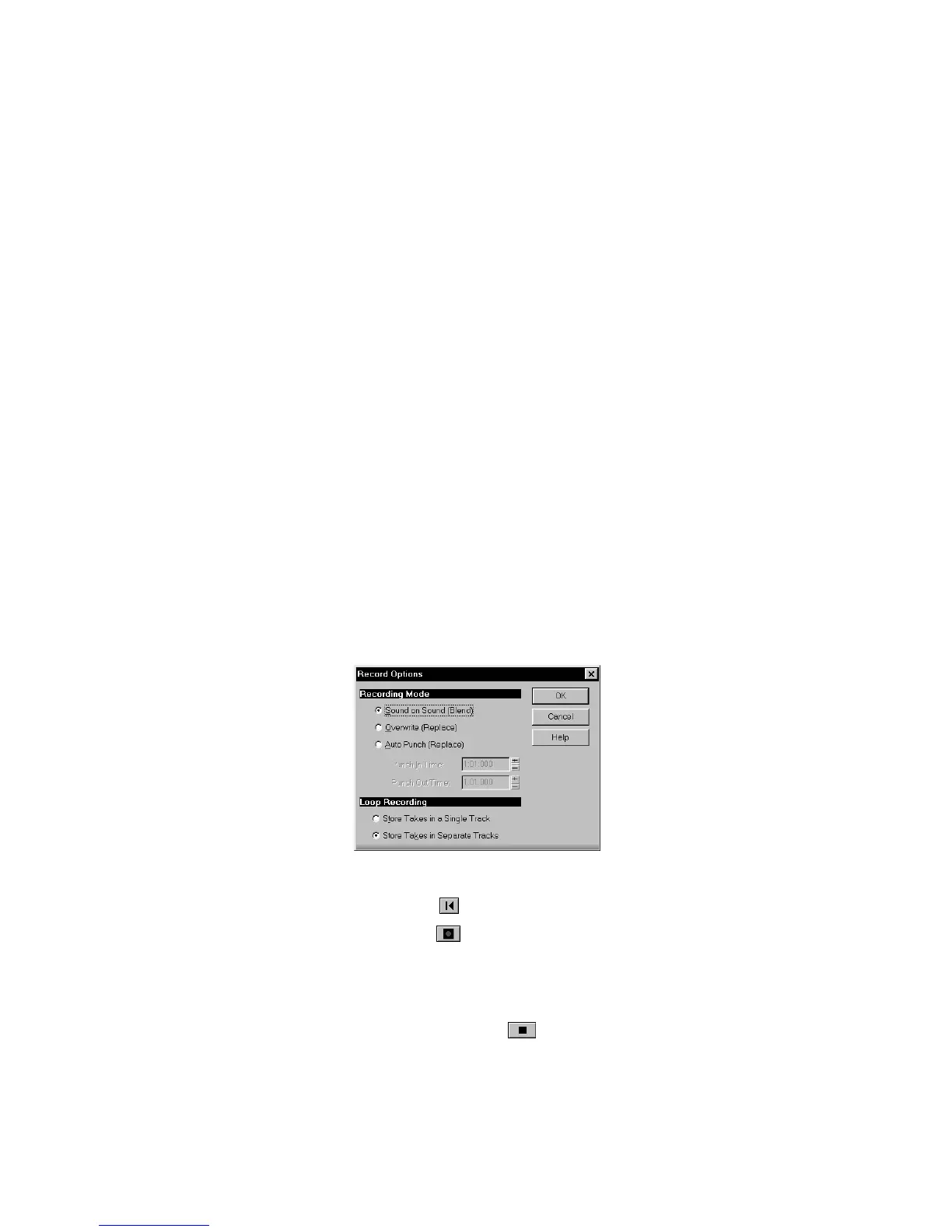
1. Choose
Realtime-Record Options
to display the Record Options
dialog box.
2. Choose the Store Takes in Separate Tracks option to store each
new take in a separate track. Each time a new take starts, the
settings from the first track will be copied to the new track.
3. Click OK.
4. Click Rewind .
5. Click Record .
Pro Audio loops over the designated section and records your takes to
successive tracks. If you want to erase the most recent take during
loop recording, choose
Realtime-Reject Loop Take
.
To stop recording, click Stop , or press the space bar.



 To Next Page