2-33
Getting Started
Trimming the Beginning of the Announcer
Now weÕll see how to trim the beginning of the announcerÕs read. This
will eliminate any unwanted silence at the beginning. Do the following:
3. Choose
View-Audio
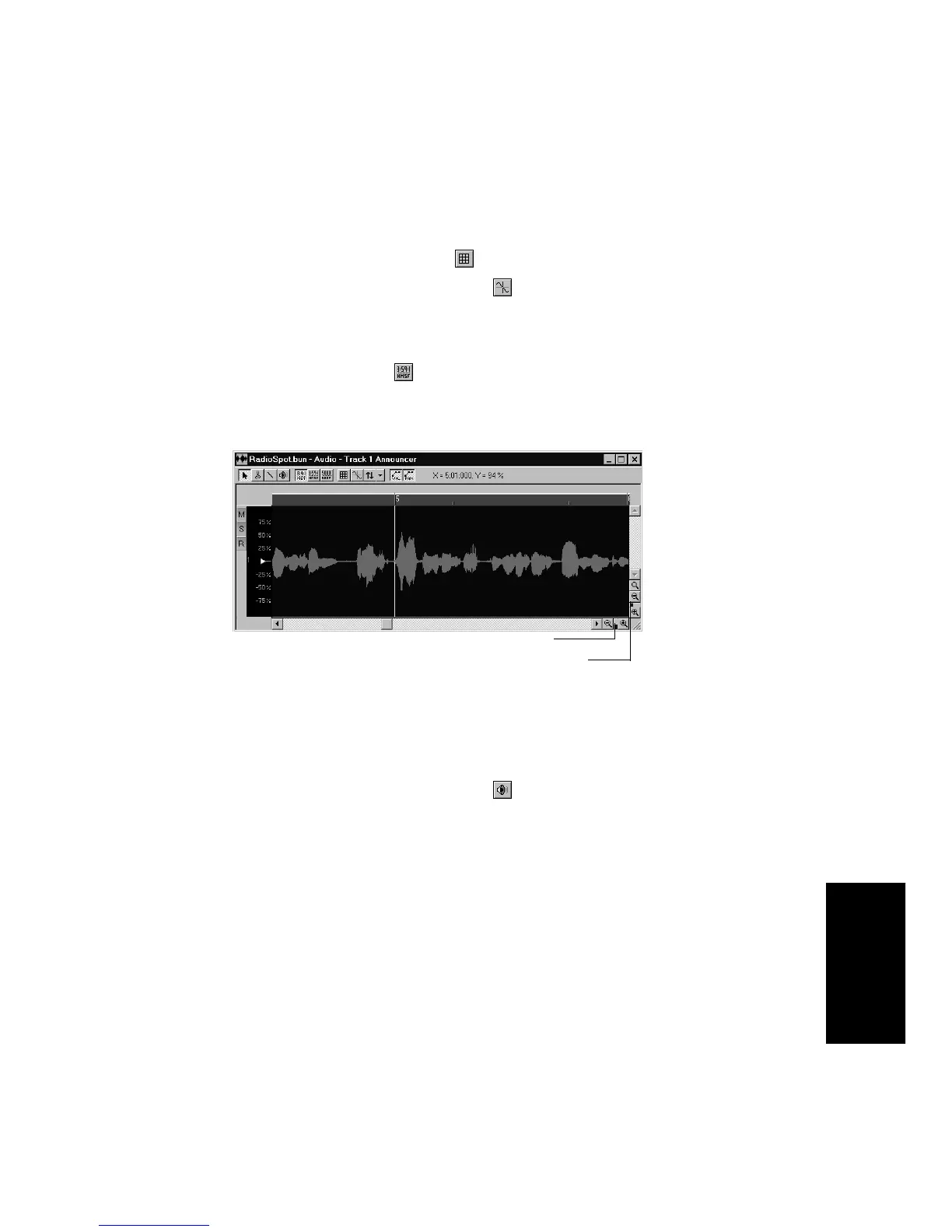
to open the Audio view. The audio data in
track 1 is displayed.
4. If selected, deselect the snap grid .
5. Select the Snap to Zero Crossing option . With this option, any
selections we make will snap to the nearest zero crossing in the
audio waveform. This prevents unwanted pops and clicks
resulting from any edits.
6. Click the H:M:S:F button to display the ruler in SMPTE time.
7. Click and drag the horizontal and vertical zoom controls as
necessary to zoom out and in on the waveform.
1. In the Audio view, select the Scrub tool .
2. Drag the horizontal zoom control until you can see enough of the
audio event to identify the three separate sections.
3. Drag through the audio events near the beginning of the voice-
over to hear them. Let go when you have reached the point
directly before the first word.
4. Right-click on the event and choose
Split
from the pop-up menu.
5. Click OK in the dialog box that appears.
The event has now been split into two events, each of which has
the same name. The first portion, which should only be silence, is
currently selected.
Vertical zoom control
Horizontal zoom control



 To Next Page