o Users
of
Windows XP and
Mac
OS X:
Your camcorder is equipped with the standard Picture Transfer Protocol (PTP)
allowing you to download still images (JPEG only) by simply connecting the
camcorder to a computer via USB cable without installing the software from the
DIGITAL
VIDEO
SOLUTION DISK.
lEt.
ALL IMAGES...
rf~::-
NEW
IMAGES...
~.
TRANSFER
ORDERS
...
~.
SELECT
&
TRANSFER
...
~
WALLPAPER...
Transfers all images to the computer.
Transfers only those images that have not yet been
transferred to the computer.
Transfers images with transfer orders to the computer.
Transfer orders
(lIl
112) are only available for images
recorded on the
memory
card.
Allows you to select an image and transfers the selected
image to the computer.
Allows you to select a still image and transfers the
selected image to the computer as wallpaper.
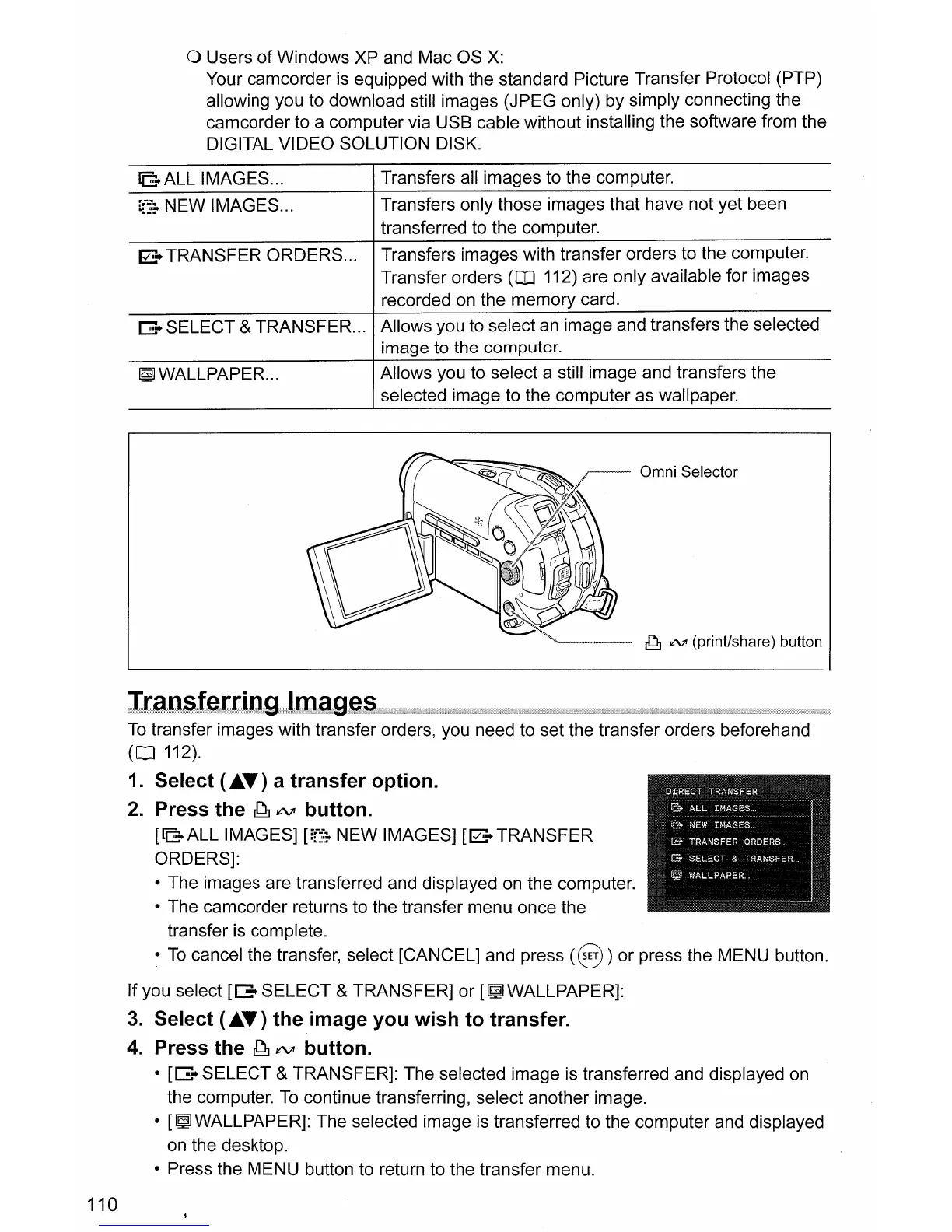
Omni Selector
~
IN"
(print/share) button
110
To
transfer images with transfer orders, you need to set the transfer orders beforehand
(Q]
112).
1.
Select ("'T) a
transfer
option.
2.
Press
the
~
JtVI
button.
[lEt.
ALL IMAGES]
[rf~::-
NEW
IMAGES]
[~.
TRANSFER
ORDERS]:
• The images are transferred and displayed on the computer.
• The camcorder returns to the transfer menu once the
transfer is complete.
•
To
cancel the transfer, select [CANCEL] and press
(8)
or
press the MENU button.
If you select
[~.
SELECT
&TRANSFER]
or
[~WALLPAPER]:
3.
Select (...
T)
the
image
you
wish
to
transfer.
4.
Press
the
~
JtVI
button.
•
[[:~.
SELECT
& TRANSFER]: The selected image is transferred and displayed on
the computer.
To
continue transferring, select another image.
•
[~WALLPAPER]:
The selected image is transferred to the computer and displayed
on the desktop.
• Press the MENU button to return to the transfer menu.



 To Next Page