Setting
the
White
Balance
You
can choose
one
of
the
preset settings to reproduce colors more accurately,
or
set a
custom white balance to obtain the setting best suited to
your
specific recording
IEl
conditions.
L-=.J
AW~AUTO
Settings are automatically set by the camcorder.
~~
DAYLIGHT
For recording outdoors on a bright day.
e~SHADE
For recording in shaded places.
.J,CLOUDY
For recording on a cloudy day.
;t, TUNGSTEN
For recording under tungsten and tungsten type (3-wavelength)
fluorescent lighting.
~
FLUORESECENT
For
recording under warm white, cool white
or
warm white type
(3-wavelength) fluorescent lighting.
~
FLUORESCENT H
For recording under daylight
or
daylight type (3-wavelength)
fluorescent lighting.
""-LlSET
Use the custom white balance setting to make white subjects
appear white under colored lighting.
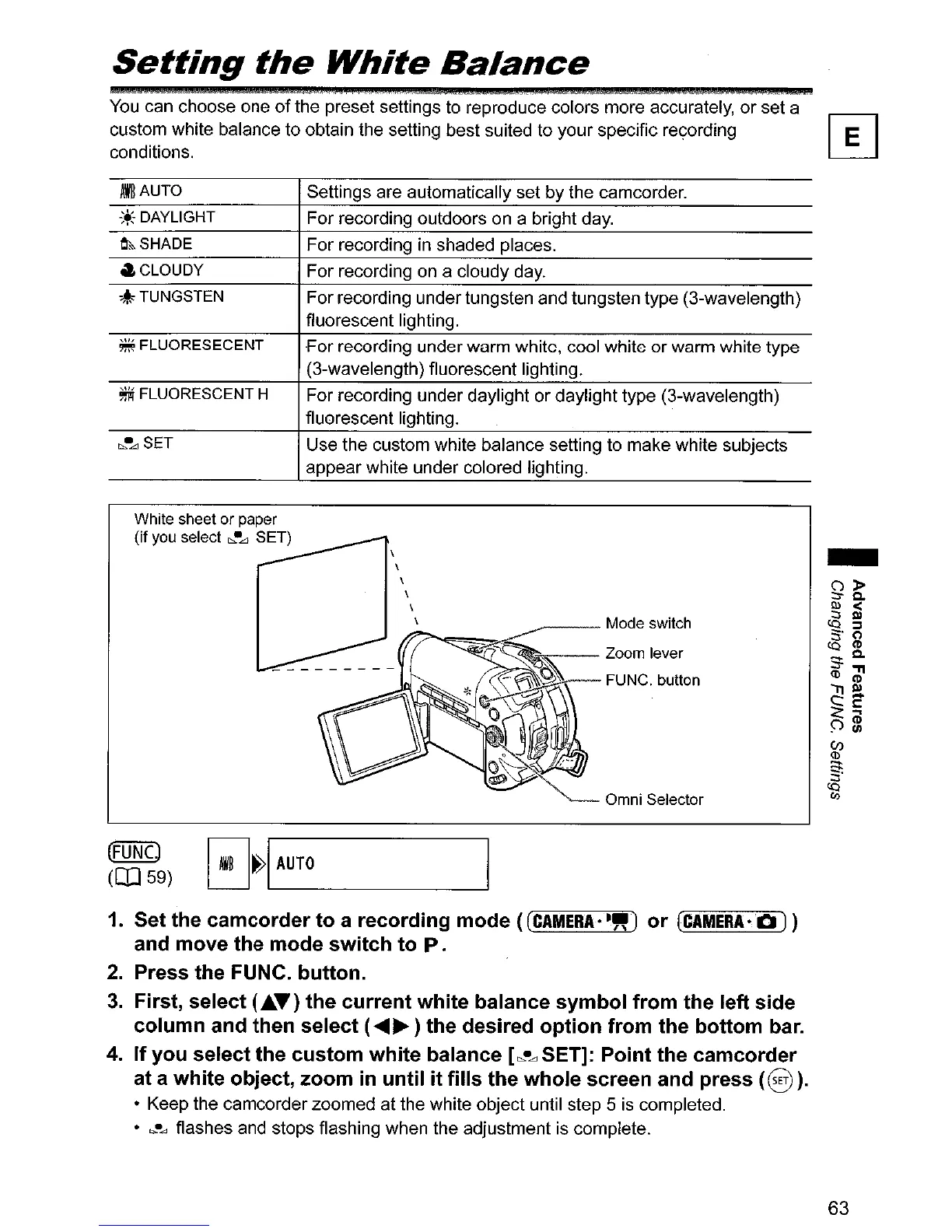
Omni Selector
-
(FUNc)
(OJ
59)
~~I,--A_UT_O
----,
1. Set the camcorder to a recording mode
«(CAMERA·~")
or (CAMERA·.Q))
and move the mode switch to
P.
2.
Press the FUNC. button.
3.
First, select
(.T)
the current white balance symbol from the left side
column and then select (
.........
) the desired option from the bottom bar.
4. If you select the custom white balance
["'-Ll SET]: Point the camcorder
at a white object, zoom
in
until it fills the whole screen and press
(§
).
• Keep the camcorder zoomed at the white object until step 5
is
completed.
•
",--...,
flashes and stops flashing when the adjustment is complete.
63



 To Next Page