Protecting
Still/mages
on
the
Memory
Card
AtkU
lAM
96
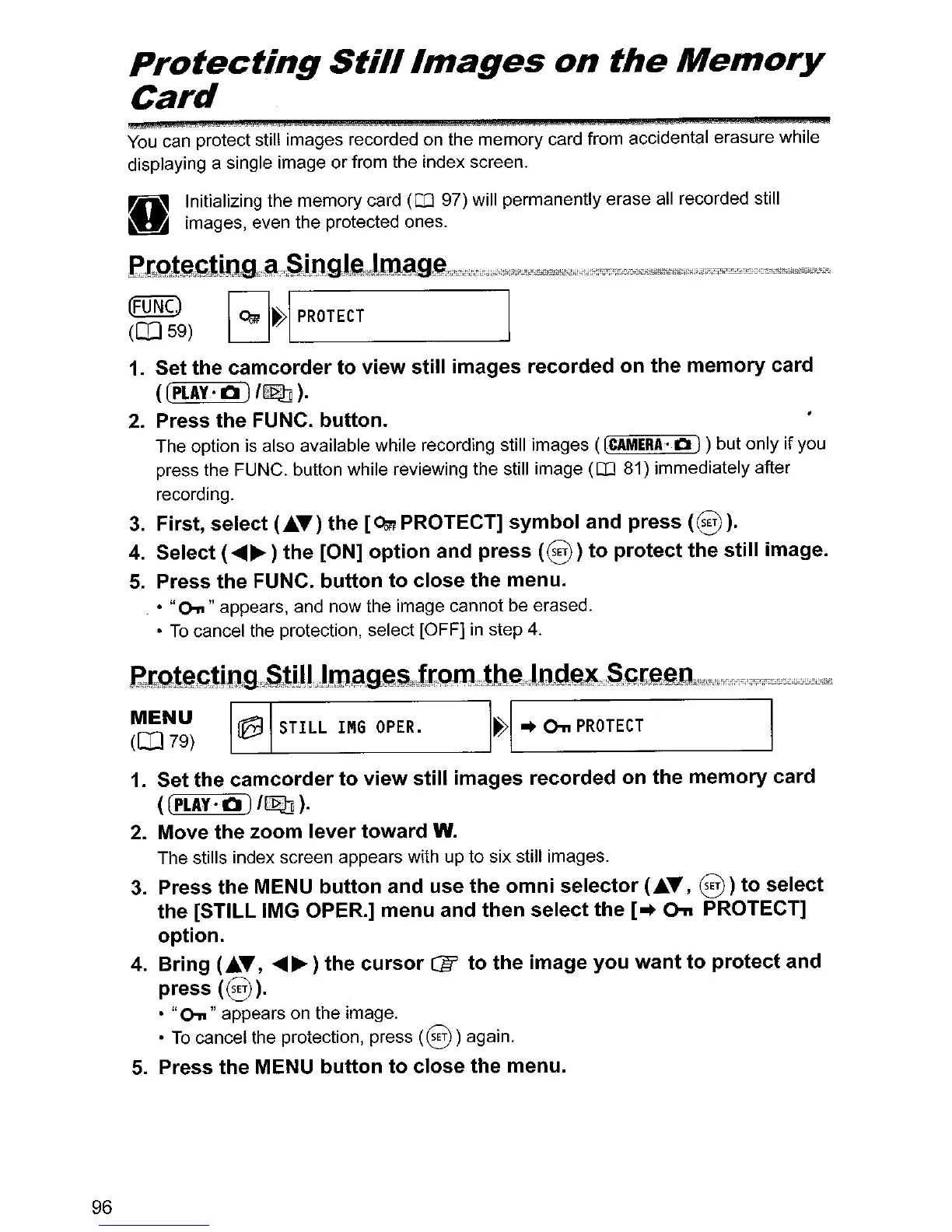
You
can protect still images recorded on the memory card from accidental erasure while
displaying a single image or from the index screen.
10
Initializing the memory card (QJ 97) will permanently erase all recorded still
~
images, even the protected ones.
1.
Set the
camcorder
to
view
still images recorded
on
the
memory
card
(
(PLAY'
Q ) Imlh ).
2. Press
the
FUNC. button.
The option is also available while recording still images (
[CAMERA'
0 ) ) but only if you
press the FUNC. button while reviewing the still image
(QJ 81) immediately after
recording.
3.
First,
select
(.A.T)
the
[Om
PROTECT]
symbol
and
press
(8).
4.
Select (
.........
)
the
[ON]
option
and press
(8)
to
protect
the
still
image.
5.
Press
the
FUNC.
button
to
close
the menu.
•
"On"
appears, and now the image cannot be erased.
•
To
cancel the protection, select [OFF]
in
step 4.
f,[~le,(;!it19,""SllU".bna~~s",ft,C;~QlI11tbe;1.ltlC:lft,l.21lSG[g~:.cr;ljl.1j'.j'W1!:",,"jiR2,'.rCl1~ilii",jl'1llil
~~~)
~
STILL
IM6
OPER.
I~I"
On
PROTECT
I
1.
Set the
camcorder
to
view
still
images recorded
on
the
memory
card
((PLAY·Q)
I~).
2.
Move
the
zoom
lever
toward
W.
The stills index screen appears with up to six still images.
3.
Press the MENU
button
and use the
omni
selector
(.A.T,
8)
to
select
the [STILL IMG OPER.] menu and
then
select
the
[
..
Q-n
PROTECT]
option.
4.
Bring
(.A.T,
.........
)
the
cursor
CD
to
the
image
you
want
to
protect
and
press
(8).
•
"o-n"
appears on the image.
•
To
cancel the protection, press
(8)
again.
5.
Press
the
MENU
button
to
close
the menu.



 To Next Page