3 Select a downloading method.
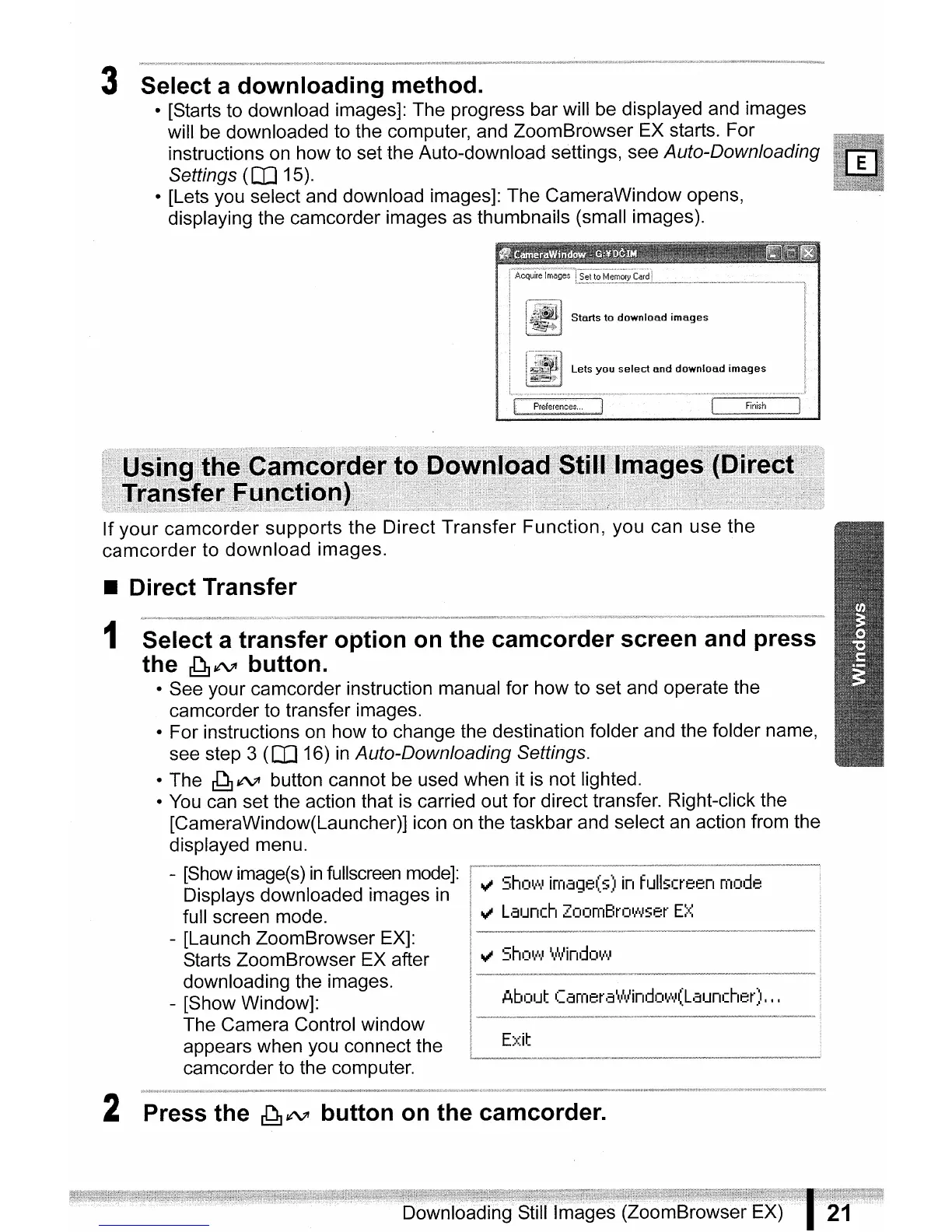
• [Starts to download images]: The progress bar will be displayed and images
will be downloaded to the computer, and ZoomBrowser EX starts. For
instructions on how to set the Auto-download settings, see
Auto-Downloading
Settings
(CO
15).
• [Lets you select and download images]: The CameraWindow opens,
displaying the camcorder images as thumbnails (small images).
• Direct Transfer
If
your
camcorder
supports
the
Direct
Transfer
Function,
you can
use
the
camcorder
to
download
images.
About
Camera\,Vindo",'.,'(Launcher),
,,
Exit
Select a transfer option on the camcorder screen and press
the
~1tV
button.
• See your camcorder instruction manual for how to set and operate the
camcorder to transfer images.
• For instructions on how to change the destination folder and the folder name,
see step 3
(CO
16)
in
Auto-Downloading Settings.
• The
~
ltV
button cannot be used when it is not lighted.
• You can set the action that is carried out for direct transfer. Right-click the
[CameraWindow(Launcher)] icon on the taskbar and select an action from the
displayed menu.
- [Show image(s)
in
fullscreen mode]: ttl
Sh
0
1,0\1
ima';le(s)
in
fullscreen
mode
Displays downloaded images
in
full screen mode. ttl
Launch
ZoomBrowser
E~<
- [Launch ZoomBrowser EX]:
Starts ZoomBrowser EX after
downloading the images.
- [Show Window]:
The Camera Control window
appears when you connect the
camcorder to the computer.
1
2
Press the
~1tV
button
on
the camcorder.
Downloading Still



 To Next Page