Selecting
Print
Settings
The procedure for selecting the number
of
copies is common to all printers. Other print
setting procedures vary depending on your printer model.
A maximum
of
99 copies can be selected for each still image.
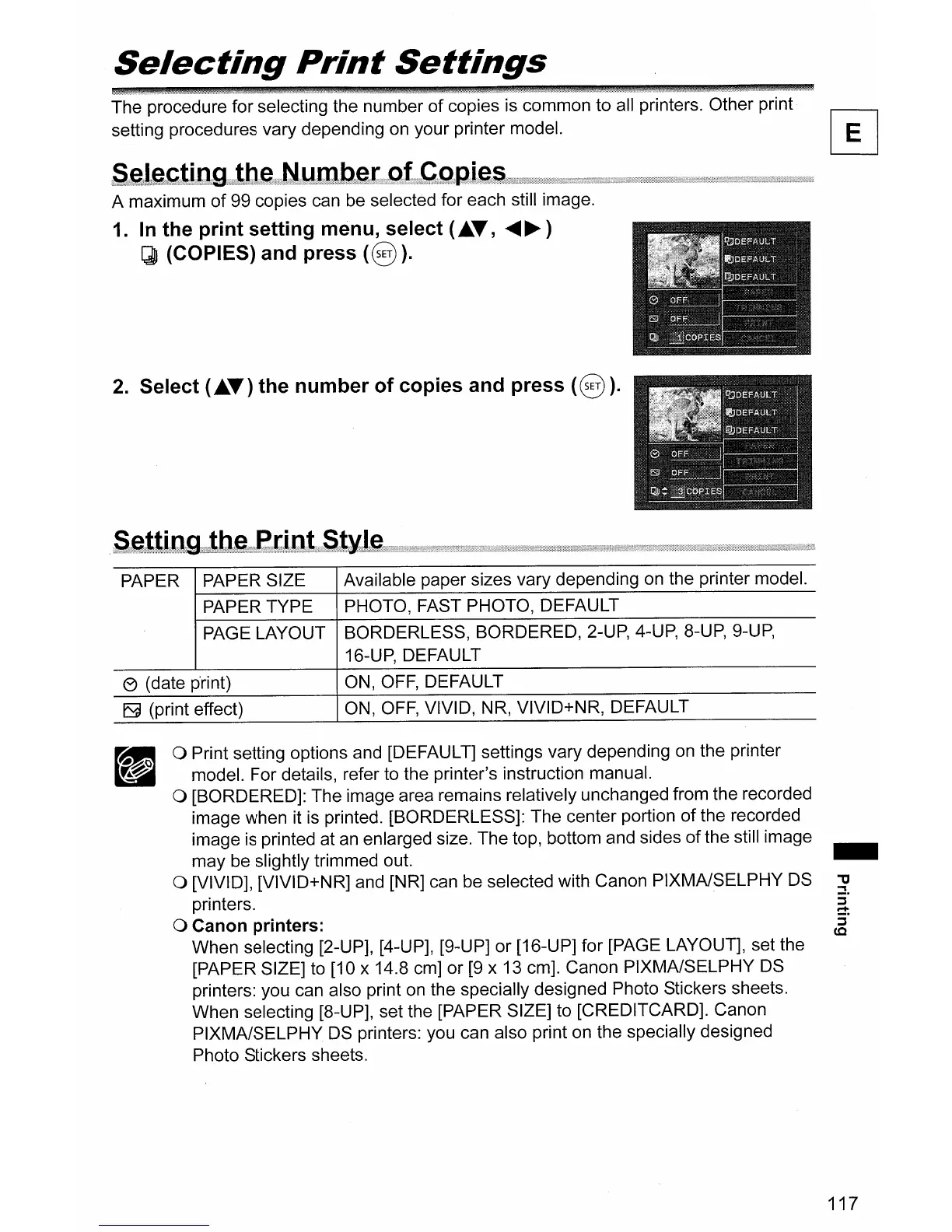
1.
In
the print setting menu, select
(~
..
,
.....
~)
IJJ
(COPIES) and press
(8
).
2.
Select
(~
..
) the number of copies and press
(8).
PAPER
PAPER SIZE
Available paper sizes vary depending on the printer model.
PAPER TYPE
PHOTO, FAST PHOTO, DEFAULT
PAGE LAYOUT
BORDERLESS, BORDERED, 2-UP, 4-UP,
8-UP,
9-UP,
16-UP, DEFAULT
e (date p'rint)
ON,
OFF,
DEFAULT
~
(print effect) ON,
OFF,
VIVID, NR, VIVID+NR, DEFAULT
o Print setting options and [DEFAULT] settings vary depending on the printer
model. For details, refer to the printer's instruction manual.
o [BORDERED]: The image area remains relatively unchanged from the recorded
image when it
is
printed. [BORDERLESS]: The center portion
of
the recorded
image is printed at
an
enlarged size. The top, bottom and sides
of
the still image
may be slightly trimmed out.
o [VIVID], [VIVID+NR] and [NR] can be selected with Canon PIXMAISELPHY
OS
printers.
o Canon printers:
When selecting [2-UP], [4-UP], [9-UP] or [16-UP] for [PAGE LAYOUT], set the
[PAPER SIZE] to [10 x 14.8 cm] or
[9
x 13 cm]. Canon PIXMA/SELPHY
OS
printers: you can also print on the specially designed Photo Stickers sheets.
When selecting [8-UP], set the [PAPER SIZE] to [CREDITCARD]. Canon
PIXMA/SELPHY
OS
printers: you can also print on the specially designed
Photo Stickers sheets.
-
117



 To Next Page