• Downloading the Selected Still Images from the
CameraWindow
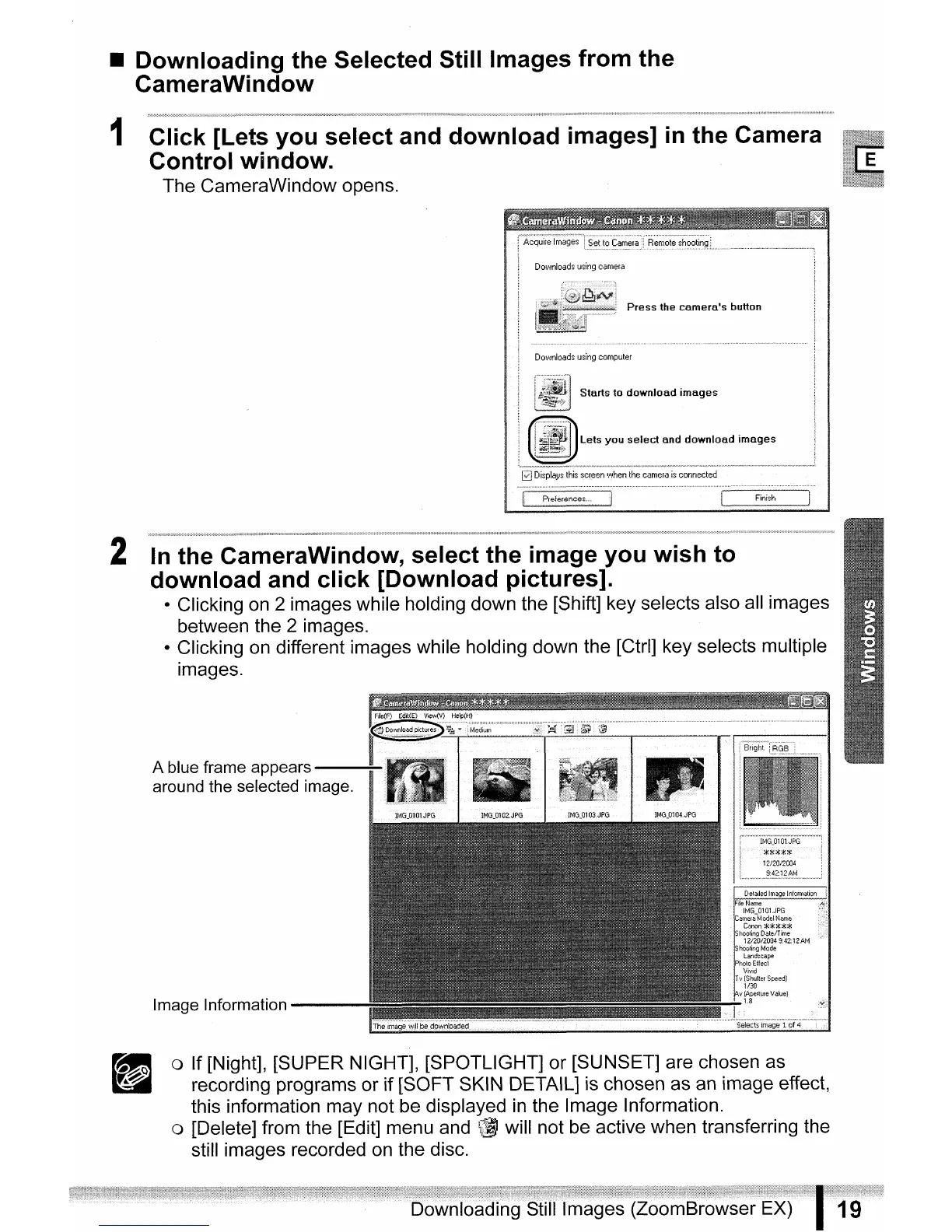
1 Click [Lets you select and download images]
in
the Camera
Control window.
The CameraWindow opens.
2
In
the CameraWindow, select the image you wish to
download and click [Download pictures].
• Clicking
on
2 images while holding down the [Shift] key selects also all images
between the 2 images.
• Clicking on different images while holding down the [Ctrl] key selects multiple
images.
FUe(F)
Ed,t(E)View(V)
Help(H)
~'Nnlo'dPic~:m,;i;~~i~~ii·
W.
@'j.
illil.
@
A blue frame appears
l··
-=:.[Ol,...-'.:_'
--="::-:;~=-=-r-----..-·r----~I
around the selected image.
Image Information
---
o If [Night], [SUPER NIGHT], [SPOTLIGHT] or [SUNSET] are chosen as
recording programs or if [SOFT SKIN DETAIL] is chosen as
an
image effect,
this information may not be displayed
in
the Image Information.
o [Delete] from the [Edit] menu and
~
will not
be
active when transferring the
still images recorded
on
the disc.
(ZoomBrowser EX)



 To Next Page