Viewing
Still
Images
-
1.
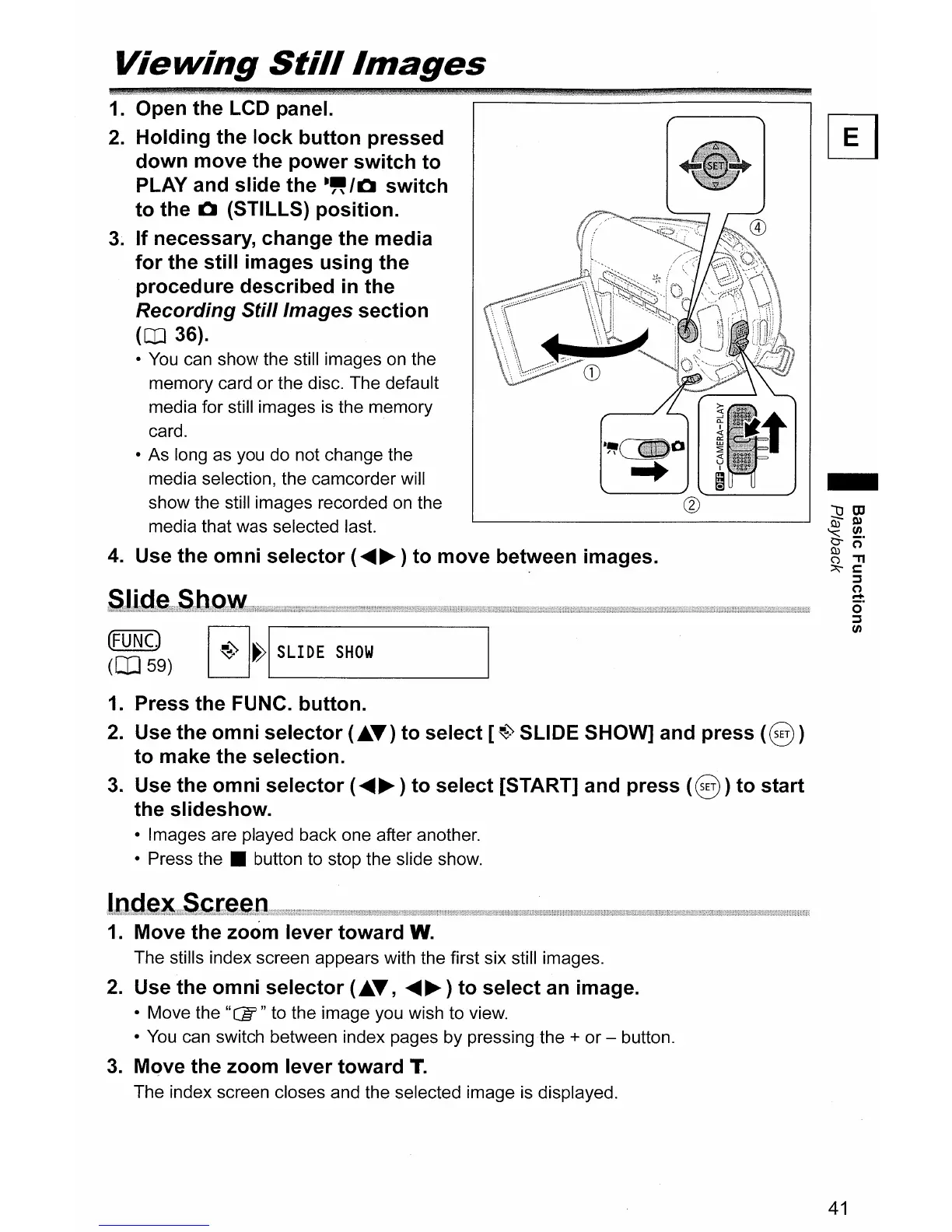
Open the LCD panel.
2.
Holding the lock button pressed
down move the power switch to
PLAY and slide the
-"'0
switch
to the 0 (STILLS) position.
3~
If necessary, change the media
for the still images using the
procedure described
in
the
Recording Still/mages section
(CD
36).
•
You
can show the still images on the
memory card
or
the disc. The default
media for still images is the memory
card.
• As long as you do not change the
media selection, the camcorder will
show the still images recorded on the
media that was selected last.
4.
Use the omni selector (
......
~
) to move between images.
(FUNC)
I
~)
I~I
SLIDE
SHOW
(CO
59)
L.....--
_
1.
Press the FUNC. button.
2.
Use the omni selector (£.T) to select
[~')
SLIDE SHOW] and press
(§
)
to make the selection.
3.
Use the omni selector (
......
~
) to select [START] and press
(§)
to start
the slideshow.
• Images are played back one after another.
• Press
the.
button to stop the slide show.
1.
Move the zoom lever toward W.
The stills index screen appears with the first six still images.
2.
Use the omni selector (£.T,
......
~)
to select
an
image.
• Move the "CB" to the image you wish to view.
• You can switch between index pages by pressing the
+
or
- button.
3.
Move the zoom lever toward T.
The index screen closes and the selected image is displayed.
41



 To Next Page