Printing
Still/mages
1'(
PictBridge
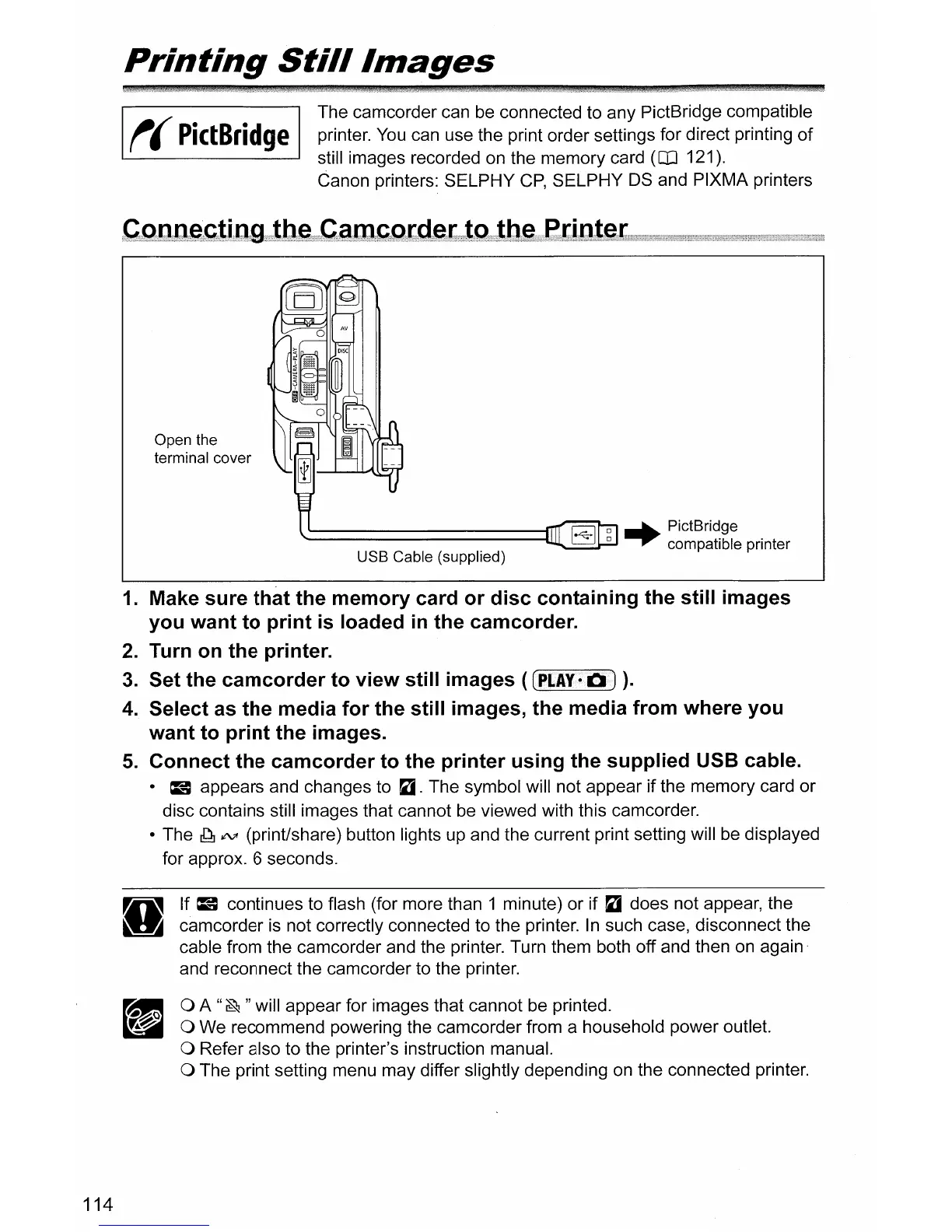
Open the
terminal cover
The camcorder can be connected to any PictBridge compatible
printer.
You
can use the print order settings for direct printing
of
still images recorded on the memory card (OJ 121).
Canon printers: SELPHY
CP,
SELPHY
OS
and PIXMA printers
~
.......... PictBridge
"------------~
...."... compatible pnnter
USB Cable (supplied)
114
1.
Make sure that the memory card or disc containing the still images
you want to print
is
loaded
in
the camcorder.
2.
Turn
on
the printer.
3.
Set the camcorder to view still images (
(PI.Ay·II!J/)
).
4.
Select
as
the media for the still images, the media from where you
want to print the images.
5.
Connect the camcorder to the printer using the supplied USB cable.
· =appears and changes to
~.
The symbol will not appear if the memory card or
disc contains still images that cannot be viewed with this camcorder.
• The
ddJ
ltV'
(print/share) button lights up and the current print setting will be displayed
for approx. 6 seconds.
If
=continues to flash (for more than 1 minute) or if
~
does not appear, the
camcorder
is
not correctly connected to the printer.
In
such case, disconnect the
cable from the camcorder and the printer. Turn them both off and then on again
and reconnect the camcorder to the printer.
o A
"~
" will appear for images that cannot be printed.
o We recommend powering the camcorder from a household power outlet.
o Refer also to the printer's instruction manual.
o The print setting menu may differ slightly depending on the connected printer.



 To Next Page