IBefore" Downloading Still Images
o Be sure to install the Digital Video Software before you connect the
camcorder to the computer.
o Make sure the camcorder
is
being powered using the power adapter before
connecting it to a computer.
o Connect the USB cable directly to one
of
the computer's main USB ports.
The interface may not function correctly if the camcorder is connected via a
USB hub.
o The connection may not operate correctly if you are using other USB
devices, excluding USB mice or keyboards, at the same time. If this occurs,
disconnect the other devices from the computer and try reconnecting the
camcorder.
o Do not connect two or more camcorders to the same computer via the USB
interface. The connections may not operate correctly.
o Never allow the computer to go into standby (sleep) mode while a
camcorder
is
connected via the USB interface.
o Refer to your computer manual for the location
of
the computer's USB ports.
o See your camcorder instruction manual for how to connect the camcorder to
the computer and how to change the media setting (MEDIA
SEL.O)
in
the
SYSTEM SETUP menu.
1 Insert a disc or a memory card containing images into the
camcorder.
2 Connect the power adapter to the camcorder.
3 Turn the power switch to PLAY and move the
-"'0
switch
to
O.
Wait until the camcorder's access indicator stops flashing.
4
To
download still images
on
the disc, select [DISC]
in
the
SYSTEM SETUP menu.
To
download still images
on
the card, select [CARD]
in
the
SYSTEM SETUP menu.
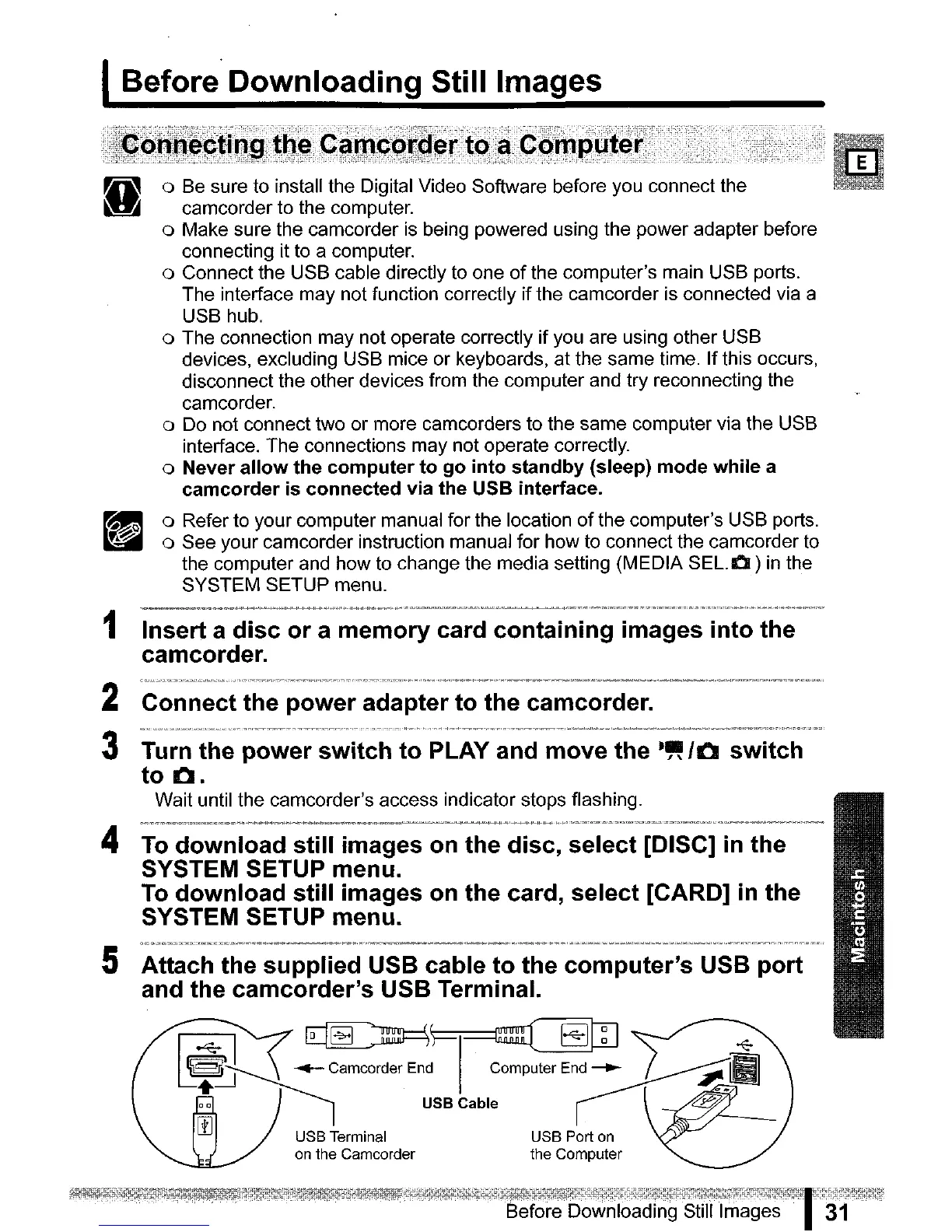
5 Attach the supplied USB cable to the computer's USB port
and the camcorder's USB Terminal.
~
~~8:J~
~
~~camcorderEnd
computerEnd.~~
~
~j.
00
) I USB Cable r \
~
I1J
USB
Terminal USB Port
on
on
the Camcorder the Computer



 To Next Page