1 Connect the camcorder to the computer
(OJ
11).
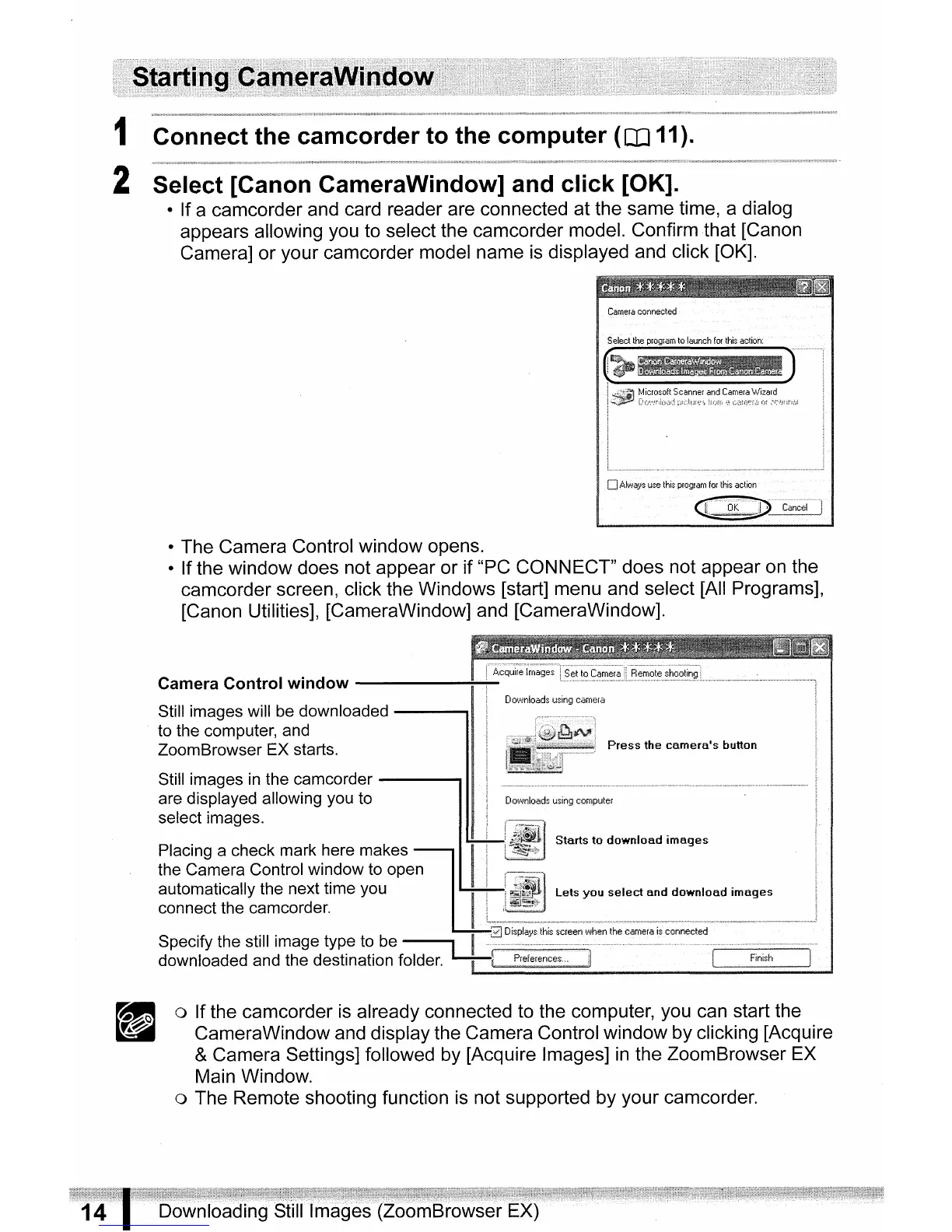
2 Select [Canon CameraWindow] and click [OK].
• If a camcorder and card reader are connected at the same time, a dialog
appears allowing you to select the camcorder model. Confirm that [Canon
Camera] or your camcorder model name
is
displayed and click [OK].
Camera
connected
Select
the
program
to
launch
for
this
action:
I~,~
1D
)
:---------
[J
Always
use
this
program
for
this
action
<C-BK--;p···
...
·c~~~~i·_
...
··l
• The Camera Control window opens.
• If the window does not appear or if "PC CONNECT" does not appear
on
the
camcorder screen, click the Windows [start] menu and select [All Programs],
[Canon Utilities], [CameraWindow] and [CameraWindow].
Starts
to
download
images
Press
the
camera's
button
Downloads
using
camera
Camera
Control
window
~~i·····6.~·~~i;~··f~~~g~~····.··s~tt?¢~~~;~
R'~;;:;~t~';h'~'~ti~'gi
Still images will be downloaded
--_
.
.u
to the computer, and
ZoomBrowser EX starts.
Still images
in
the camcorder
----
are displayed allowing you to
select images.
Placing a check mark here makes
1j
,
the Can:era Control
wi~dow
to open
automatically the next time you
I
Lets
you
select
and
download
images
connect the camcorder. I
Specify the still image type
to
be
~G:jDISPlaYsthlsscreenWhenthecameralsconnected
~
-.,
downloaded and the destination folder.
L...:l==pre=fe=ren=ce=s
...
=::-
........:;;;;;;;;;;;;;;,;;;:;.;;;;;;Fin;;;;;;;ish;;;;;;;;;;;;;;~_I
o If the camcorder
is
already connected to the computer, you can start the
CameraWindow and display the Camera Control window by clicking [Acquire
&Camera Settings] followed by [Acquire Images]
in
the ZoomBrowser EX
Main Window.
o The Remote shooting function
is
not supported by your camcorder.



 To Next Page