M-Series Operator’s Manual
4/9/15
3-7
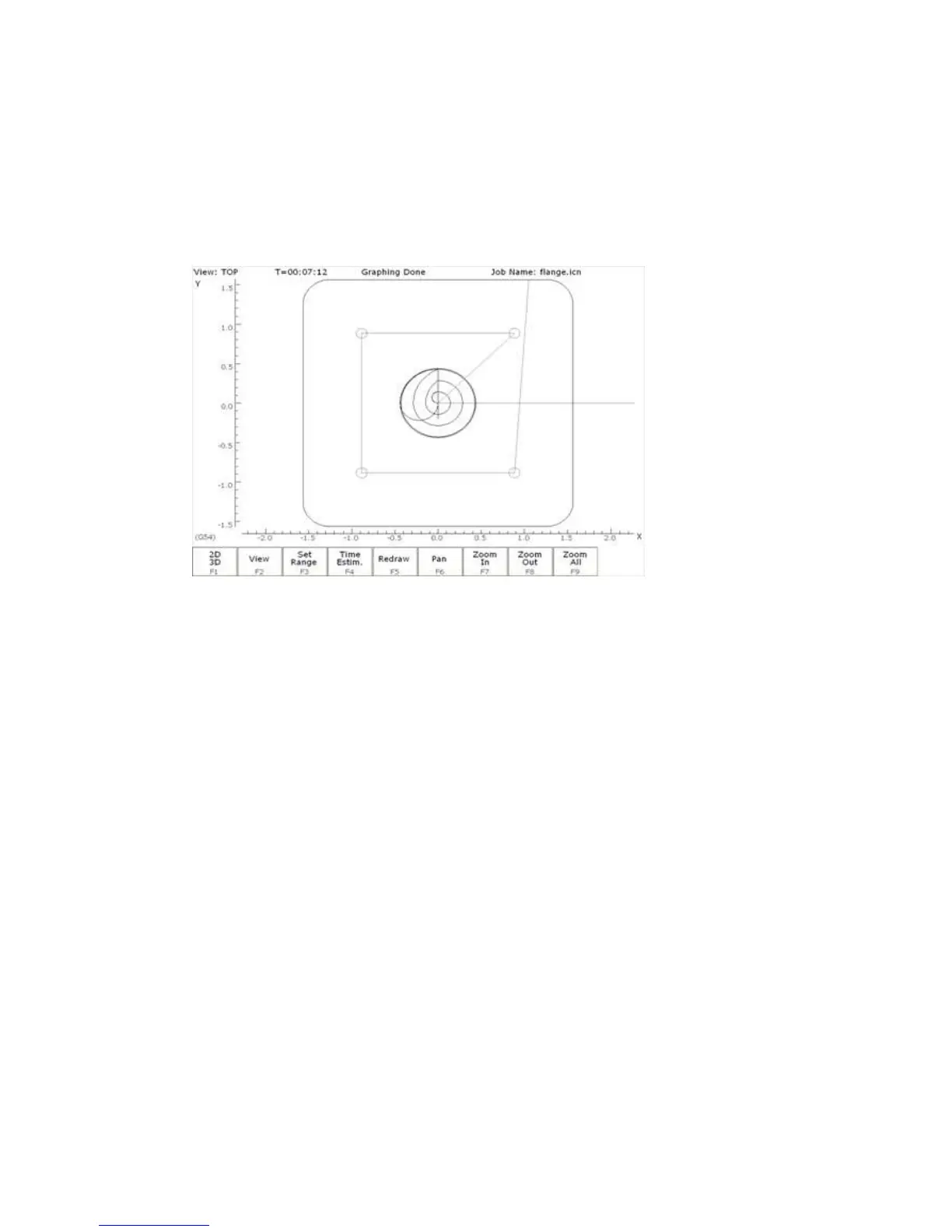
F8 – Graph
This function plots the tool path of the current program loaded. Canned drilling cycles are shown in
gray. Rapid traverse movements are shown in red. Feedrate movements are shown in yellow and cutter
compensated moves are in gray.
F1 - 2D/3D Press this key to view your part isometrically (3D). An axis pointer indicates the current
direction of the view. To return back to the tri-planar view, press F1 again.
F2 – View/Rotate Press this key to change the planar view of your part. The view is indicated by TOP,
RIGHT, or FRONT shown at the top of the screen. In 3D Mode, use this key in 3D
mode to rotate your part, using the keyboard arrow keys to rotate any in direction.
F3 – Range Press this key to set the range of line numbers or block numbers to graph.
F4 – Time Press this key to estimate the time needed to create part. It takes into account
accelerations and decelerations, but neglects tool change times.
F5 – Redraw Press this key to redraw the part at any time.
F6 – Pan Press this key to move the part around the screen. Once pressed, use the crosshairs to
pick a location of the part that will redraw at the center of the screen. Once a section is
selected, press F6 again to continue panning.
F7 - Zoom In Press these keys to zoom into the part relative to the center of the screen.
F8 - Zoom Out Press these keys to zoom away from the part relative to the center of the screen.
F9 - Zoom All Press this key to view the entire part fit inside the screen.
*Note: Use the FEEDRATE OVERRIDE knob to control the speed of the graphing. To pause the tool path,
turn the knob counter-clockwise until it stops. Turn the knob clockwise to resume drawing. On the
offline demo software, the simulated FEEDRATE OVERRIDE knob is controlled by pressing
either Ctrl + or Ctrl –.


 To Next Page