M-Series Operator’s Manual 4/9/15
10-52
Importing DXF files (Optional)
Intercon allows you to convert geometry in DXF files to Intercon operations. To insert operations from a DXF file
press F6 – Other then F8 - Import DXF. If no DXF files have been loaded yet, the Intercon load file menu will
appear. From here you may select the DXF file you wish to load. By default, Intercon expects DXF files to reside in
the c:\cncm\ncfiles directory. To change the default directory used by the Intercon load menu when loading DXF
files, see the “User Specified Paths” section of Chapter 14.
Intercon reads DXF files up to and including version R14. At this time, only point, line, arc, circle, polyline and
lwpolyline entities can be used to create Intercon operations. All other entities such as text must be converted to lines
and arcs for them to appear in the Intercon Import DXF menu.
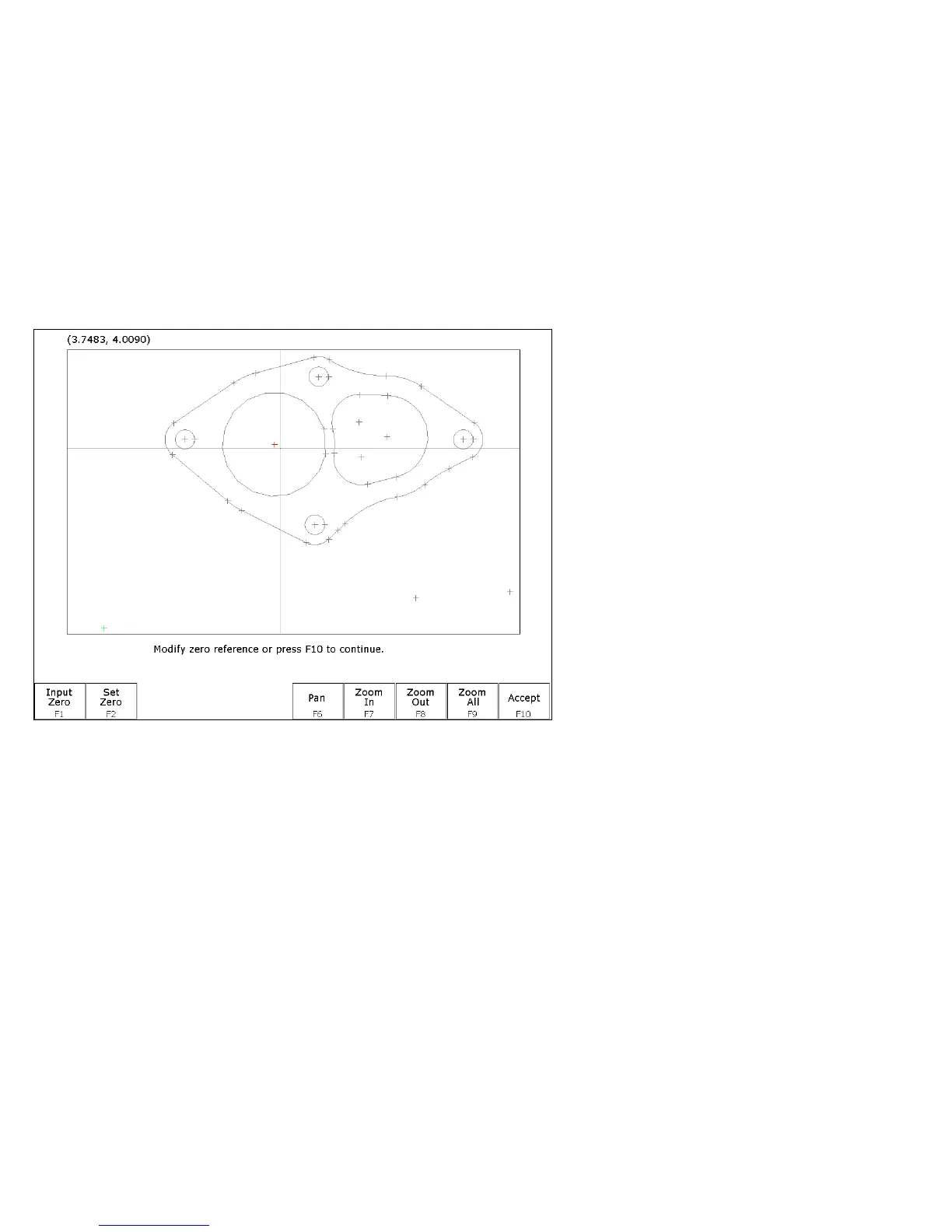
After a DXF file has been loaded, the Set zero reference menu appears.
This menu allows you to change the absolute zero reference of the DXF file. The current zero reference appears as a
green cross. All other points appear as gray crosses. A new zero reference may be defined by a combination the
following methods:
• Press F1 - Input Zero to enter the coordinates of the new zero reference.
• Move the crosshairs with the arrow keys to highlight a point (represented by a gray cross) and
when the crosshairs are close to a gray cross it will change red. Press F2 - Set Zero to set the zero
reference to the position of that point.
When satisfied with the current location of the zero reference, press F10 - Accept. The zero reference may be changed
multiple times before pressing F10 - Accept.


 To Next Page