Control Station Duetto Program interface
2.0/0518 109
Pause call 3: Tap on the pause button to interrupt one or more calls.
Change audio source 4: Tap on the audio source button to change the audio source for the
call (handset, loudspeaker, headset – if connected).
Terminate call 5: Tap on the red handset button or hang up the handset to cancel an active call.
Camera
With the built-in video camera (EE 980CM or SIP-EE 980CM) or a connected IP camera, DUETTO can
perform calls with a video output. Further information about the configuration of the built-in video
camera and IP cameras can be found
on page 43.
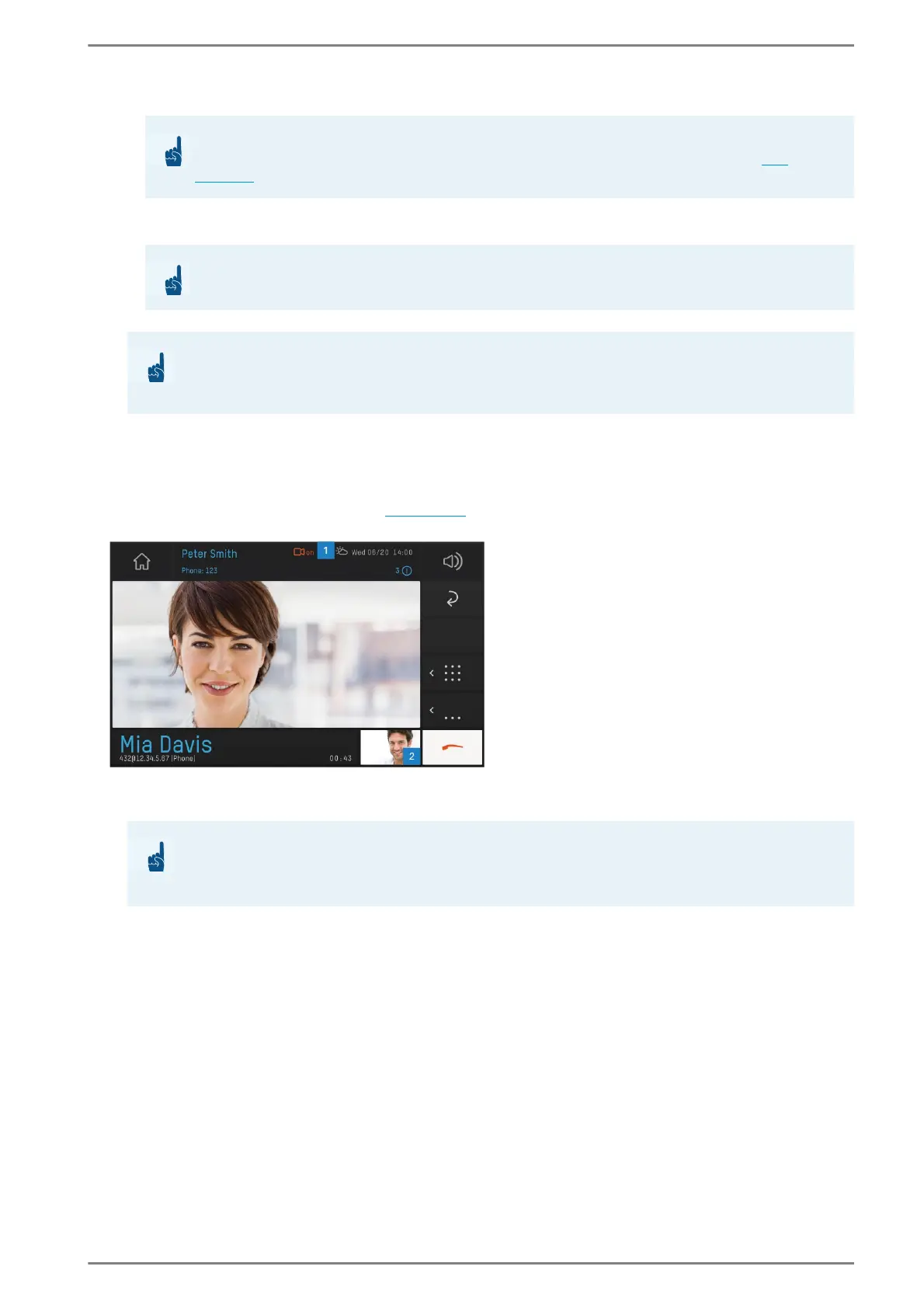
User interface “camera”
The red camera button 1 will be displayed in the status bar when the camera is activated.
Switch off camera 2: Tap on the miniature video image to switch off the camera during the call.
A red camera button appears instead.
ATTENTION: Restrictions at control desk function
Intercom calls can only be paused if DUETTO is configured as a primary control desk (see
page 129)!
ATTENTION: Handset is activated when picked up
The handset will be activated automatically when picked up before or during a call!
ATTENTION: Continue conversation without handset
If you hang up the handset and want to continue the call via loudspeaker, change the audio source
first!
ATTENTION: Pay attention to the camera symbol
If this symbol appears when there is no active call, the video is visible at any other station
(e.g. other Commend devices or in web browser)!


 To Next Page