Control Station Duetto Web interface – Customization
2.0/0518 61
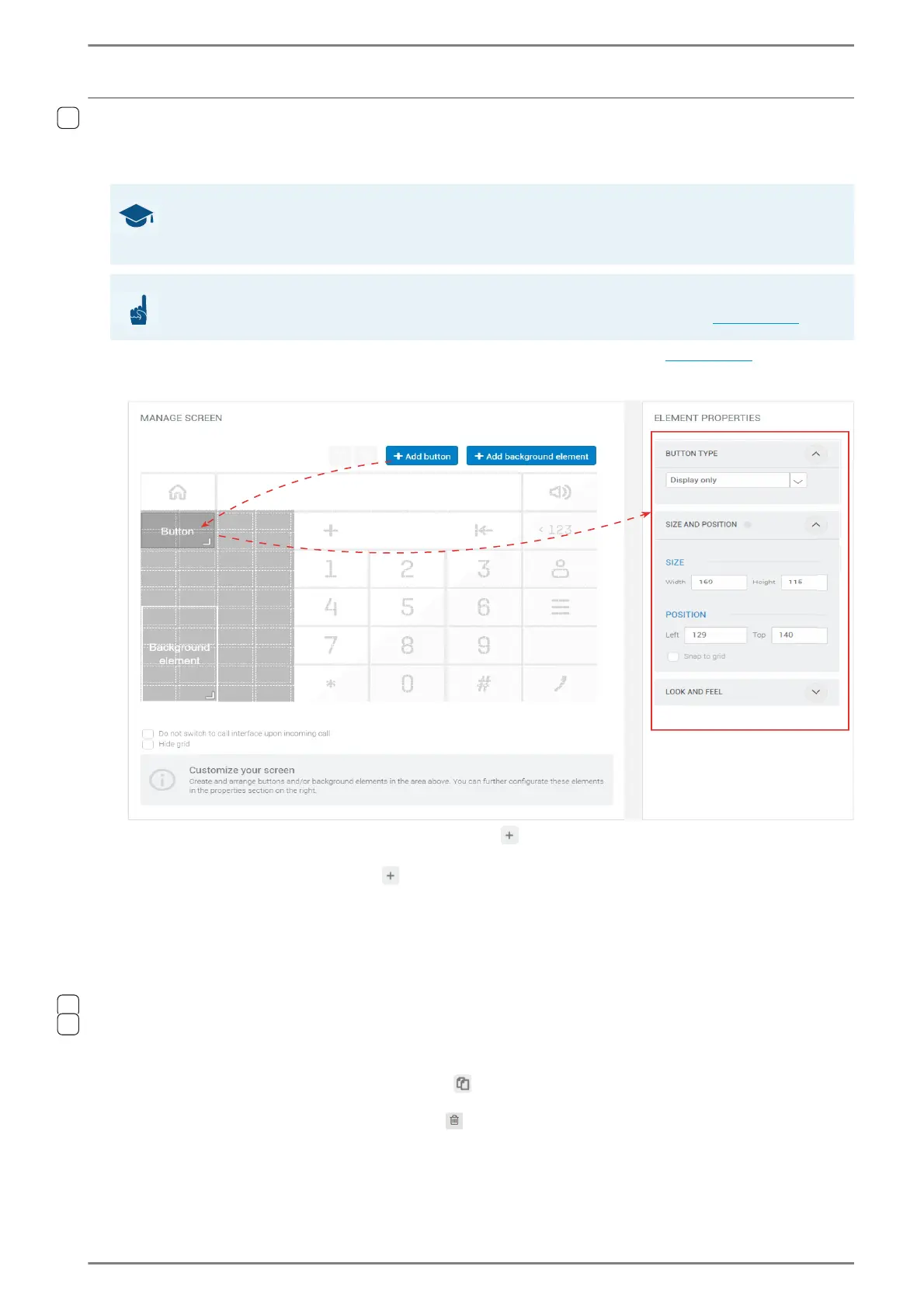
Keypad sidebar editing
DUETTO > CUSTOMIZATION > SCREENS
Move the cursor over the desired screen. Click on a element to configure it (see page 58).
Manage Screen > Edit (Sidebar Screens)
Add background element: Click on the button Add background element to add a back-
ground element in the virtual screen preview.
Add button: Click on the button Add button to add a button element in the virtual screen pre-
view.
Hide status bar: (Only for „Full screens“.) Activate this checkbox to hide the upper status bar
of the respective full screen of the DUETTO device.
Do not switch to call interface upon incoming call: Activate this checkbox to prevent an
automatic switch to the call app during an incoming or outgoing call (e.g. when initiating a call
with direct dialling button).
Hide grid: Activate this checkbox to hide the grid in the virtual screen preview.
Move the cursor over the desired element in the virtual screen preview to display the control
panel.
The following functions are available with the control panel for the selected element:
Create duplicate: Click on the button to duplicate the selected element. The duplicated el-
ement has the same size and configuration as the original.
Delete element: Click on the button to delete the selected element.
➥ Click on the button Save to save the settings.
GOOD TO KNOW: How many elements can be added?
By means of the keypad sidebar screen, up to 40 buttons and background elements can be added in 10
rows with 4 elements each.
ATTENTION: Only for numeric and alphanumerical keypads
The keypad sidebar is only available for the numerical and alphanumerical keypad (see page 120)!


 To Next Page