Program interface Control Station Duetto
94 2.0/0518
Home screen
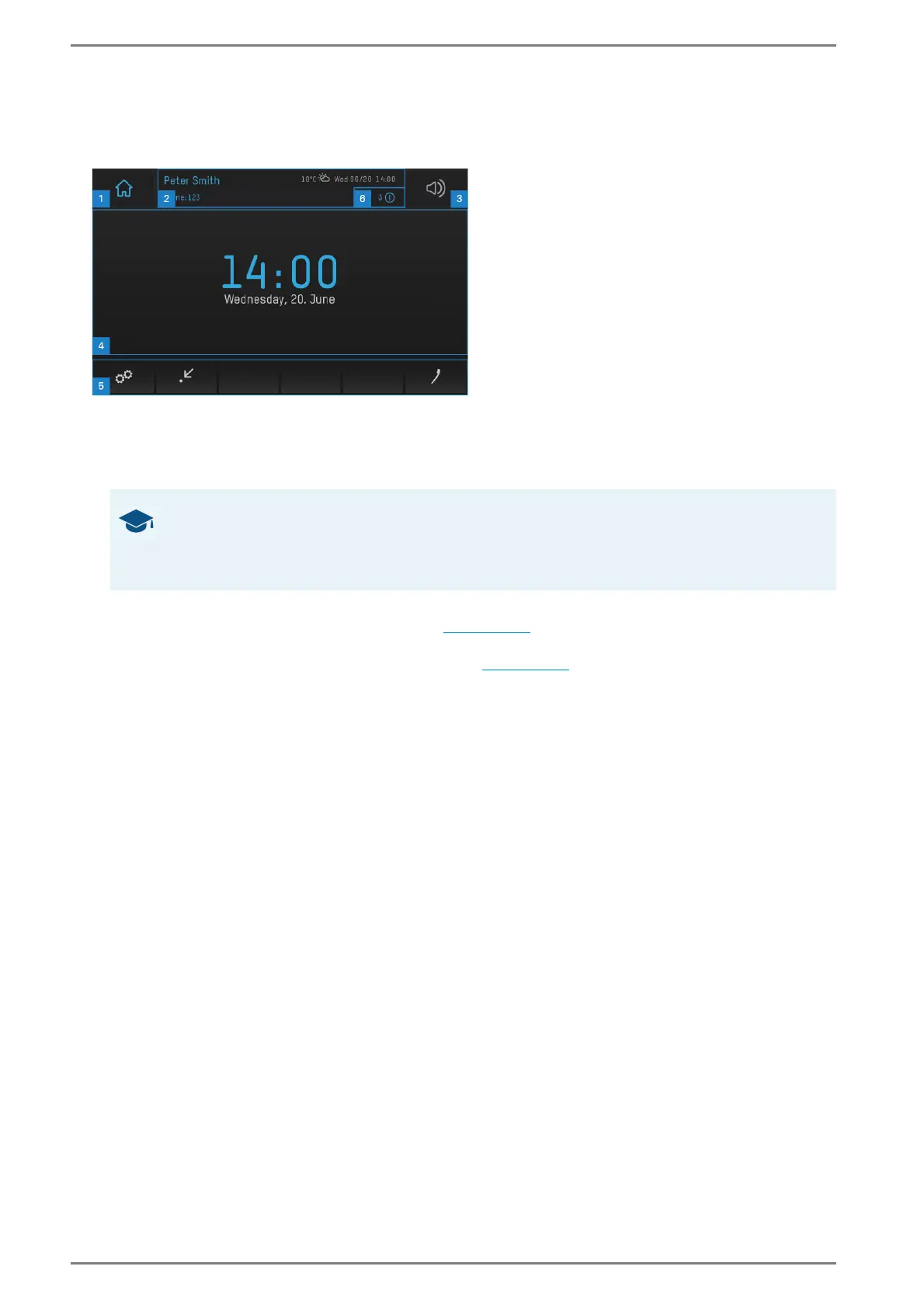
In its default configuration, the home screen of DUETTO may look like this:
User interface “home screen”
Home button 1: Switches back to the home screen from any view.
Status bar 2: The status bar shows important device and status information (e.g. device name, call
number, current date, weather information or time).
Volume 3: Opens the audio setting screen. In this view, the volume of the audio sources can be
adjusted (e.g. volume of handset during call;
see page 96).
Background 4: A background image or slide show can be set up via the web interface, which is
then shown on the display of the DUETTO device (
see page 23).
Main menu bar 5: Via these buttons, it is possible to open various menus of the DUETTO device
(e.g. device settings, screens or call app). These buttons can be placed individually in the main menu
bar via the web interface (except for the handset button).
Notifications 6: At certain events, an icon is displayed on the DUETTO device (e.g. at a missed
call). Tap on this icon to indicate detailed information about the respective events.
GOOD TO KNOW: Online weather function
Weather information will be displayed automatically on the status bar when an active Internet
connection is available. The displayed weather information is based on the IP geolocation of the
DUETTO device (beware of a false IP geolocation when using VPN).


 To Next Page