Web interface – Device Control Station Duetto
40 2.0/0518
Display configurations
DUETTO > DEVICE > DISPLAY
Display
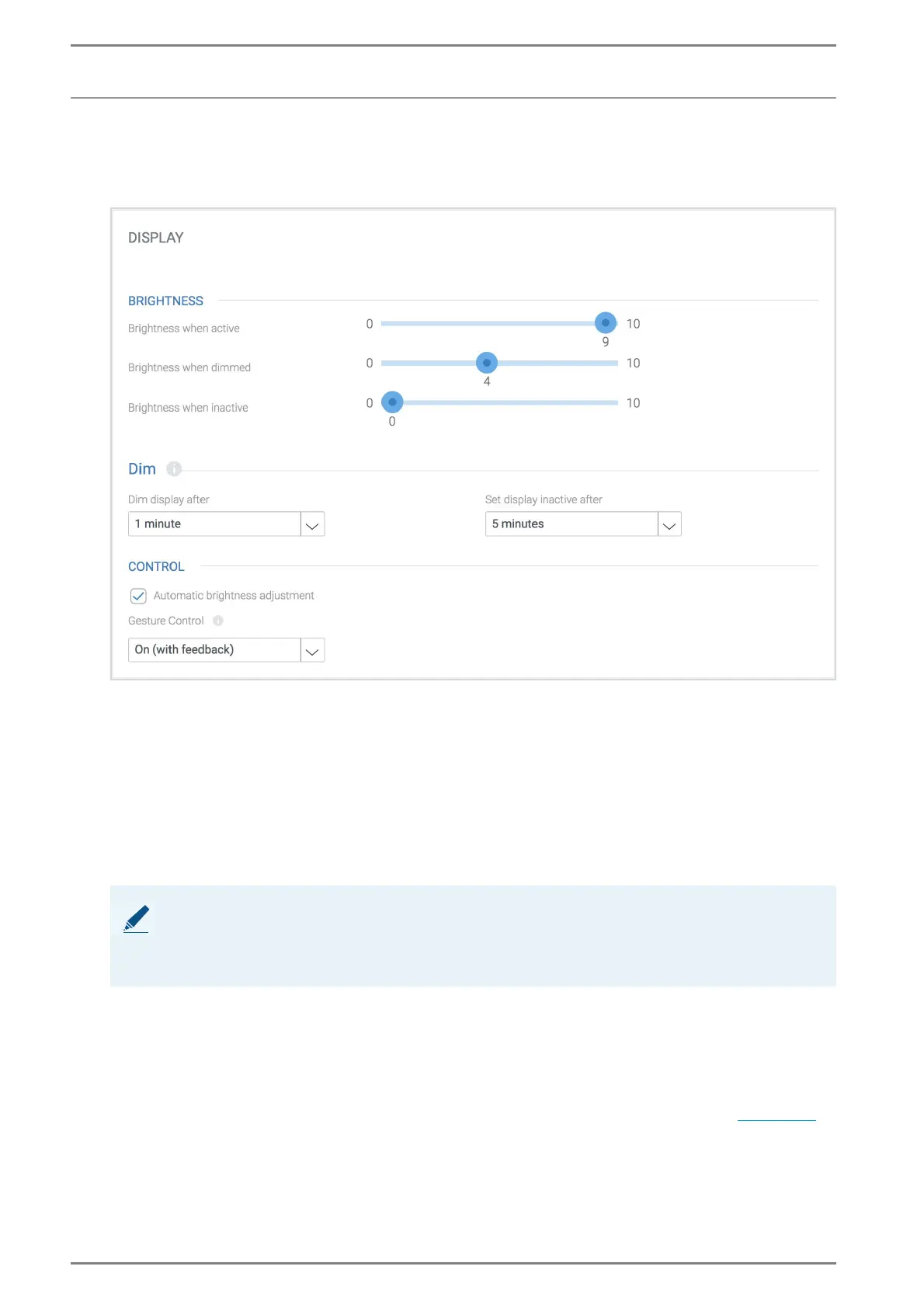
Brightness
Brightness when active: Adjust the brightness of the activated display.
Brightness when dimmed: Adjust the brightness of the dimmed display.
Brightness when inactive: Adjust the brightness of the inactivate display.
Dim
Dim display after: In this drop-down list, the time after which the display will be dimmed in
case of inactivity can be selected.
Set display inactive after: In this drop-down list, the time after which the display automati-
cally turns off can be selected. The display will be activated by an incoming call or when the
display is tapped or swiped or a hand is placed near the right bottom of the DUETTO.
Control
Automatic brightness adjustment: Activate this checkbox to increase or decrease the dis-
play illumination automatically according to ambient light.
Gesture control: In this drop-down list, the condition for reactivating the display can be se-
lected. The following settings are available:
Off: Tap the display.
On: Swipe or put a hand near the right bottom of the DUETTO (gesture control; see page 6).
On (with feedback): Simply swipe or put a hand near the right bottom of the DUETTO (ges-
ture control). The status LED on the front of the device is activated.
➥ Click on the button Save to save the settings.
NOTE: Applied display brightness/activity
If both settings have the same value, the parameter “Set display inactive after” is applied.
If the value of the parameter “Dim display after” is higher than “Set display inactive after”, the set-
ting “Dim display after” will be used first.


 To Next Page