Setup guide Control Station Duetto
14 2.0/0518
First connection
Establish connection
DUETTO is configured ex-works for DHCP. If no DHCP server is available, DUETTO uses a link-local IP
address through which the web interface can be accessed:
In order to find out the IP address, tap on the settings button on the display of DUETTO, tap on
the information button in the appearing menu and tap on the arrow button to open the device
information dialogue . → Default IP address: 169.254.x.x → Default subnet mask: 255.255.0.0
If DUETTO cannot be used in the local network (LAN) with the configured IP address, the following pro-
cedure is recommended:
Establish a connection between the computer and DUETTO via a hub or switch.
The PC has to be in the same subnet as DUETTO. An appropriate IP address of that subnet range has
to be allocated to the computer temporarily.
Firmware and bootloader upgrade
To keep your device up to date and to prevent security gabs, we recommend to use always the latest
firmware version . For information about the installed version, use the page Overview in the web in
-
terface (see ”Web interface overview” on page 22).
The latest firmware and bootloader version can be found here: www.commend.com
or at https://support.bct-electronic.com/downloads/one/latest/
Firmware upgrade
For information about firmware upgrade, see ”Update device” on page 81.
Bootloader updater
It is mandatory to update the bootloader if following version is installed: v0.6
It is recommended to update the bootloader if following versions are installed: v0.8, v0.9.5
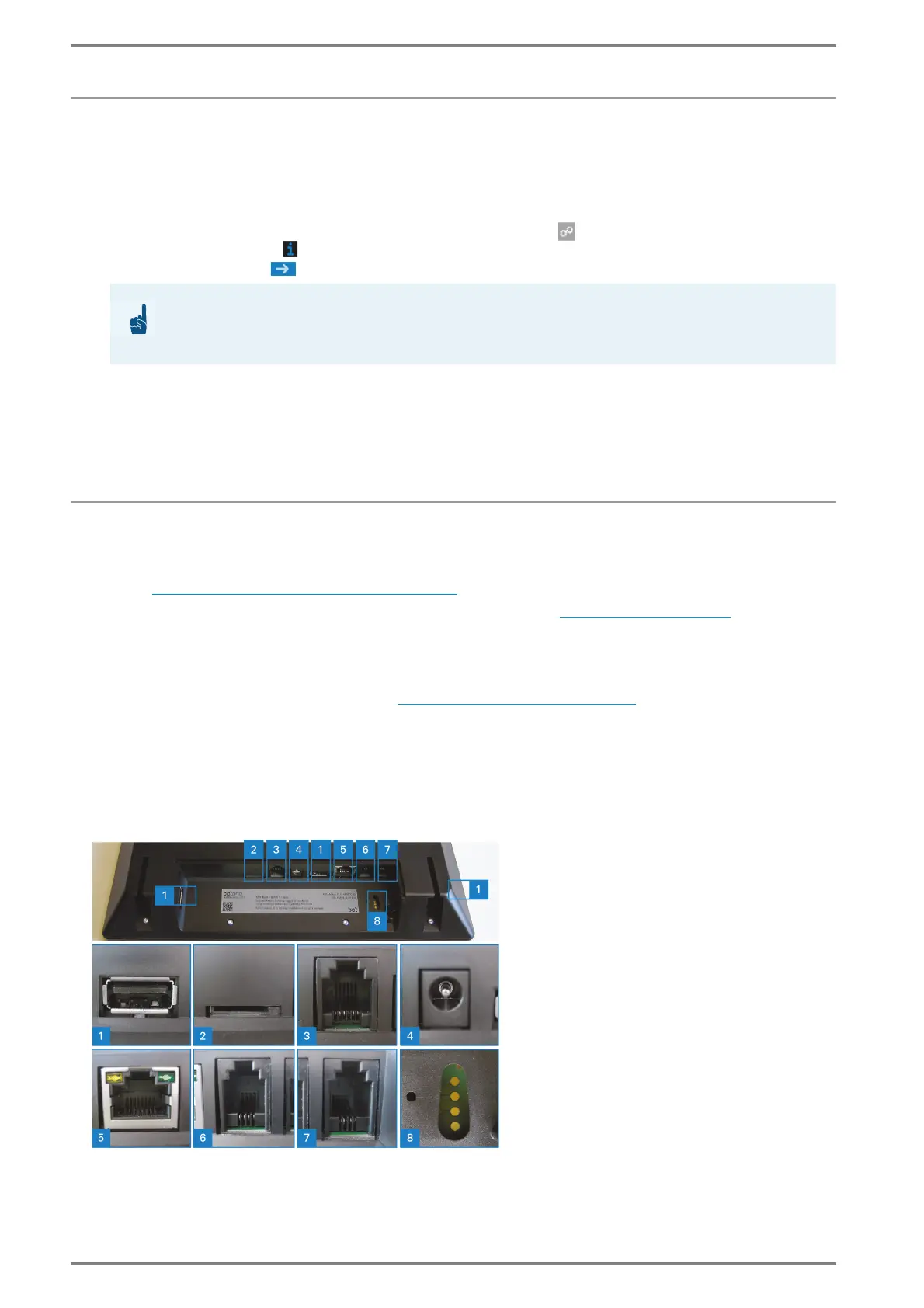
Overview – Connectors
DUETTO “Connections”
ATTENTION: Use a unique IP address
When connecting DUETTO to the local network (LAN), it is essential to make sure that this IP address
does not already exist in the network!


 To Next Page