Control Station Duetto Web interface – Customization
2.0/0518 57
Screens configuration
DUETTO > CUSTOMIZATION > SCREENS
In this section, full screens and keypad sidebars can be configured to provide quick and easy one-tap
access to frequently used functions (e.g. Intercom call, SIP call, direct dialling, HTTP request or video
stream in real-time).
Screens
Click on the export button to save the screens as a BSF file on the connected computer.
Click on the import button to import or export full screens and keypad sidebars. Select the
desired BLF file and click on the import button.
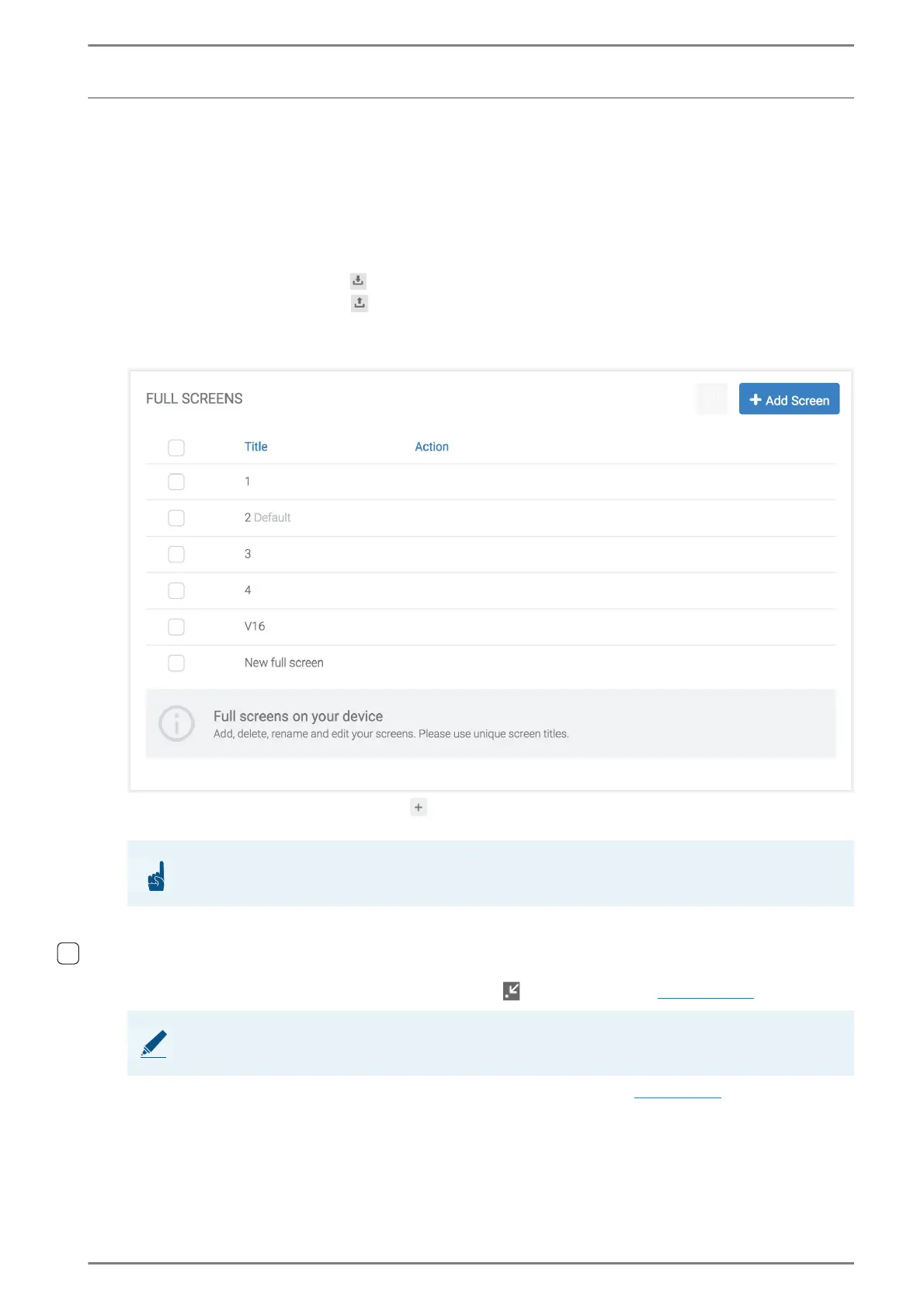
Full Screens
Click on the button Add screen to create a new full screen.
Title: In this field, enter the description of the full screen.
Action: Move the cursor over the desired screen. The following functions will appear:
Click on the button Delete to delete the respective full screen.
Click on the button Duplicate to duplicate the respective full screen.
Click on the button Default next to the respective full screen to set it as default screen. This
screen can be opened with the screen button
via the menu bar (see page 111).
Click on the button Edit to configure the respective full screen (see page 59).
ATTENTION: Use different descriptions
Use different descriptions for all full screens and keypad sidebars.
NOTE: Only one default screen is possible
Only one screen can be set as default screen.


 To Next Page