Web interface – Customization Control Station Duetto
58 2.0/0518
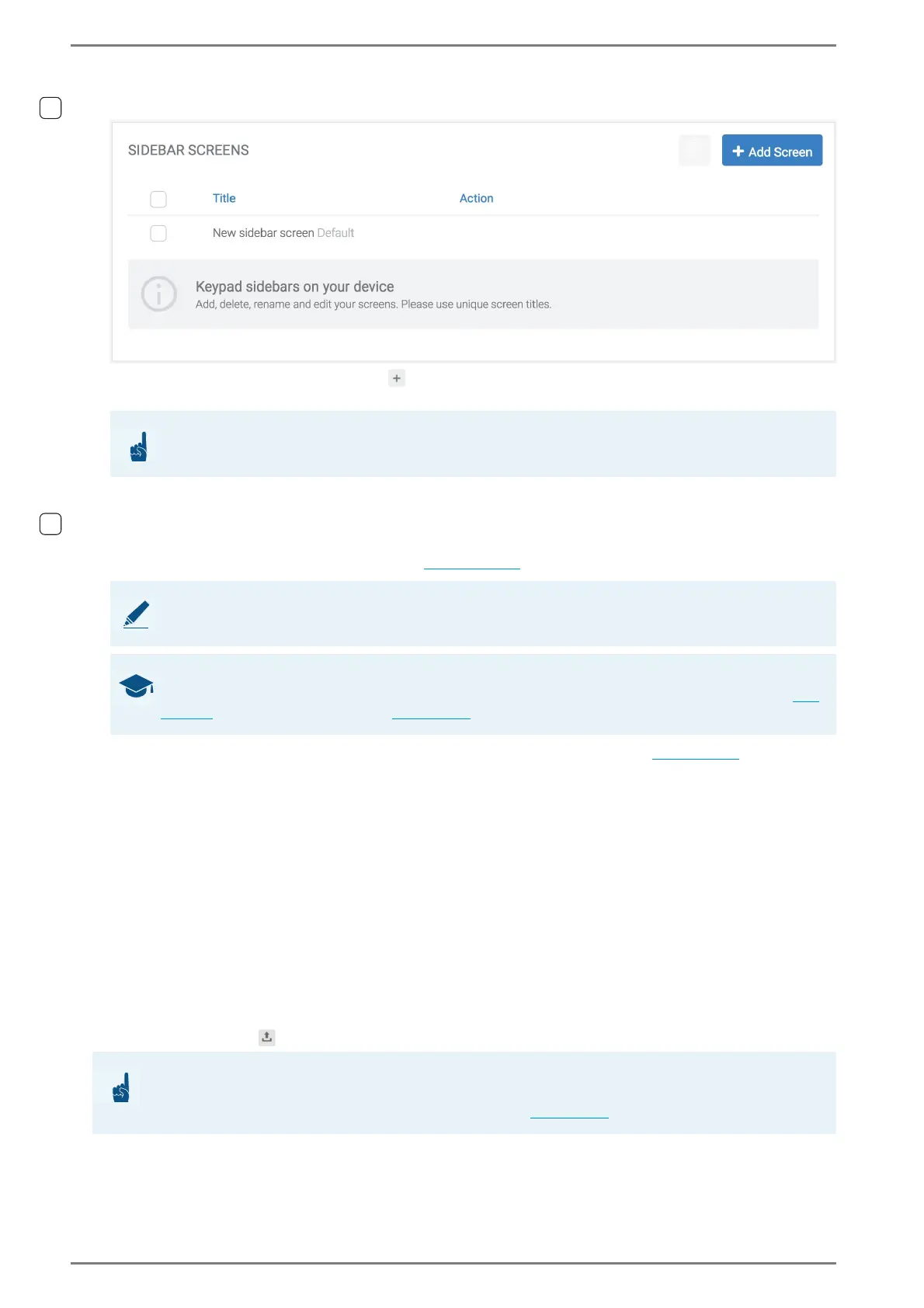
Sidebar Screens
Click on the button add screen to create a new keypad sidebar.
Title: In this field, enter the description of the keypad sidebar.
Action: Move the cursor over the desired screen. The following functions will appear:
Click on the button Delete to delete the selected keypad sidebar.
Click on the button Duplicate to duplicate the respective keypad sidebar.
Click on the button Default next to the respective keypad sidebar to show this sidebar perma-
nently in the keypad of the DUETTO (see page 104).
Click on the button Edit to configure the respective keypad sidebar (see page 61).
Import Screens
This section shows information about the current BSF-import file.
Import Behavior
Select one of the appearing buttons:
Replace currently configured screens with imported screens: During import, all full
screens and keypad sidebars stored on the device will automatically be replaced by the full
screens and keypad sidebars stored in the imported BSF file. Click on the button Import.
Merge screen sets: All unique full screens and keypad sidebars on the device will remain.
Select the desired version for each screen and/or keypad sidebar that will remain at the import of
the BSF file:
Current version: Screen or keypad sidebar stored on the device will remain.
Imported version: Screen or keypad sidebar stored in the BSF file will be used. Click on the
import button
.
➥ Click on the button Save to save the settings.
ATTENTION: Use different descriptions
Use different descriptions for all full screens and keypad sidebars.
NOTE: Only one keypad sidebar will be indicated
Only one sidebar can be displayed at the same time on the keypad.
GOOD TO KNOW: Switch between keypad sidebars
In order to switch between several keypad sidebars on DUETTO, configure the respective rules (see
page 66) or direct dialling buttons (see page 68).
ATTENTION: The default screen will be overwritten!
The default screen settings of the DUETTO device will be overwritten by the BSF import. Make sure that
the desired default screen is selected in the web interface (see page 20)!


 To Next Page