Web interface – Customization Control Station Duetto
66 2.0/0518
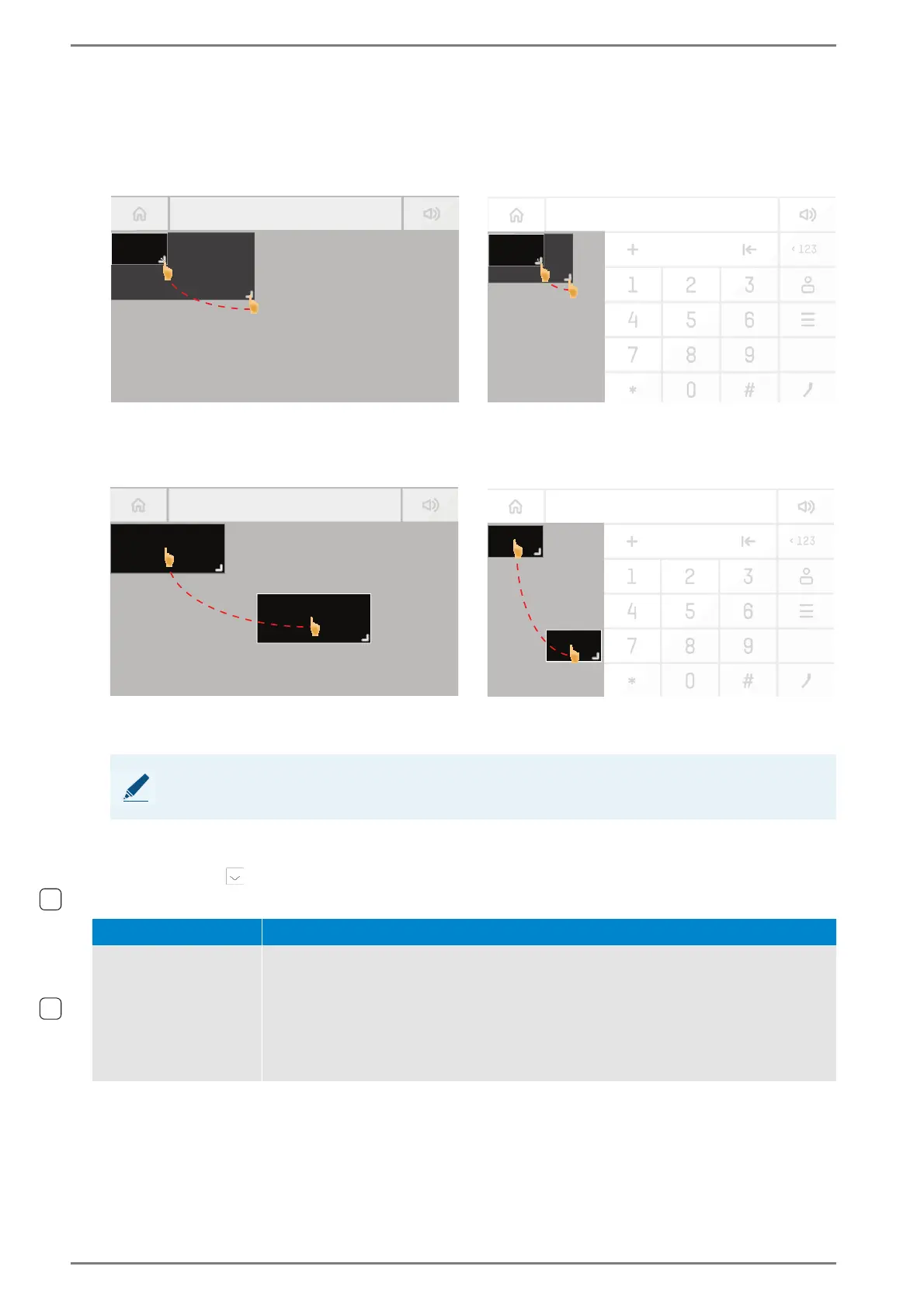
Change position and size with the cursor
Change the size: Move the cursor over the edge of the element in the virtual screen preview until
a double-arrow symbol appears instead of the mouse cursor. Click on the element and drag it to the
desired size. See the following illustration:
Change the size of the element with the cursor
Position: Select the desired element in the virtual screen preview. Drag and drop it to the desired
position using the cursor. See the following illustration:
Drag and drop the element in the virtual screen preview
➥ Click on the button Save to save the settings.
DUETTO > CUSTOMIZATION > SCREENS
Look and Feel
The following elements are available for button and background elements:
NOTE: Do not stack elements
It is not recommended to stack elements.
Function Description
Text
In this field, the label for the element can be entered, which will be indicated within
the element on the display of DUETTO (also during active video stream). Font, colour,
size and position of the label cannot be changed.
Text color: Click on this button and select the desired colour for the element label.
NOTE: It is recommended to enter a name for each button or static element. Other-
wise, it might be hard to see them against the dark background of the screen menu of
DUETTO.


 To Next Page