Program interface Control Station Duetto
106 2.0/0518
Tap on the blue button 3 in order to initiate a call to the entered number or tap on the desired
address book entry
4 in order to initiate a call to this contact.
Tap on the information button 5 to show the corresponding contact details.
Classic Intercom user interface
Further information about the classic Intercom user interface can be found on page 126.
Incoming calls
In the case of incoming calls, there are several possibilities for call handling.
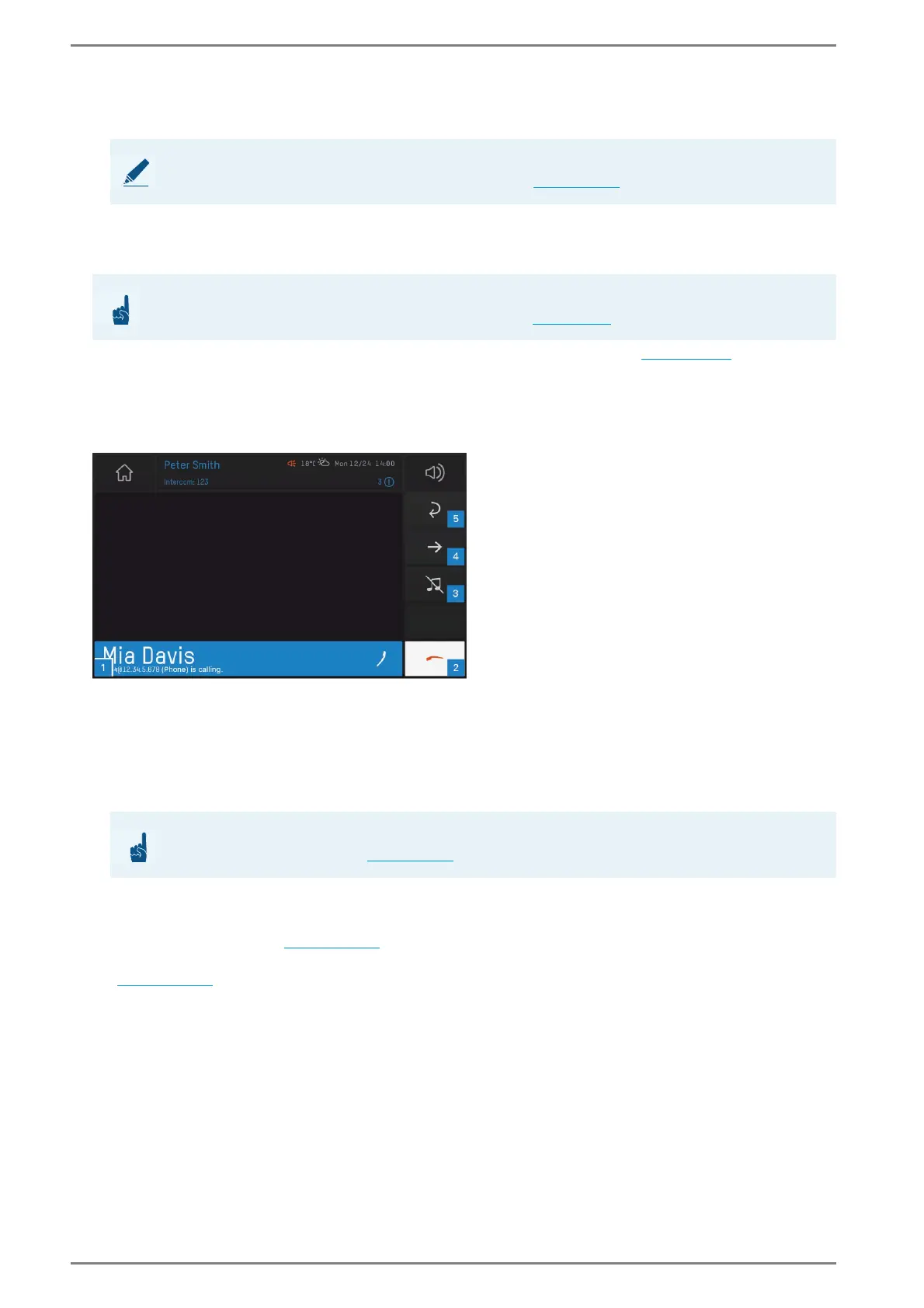
User interface “incoming calls”
Information about the calling subscriber is displayed on the blue bar 1, (e.g. contact name, SIP call
number, Intercom call number or call state).
Answer a call 1: Tap on the blue button to accept an incoming call. Incoming calls, privacy calls,
and door calls can also be answered by lifting the handset (if connected).
Reject a call 2: Tap on the red handset button to reject an incoming call.
Ignore a call 3 (only for SIP calls): Tap on the crossed-out note button to mute the ringtone of an
incoming call. The call will not be rejected.
Transfer a call 4 (only for SIP calls): Tap on the arrow button to transfer an incoming or active call.
A new screen appears (
see page 107).
Back 5: Tap on the return button to switch back the view to the list view. Incoming calls are on hold
(
see page 110).
NOTE: Call via the address book
It is also possible to initiate a call from the address book (see page 114).
ATTENTION: Only available in Intercom mode
The following function is only available in Intercom mode (see page 95)!
ATTENTION: Reject calls
Some calls cannot be rejected (see page 120)!


 To Next Page