Control Station Duetto Program interface
2.0/0518 105
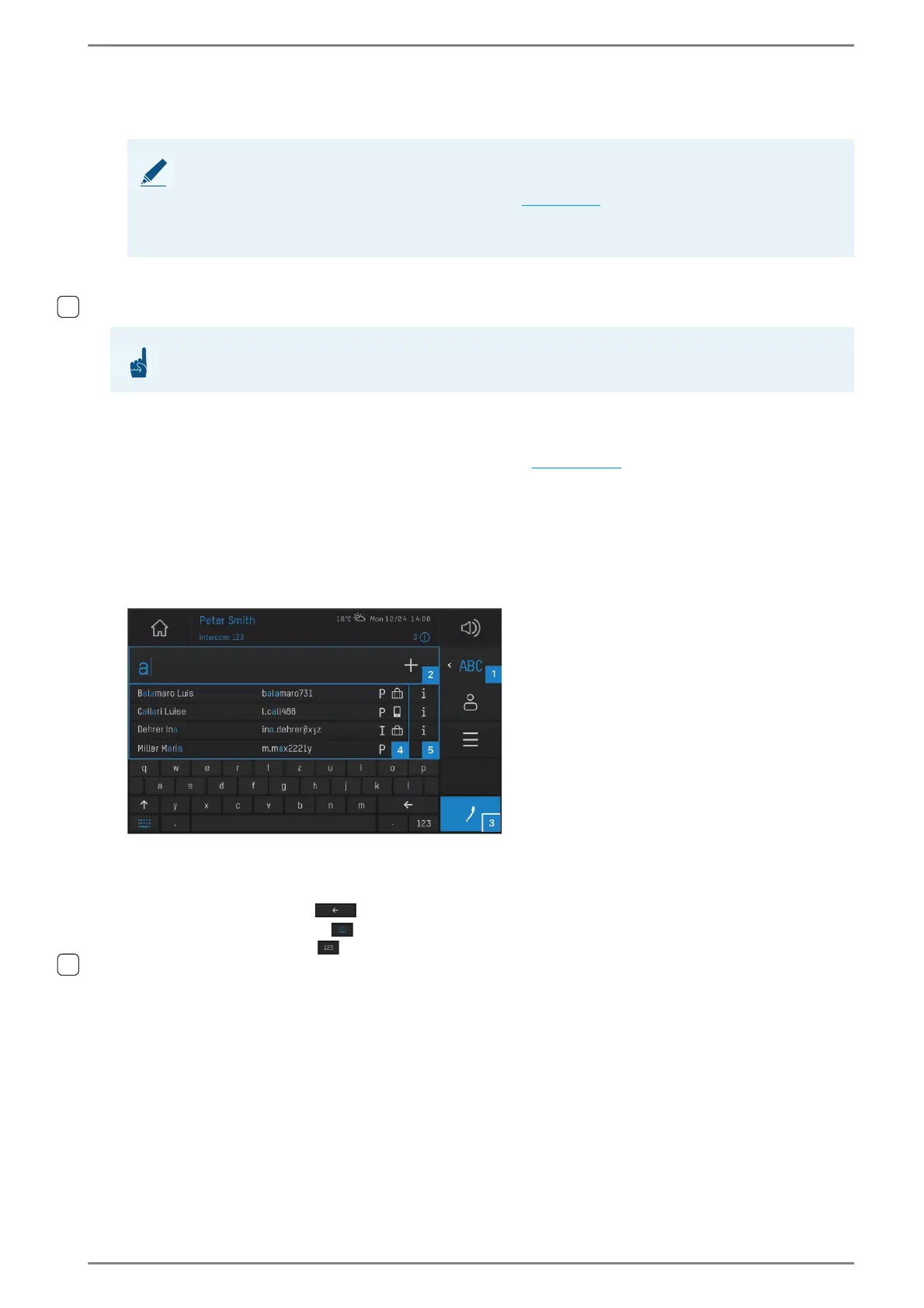
entries that matches with the entry. Tap on the desired contact in order to initiate a call to this
contact.
Tap on the info button 4 to show the corresponding contact details.
Keypad sidebar
For numerical and alphanumerical keypads, an individually configurable user interface can be config-
ured for the sidebar. Within this sidebar, elements provide quick and easy one-tap access to frequently
used functions (e.g. Intercom call, SIP call, direct dialling, HTTP request, video stream in real-time). Fur
-
ther information about the keypad sidebars can be found on page 113.
Keyboard
With the keyboard, it is possible to enter numbers and letters in the call app in order to e.g. search for
call numbers and contact names in the address book.
Tap on the button 1 and select the field ABC in order to display the keyboard in the call app. The
following screen appears:
User interface “keyboard”
Tap on the entry box 2 and enter the call number or name via keyboard in order to show all matches
with address book entries.
Delete last entry:
Fade out keyboard:
Switch keyboard:
Accented characters (diacritical characters): To call up accented characters press and
hold the button of the related letter. A submenu offers all related characters.
NOTES:
In order to use quickdial in the keypad, activate the toggle button Quickdial-Status in the web
interface at Customization, tab: Call Interface (see page 53).
A sidebar keypad will automatically be faded out when the entered call number matches an ad-
dress book entry.
ATTENTION: Only for numeric and alphanumerical keypads
The keypad sidebar is only available for the numerical and alphanumerical keypads!


 To Next Page