Control Station Duetto Program interface
2.0/0518 111
All active and incoming calls will be displayed at a glance:
Screens
Customisable screens in the sidebar of the keypad (see page 113) and as separate full screens (see
page 112) on the DUETTO device provide quick and easy one-tap access to frequently used functions
with various elements (e.g. opening a barrier, initiating a call or displaying a video stream).
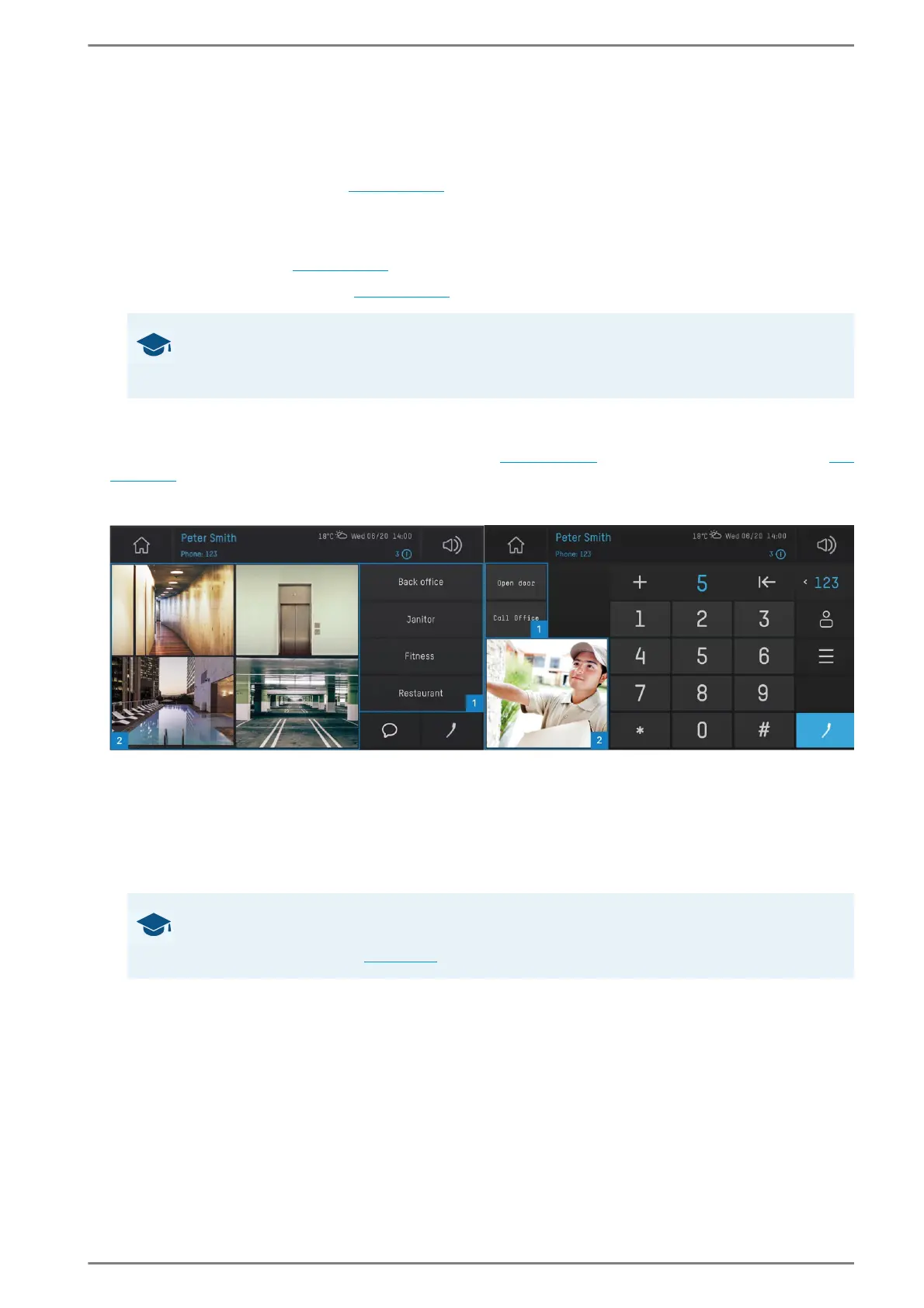
Representation of a full screen and keypad sidebar
The following elements are available for screens and keypad sidebars:
Button 1: Tap on a button element to carry out the configured action (e.g. SIP call, direct dialling
or HTTP request).
Background element 2: The background element displays a permanent video stream. If no video
is available, only the element label will be indicated.
1 Cancel call
2 Accept call
3 Switch to call app (see page 104)
4 Video overview
5 Scrolling buttons
6 Filter calls (see page 132)
7 Switch to full view (see page 110)
GOOD TO KNOW: Scrolling buttons
Tap the scrolling buttons to navigate upwards or downward in the list. To jump to the be-
ginning or the end of the list, use a long button stroke.
GOOD TO KNOW: Configuration of full screens and keypad sidebars
Further information about the configuration of full screens and keypad sidebars in the web
interface can be found
on page 61.


 To Next Page