Control Station Duetto Web interface – Customization
2.0/0518 67
Image
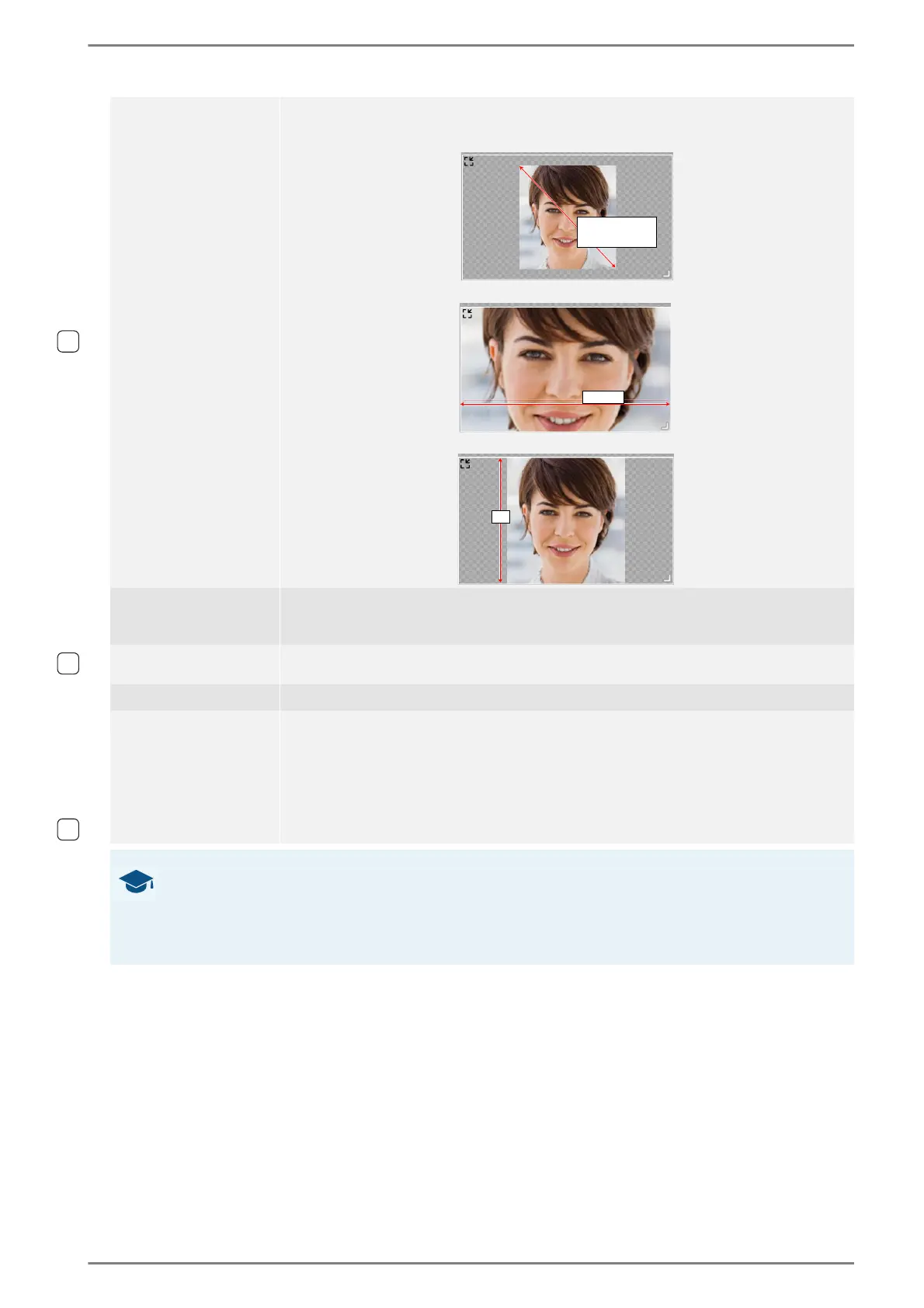
Select the desired radio button to adjust presentation of the selected element on the dis-
play of the DUETTO device. The following options are available:
Original size: The aspect ratio of the uploaded picture is retained.
Zoom: Scales the uploaded picture to fit the vertical boundaries of the element.
Fit: Scales the uploaded picture to fit the horizontal boundaries of the element.
Add image
Click on this button and select the desired background image or icon on the connected
computer. When the file has been uploaded, the image or icon for the button is shown
automatically (file size: max. 100 kB, supported file formats: PNG, JPEG, GIF and SVG).
Add Icon
Click on this button to select an icon from an predefined icon list. It is possible to upload
custom icons for single buttons.
Remove Click on this button to remove the currently selected image or icon.
Background color
Select the desired radio button to define the background colour of the selected element.
The following options are available:
Default background color: Only the label of the element will be indicated.
Set background color:
Click on the appearing button Color and select the desired colour of the ele-
ment. The colour of the label will not be changed.
Move the slider Opacity to change the transparency of the element.
GOOD TO KNOW: Recommended aspect ratio of images
For screens, you can use image files (PNG, JPEG, GIF and SVG) up to 100 kB. The image files can be
scaled with the function „Adjust image size“. To produce an uniform surface, it is recommended to cre-
ate images with a similar aspect ratio as their scaled button counterparts. By default, buttons are 129 px
wide and 75 px high. Background elements are 400 px wide and 240 px high.


 To Next Page