Affinity
2.0
Additional Information Page 306
4) Sweeps:
Number of sweeps: Select a number of sweeps using the slider. To average out noise which
may influence particularly low level recordings, you may select to do multiple recordings
(sweeps) which are then averaged together to reduce noise. Only the averaged curve will be
displayed.
5) Te st Settings:
Battery simulator: Select the correct battery type for the hearing aid to be used under the test.
In general Zinc-air types will give best results, particularly on power hearing aids, as this
battery type is best at providing current. If a Zinc-air battery type is selected, then an estimated
battery lifetime is calculated as part of the Battery Current Drain test. If Standard battery is
selected, a traditional high quality zinc-air battery is simulated. Additional battery types may be
custom designed with specific characteristics by the HIT440. This can provide interesting
information on how a particular hearing aid performs with a good battery and with a poor
battery.
If “Not Used” is selected no power is supplied by the battery simulator.
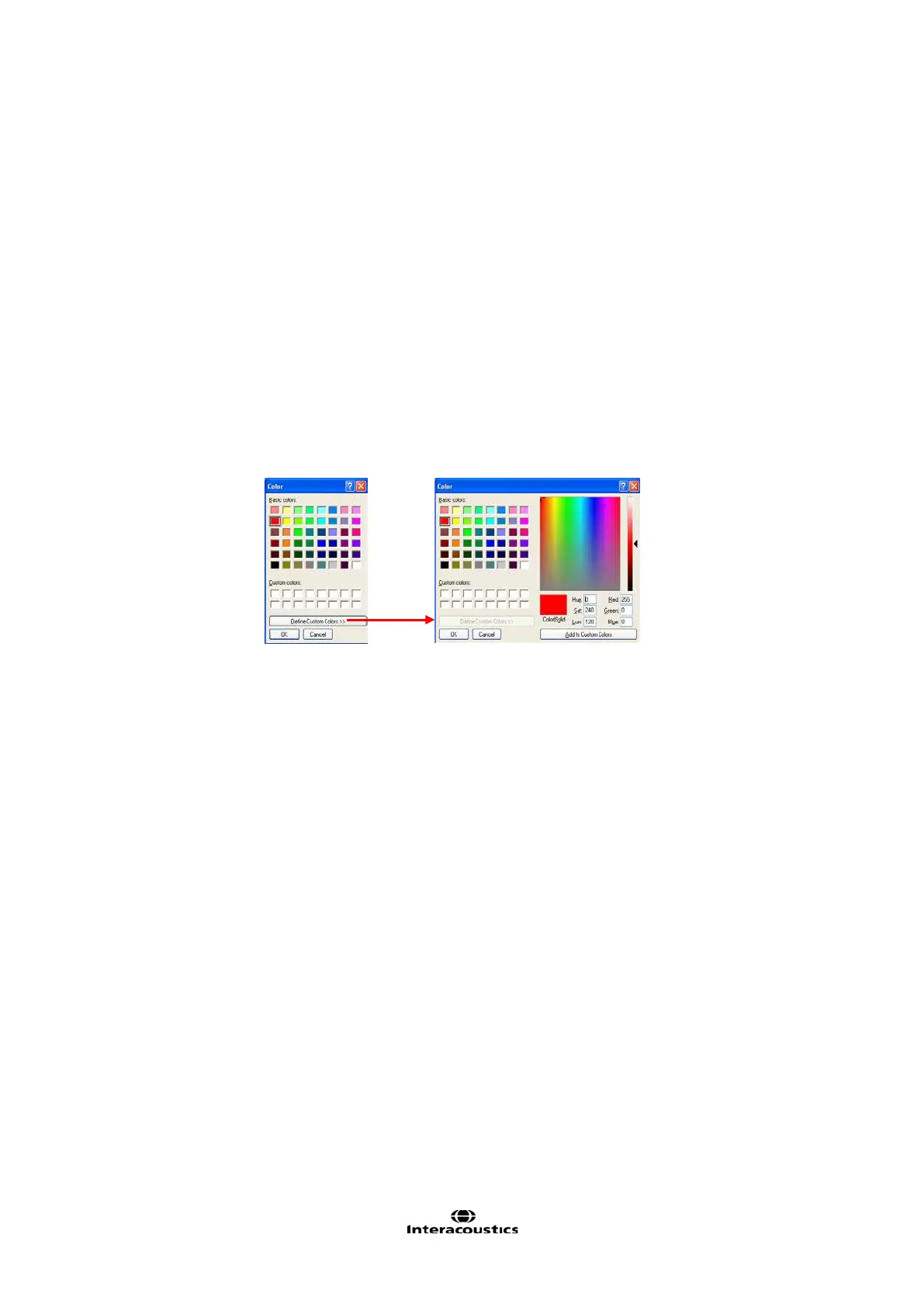
Color: Select a colour for the Right and Left curve.
Press each of the buttons to have the custom colour selection below. Choose the desired
colour by clicking on it and press OK.
Note the option to Define Custom Colours to get a more extensive selection. When having
found the exact colour, press Add to Custom Colours.
6) Extra Curves:
Show on/off times: Tick the boxes to show two thin lines showing when the level is shifted on
the graph.
Show gain curve: Tick the box to show again curve on screen together with the
Attack/Recovery curve.
Show reference curve: Tick the box to show a reference curve on the graph. The reference
curve shows the level from the reference microphone.













 To Next Page