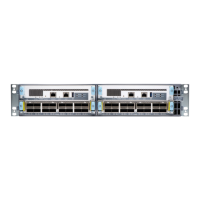
Figure 47: Installing a MIC
Related
Documentation
MX104 Modular Interface Card (MIC) Overview on page 47•
• Maintaining Cables That Connect to MX104 Network Ports on page 191
• Removing an MX104 MIC on page 161
Replacing an MX104 MIC
1.
Removing an MX104 MIC on page 161
2.
Installing an MX104 MIC on page 163
Removing an MX104 MIC
MICs are hot-insertable and hot-removable. When you remove a MIC, the router continues
to function, although the MIC interfaces being removed no longer function.
In the MX104 router, the MICs can be installed in four slots in the front of the router. A
MIC weighs less than 2 lb (0.9 kg).
To remove a MIC (see Figure 48 on page 163):
1. Place an electrostatic bag or antistatic mat on a flat, stable surface to receive the
MIC. If the MIC connects to fiber-optic cable, have ready a rubber safety cap for each
transceiver and cable.
2. Attach an ESD grounding strap to your bare wrist and connect the strap to one of the
ESD points on the chassis.
3. Use one of the following methods to take the MIC offline:
•
Press its online/offline button. Use a narrow-ended tool that fits inside the opening
that leads to the button. Press and hold the button until the MIC OK/FAIL LED goes
off (about five seconds).
•
Issue the following CLI command:
user@host> request chassis mic fpc-slot slot-number mic-slot slot-number offline
161Copyright © 2017, Juniper Networks, Inc.
Chapter 22: Replacing Line Card Components


 To Next Page