10 Creating your own styles | 111
4. Press the START button on the panel. Now you can hear the result of your chosen
settings on the style. MUTE, SOLO, ORIGINAL and SINGLE/GLOBAL buttons are
available to select what to listen to while evaluating the individual pattern or its
impact on the overall harmony of the style.
5. The SETTING button opens a specific advanced customization page. See below
the specific description of each part.
6. The STYLE EDIT button allows customizing all style parameters. The description is
in the paragraph below.
Attention! At the end of your edits, press the SAVE button on the panel to save your
personal style in the USER memory.
DRUMS
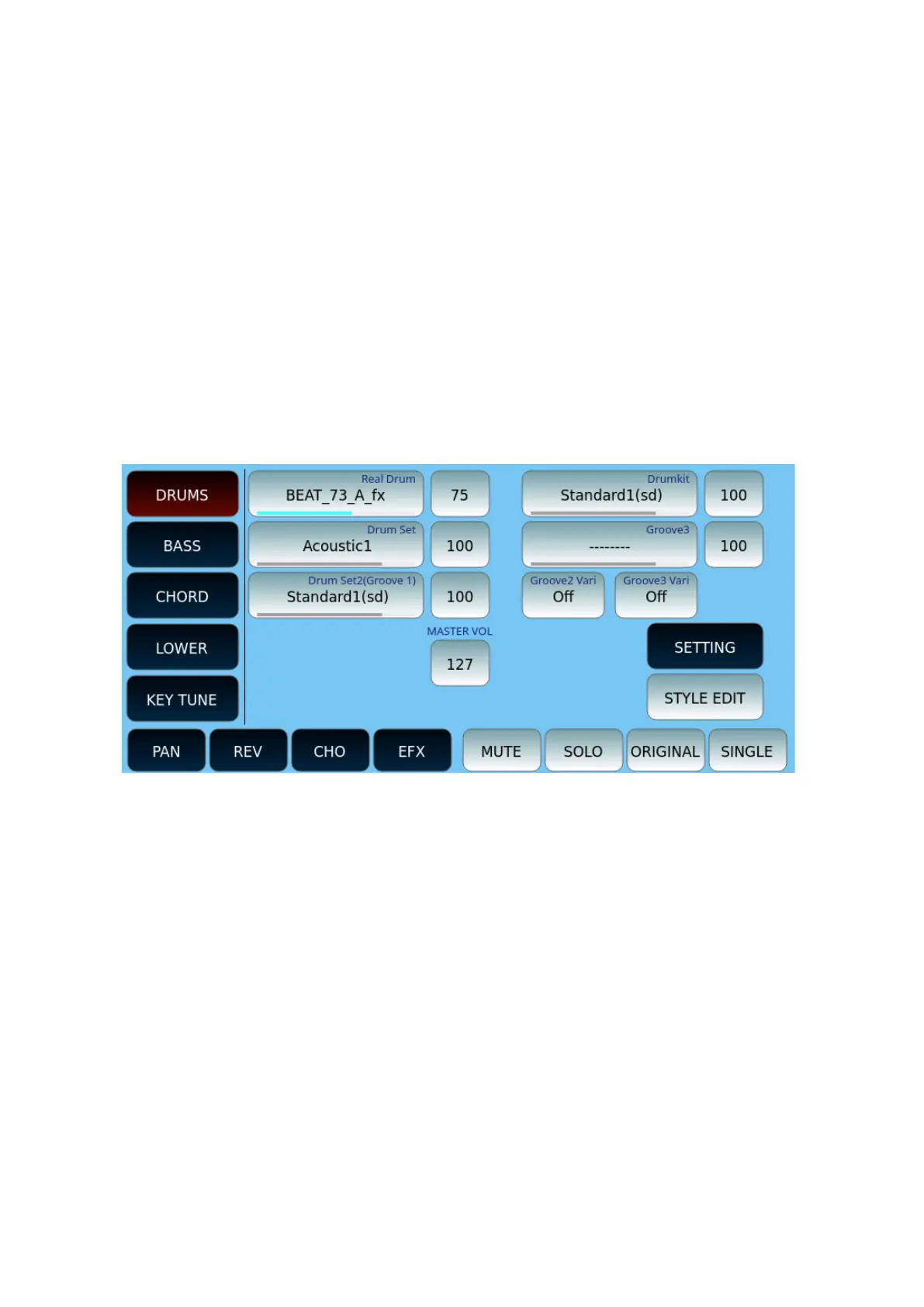
On this page you can customize the DRUMS part of the style:
• You have several parts to assign a percussive pattern to: Real Drum, Drum Set,
Loop (Groove 1), Groove2, and Groove 3.
• Each part is shown with the volume level icon next to it. This is also represented by
the blue line (track contains data) or grey line (track is empty) below the part
name.
• Touch an option and then move the UP/DOWN buttons to open the search page
among the many available patterns in each category.
• Groove2 and Groove3 variations can be activated optionally.
• Master Volume is a dedicated button.
For all other on-screen buttons see the general description above.
SETTING button opens the DRUMS part configuration page.



 To Next Page