162 | 13 Global menus and settings
• ONE SHOT/LOOPED:
o ONE SHOT: Play the sample without recycling between loop points.
o LOOPED: The sample is played in a continuous loop between the LOOP
START point and the LOOP END point.
• EDIT: The sample processing page, described later in this chapter, opens.
At the bottom of the page, the general control buttons of the samples appear as follows:
• ADD SAMPLE: Add a sample to the current INSTRUMENT.
• DELETE SAMPLE: Erase the selected sample from the INSTRUMENT.
• SOLO: Run the sample in SOLO mode.
• AUTO SELECT: Request automatic selection of the current layer sample within the
range of notes played.
• NEW: Clear your memory and get ready to work on a new INSTRUMENT.
• LOAD: Load an INSTRUMENT previously saved in the SAMPLER into the edit area.
• UTILS: Go to the utility features page described later in this chapter.
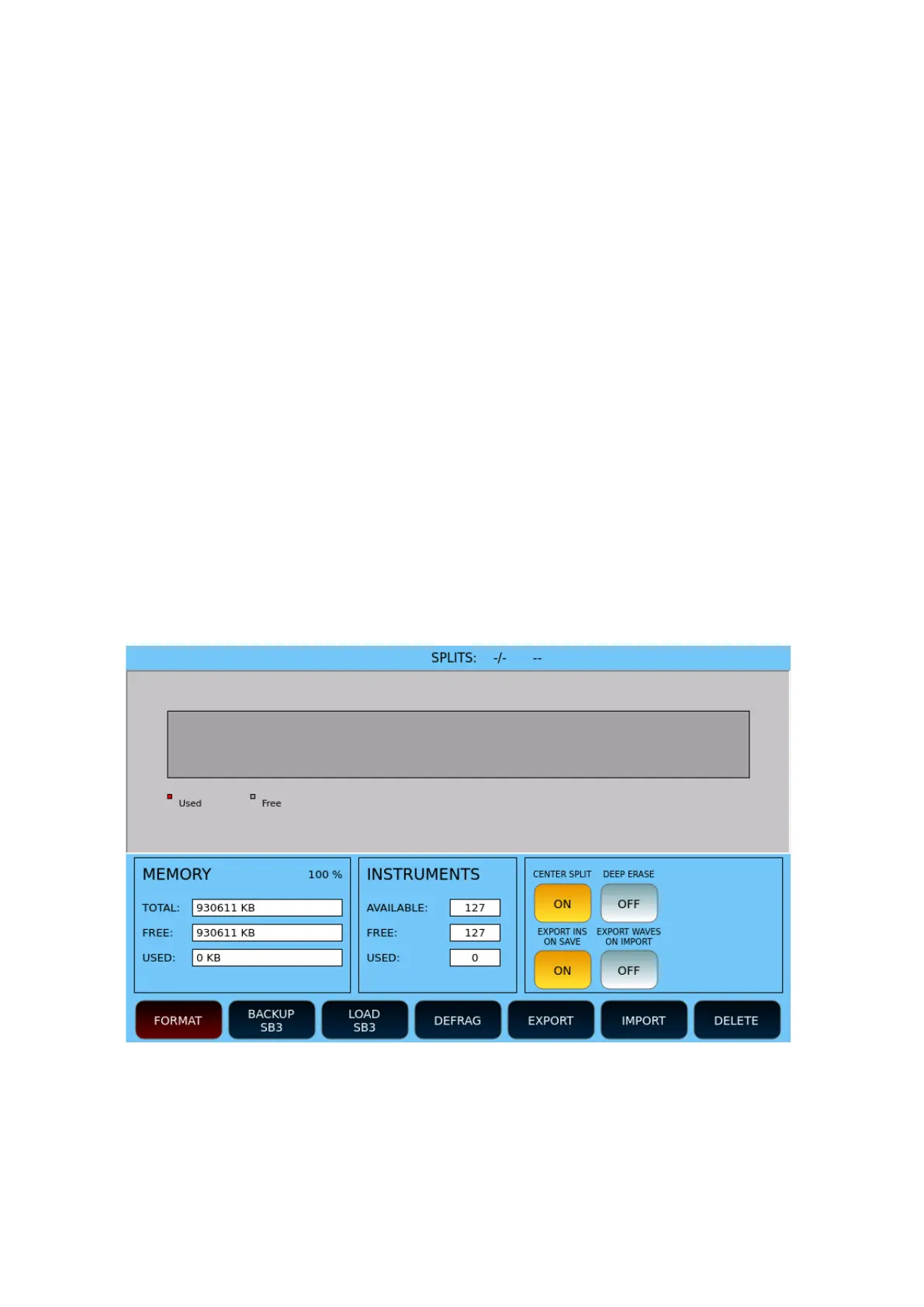
By pressing the UTILS button on the previous screen, you can access the Sampler settings
and memory usage information: in the main part of the screen the memory blocks used in
red colour are visible, giving evidence of how many blocks are still available.
The next page shows disk space occupancy data and available instruments.
Options:
• CENTER SPLIT: Allows you to split an audio sample into two equal parts, placing
the split point exactly in the center of the sample. This is useful for isolating and
manipulating specific sections of the sound more precisely, making editing easier.
• DEEP ERASE: Completely erases the memory area of the Sampler. It can take
several minutes. Enable the option and then start the formatting procedure.



 To Next Page