Checking/managing box documents (MB Doc.)
5
5-54 Konica Minolta 240f
5.7
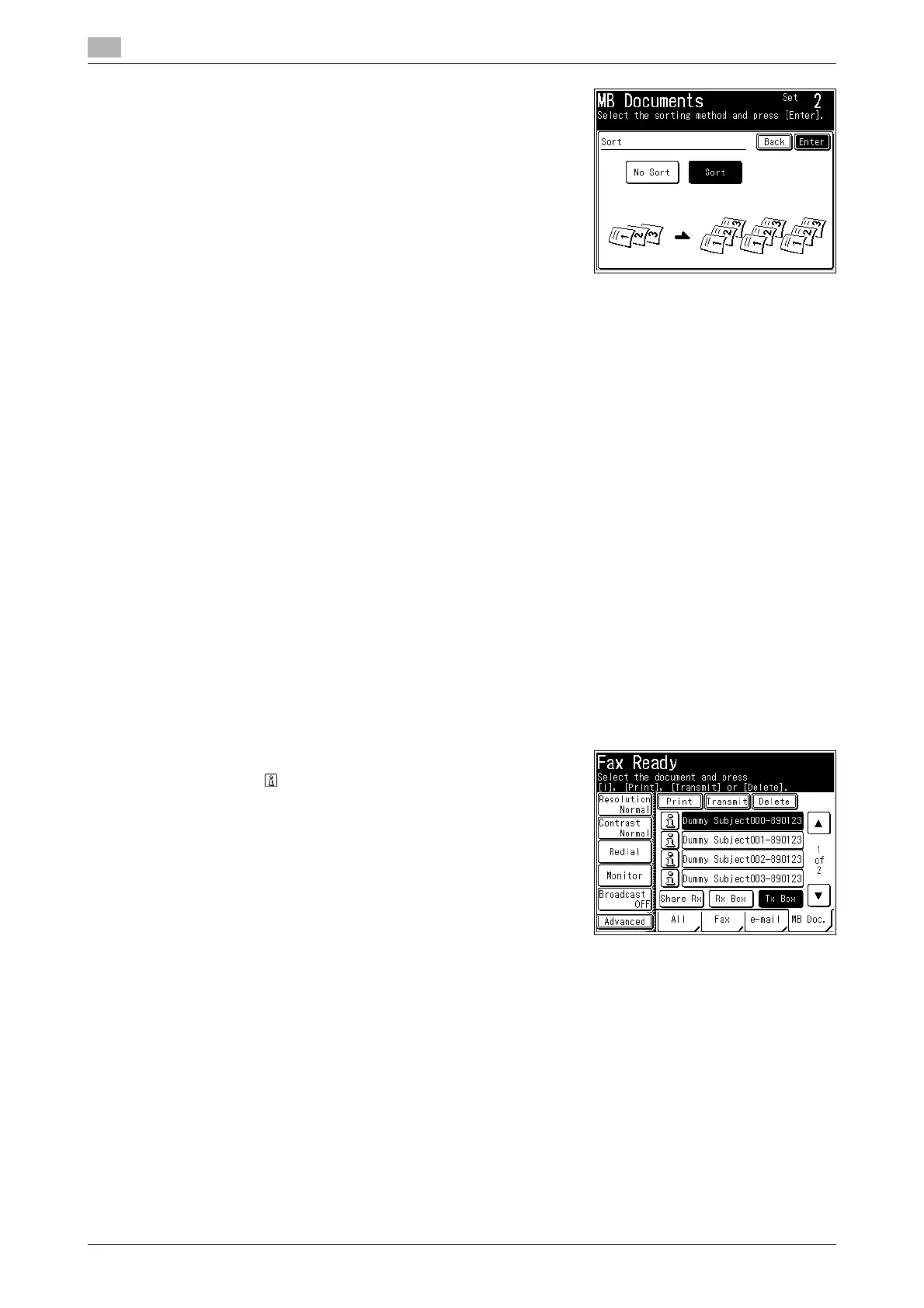
8 Select the type of sorting, and press [Enter].
% For details on sorting, refer to Chapter 2, "Basic Copying"
in the User’s Guide Copy Operations.
9 Press <Start>.
% To continue printing documents, repeat the operation in steps 3 to 9.
% Press <Stop> to cancel printing.
d
Before pressing <Stop>, check that the document you specified is being printed. Since the document cur-
rently being printed will be canceled, you may accidentally cancel another document.
5.7.3 Deleting a box document
d
The administrator password may be required to delete documents, depending on the document box settings.
If a screen for entering the administrator password is displayed after the screen in step 5, enter the adminis-
trator password, and press [Enter]. For details on document box settings, refer to Chapter 3, "Specifying Doc-
ument Box Settings" in the User’s Guide Message Board Operations.
1 Press <Fax>.
2 Press the [MB Doc.] tab.
The shared reception box is displayed.
3 Select [Shared Rx Box], [Rx Box], or [Tx Box].
4 Select the document you want to delete, and press [Delete].
% Press to display detailed information for the file.
5 Press [Yes].
% Press [No] to close the screen without deleting the data.
% To continue deleting documents, repeat the operation in steps 3 to 6.





 To Next Page