Advanced scan features
3
3-26 Konica Minolta 240f
3.2
d
The notification e-mail is sent to the e-mail address registered in the user information. This function can only
be used if an e-mail address is registered in the user information.
For details on registering user information, refer to Chapter 3, "Registering Users" in the User’s Guide Mes-
sage Board Operations.
3.2.13 Setting document categories (Category)
You can add a category name (document category) to the scanned document. Setting a document category
enables you to filter the documents displayed in the list of documents saved in a box, and enables you to
search for documents via their category. You can also set the document category using a document category
registered in advance.
d
This function can be used with Scan to Box.
The data is not classified unless you enter a document category. The document category can also be
changed after saving the data.
For details on registering document categories, refer to page 8-44 or "Registering Templates" in Chapter 3
of the User’s Guide Message Board Operations.
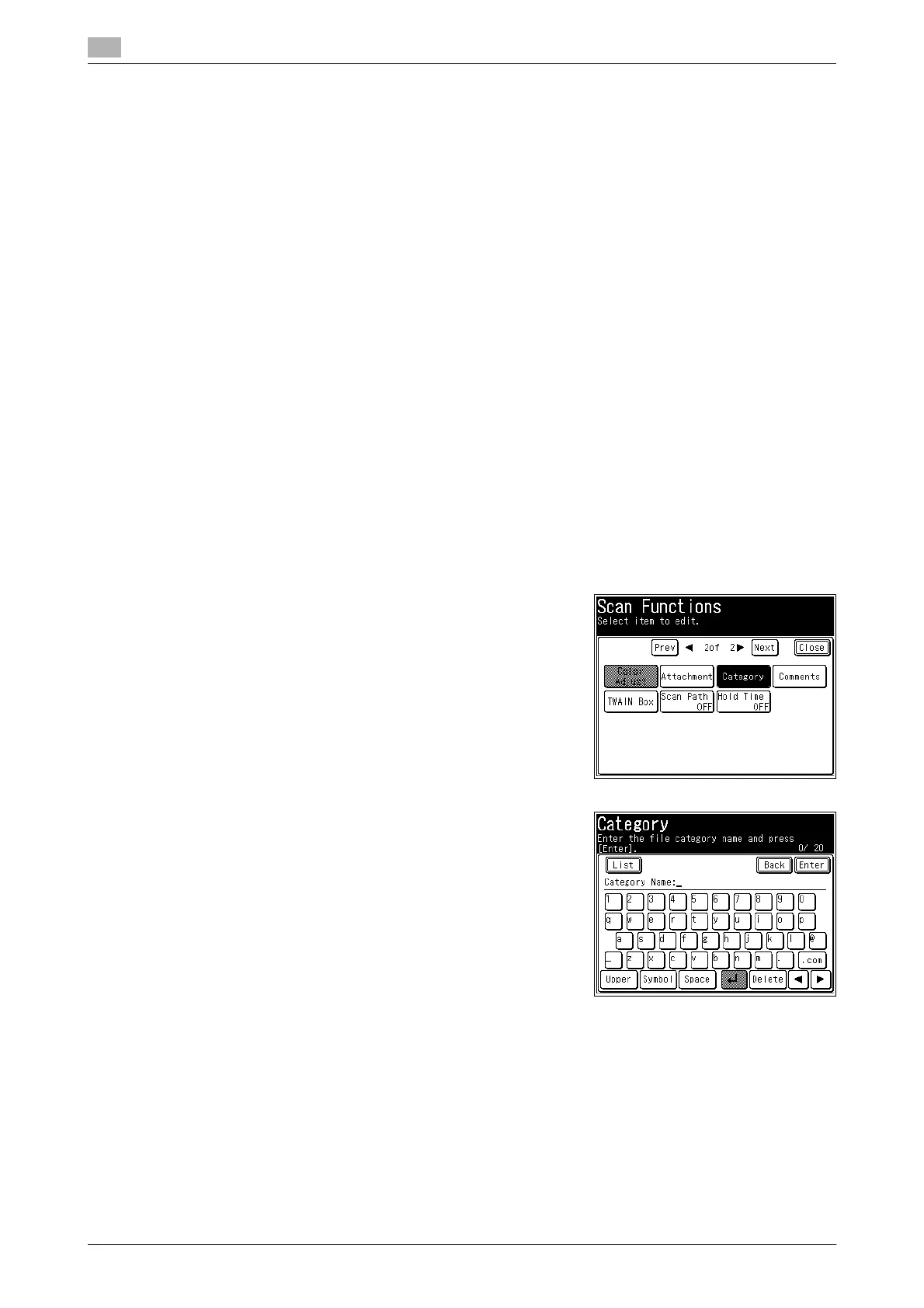
Setting a new document category
1 Load the document, and press <Scan>.
2 Press [Advanced].
3 Press [Category].
4 Enter the document category, and press [Enter].
% Up to 20 characters can be entered.
% For details on entering characters, refer to Chapter 2, "En-
tering Characters" in the User's Guide Administrator Oper-
ations.
5 Press [Close].
6 Specify the destination, and press <Start>.
% For details on the procedure, refer to page 2-6.





 To Next Page