Scanning documents using a TWAIN box
3
3-36 Konica Minolta 240f
3.3
3.3.4 Importing the data in a TWAIN box
You can import the data stored in a TWAIN box using application software that supports TWAIN.
The procedure for using Microsoft Office Document Scanning is described here as an example. Since the
operation procedure differs according to the application software you are using, refer to the documentation
for the application software for details.
d
Install the TWAIN driver to the computer in advance. For details on installing the driver, refer to Chapter 3,
"Installing to Windows" in the User’s Guide Print Operations.
You can also connect the computer and the machine with a USB cable to retrieve data.
1 Start the application software that supports TWAIN on your computer.
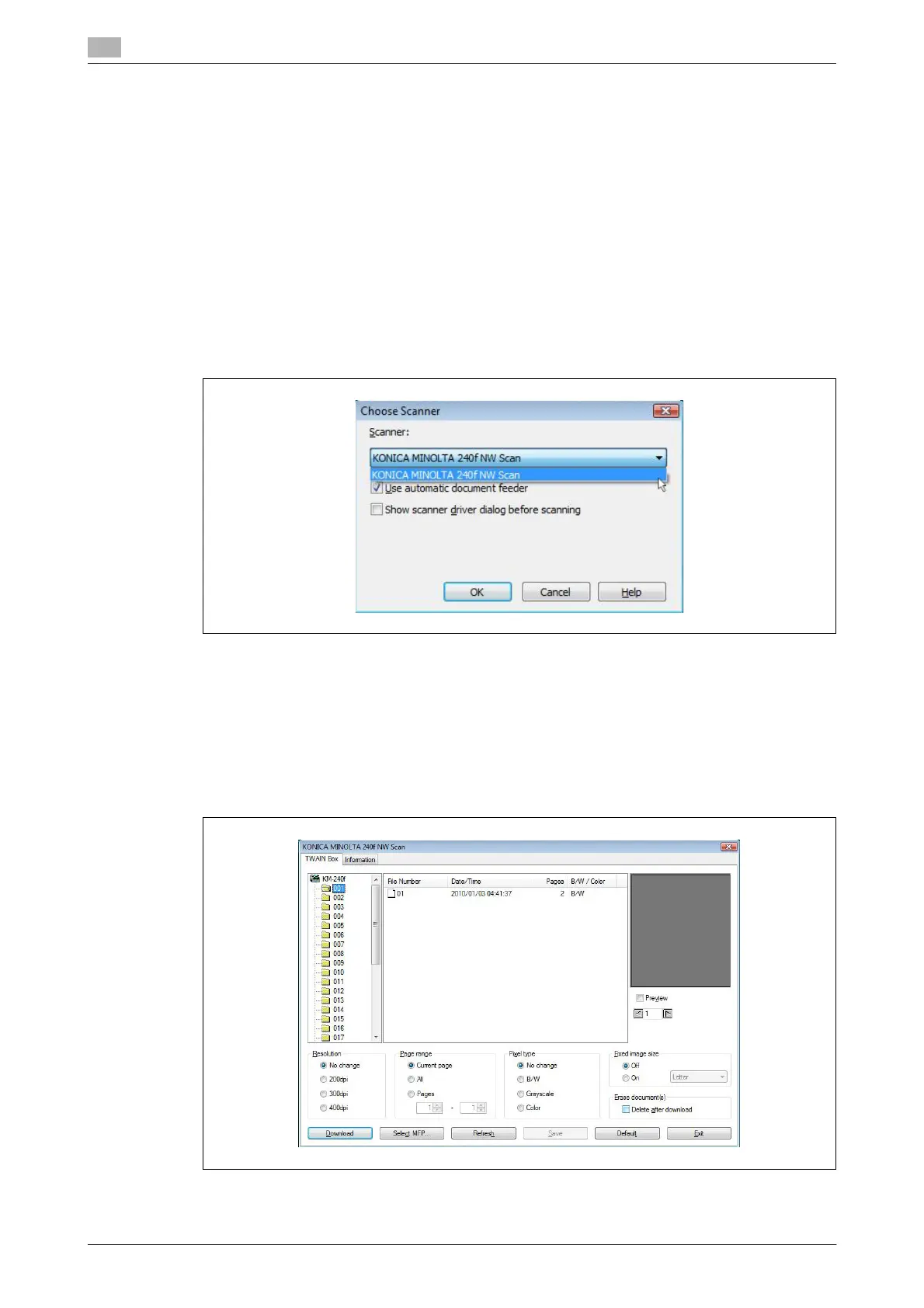
2 Click [Scan] and select "KONICA MINOLTA 240f NW Scan".
% If you connected the computer and the machine with a USB cable, select "KONICA MINOLTA 240f
Scan".
3 Click [OK].
4 Start scanning.
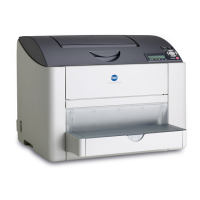
5 Select the TWAIN box.
% If an I.D. code is set, enter the I.D. code, and press [OK].





 To Next Page