Basic faxing
4
4-24 Konica Minolta 240f
4.2
Checking/printing the transmission result
You can check or print the transmission history for the past 100 jobs. This enables you to check the result of
transmitting via Scan to Folder or Scan to FTP, in addition to checking the result of transmitting via fax and
e-mail.
d
The transmission history of jobs older than the last 100 jobs is automatically deleted.
For information on printing the transmission history, see page 7-7.
1 Press <Job Confirm./ ) Fax Cancel>.
2 If there are any documents currently being transmitted, information for the current destinations is dis-
played.
% If there are no documents currently being transmitted, proceed to the next step.
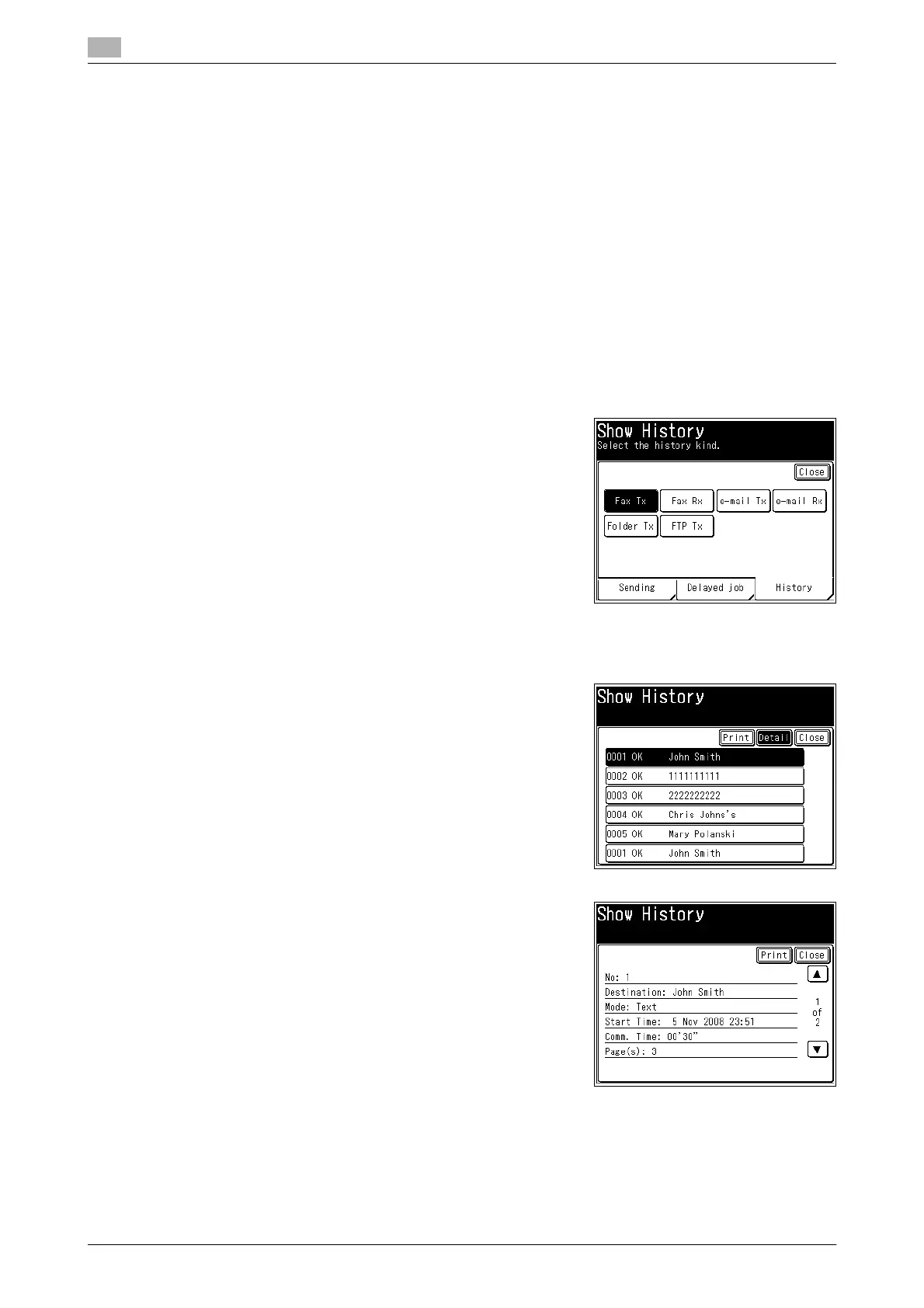
3 Press the [History] tab.
4 Select the item to display the transmission history for.
Here the procedure for displaying the fax transmission history
is described as an example. Press [Fax Tx].
% To display the fax reception history, press [Fax Rx].
% To display the transmission history for Internet Faxes and
Scan to E-Mail jobs, press [e-mail Tx].
% To display the reception history for Internet Faxes, press
[e-mail Rx].
% To display the transmission history for Scan to Folder jobs,
press [Folder Tx].
% To display the transmission history for Scan to FTP jobs,
press [FTP Tx].
% The transmission history is displayed in order of newest to oldest, with six jobs on each page.
5 To check the details of a transmission result, select the trans-
mission result to check, and press [Detail].
6 Check the detailed transmission results, and press [Close] or
[Print].
% If you pressed [Close], the procedure is complete.
% If you pressed [Print], press [Yes] to print the transmission
results.
% For information on reading the transmission results, refer
to page 7-10.
d
You can automatically print or specify a time for printing the latest communication history. For details, refer
to page 7-6.





 To Next Page