2
2-1. Instrument cluster
Vehicle status information and indicators
Q Liquid crystal display
Small spots or light spots may appear on the
display. This phenomenon is characteristic
of liquid crystal displays, and there is no
problem continuing to use the display.
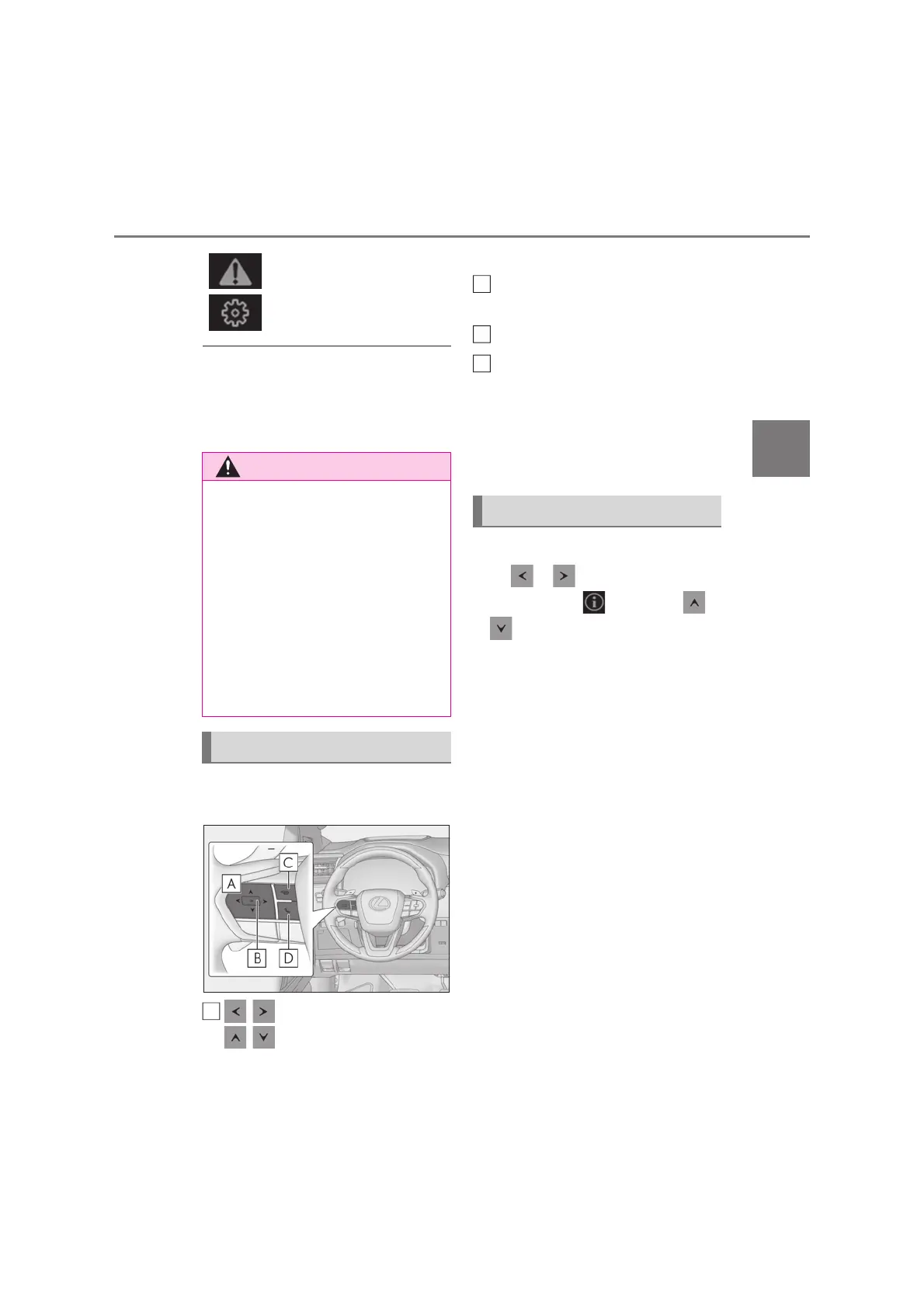
The multi-information display is oper-
ated using the meter control switches.
/ : Select menu icons
/ : Change displayed con-
tent, scroll up/down the screen and
move the cursor up/down
Press: Enter/Set
Press and hold: Reset
Return to the previous screen
Call sending/receiving and history
display
Linked with the hands-free system, sending
or receiving call is displayed. For details
regarding the hands-free system, refer to
the “Multimedia Owner’s Manual”.
Q Display items
Press or of the meter control
switch and select . Then press
or to display the following items:
z Drive information 1
z Drive information 2
z Eco Driving Indicator
z Tire pressure (oP.552)
z AdBlue™ gauge (if equipped)
z Display off
Q Drive information 1/Drive informa-
tion 2
Displays drive information such as the
following:
Use the displayed values as a reference
only.
z Drive information 1
• Current fuel consumption
• Average fuel economy (after reset)
z Drive information 2
• Distance (driving range)
Warning message display
(oP.592)
Settings display (oP.127)
Q Caution for use while driving
O When operating the multi-information
display while driving, pay extra atten-
tion to the safety of the area around
the vehicle.
O Do not look continuously at the multi-
information display while driving as
you may fail to see pedestrians, objects
on the road, etc. ahead of the vehicle.
Q The information display at low tem-
peratures
oP.122
Changing the meter display
A
Content of driving information
B
C
D



 To Next Page