98
Pellerin Milnor Corporation
5.2.2 How to Export Files from the MilTouch™ Controller
BNCLJO06.T14 0000194297 E.2 E.4 10/7/20 9:12 AM Released
To export wash formulas and configuration files from the MilTouch™ controller to an external
storage device (USB flash drive or SD card):
1. Touch
on the Home display to access the Data Transfer display.
2. If you are exporting files to a USB flash drive, mount the flash drive to the MilTouch™ con-
troller as described in Section 5.2.1 , page 97. If there is already a flash drive attached to the
controller, remove and re-insert it.
3. Choose to export either wash formulas or configuration files. In the Internal Data Area:
• Touch
to select the formula set as the data that will be exported.
• Touch
to select the configuration file as the data that will be exported.
4. Touch the button that displays the data set name in the Internal Data Area. Based on your
choice from the previous step, the Internal Data Area will appear in one of the two ways
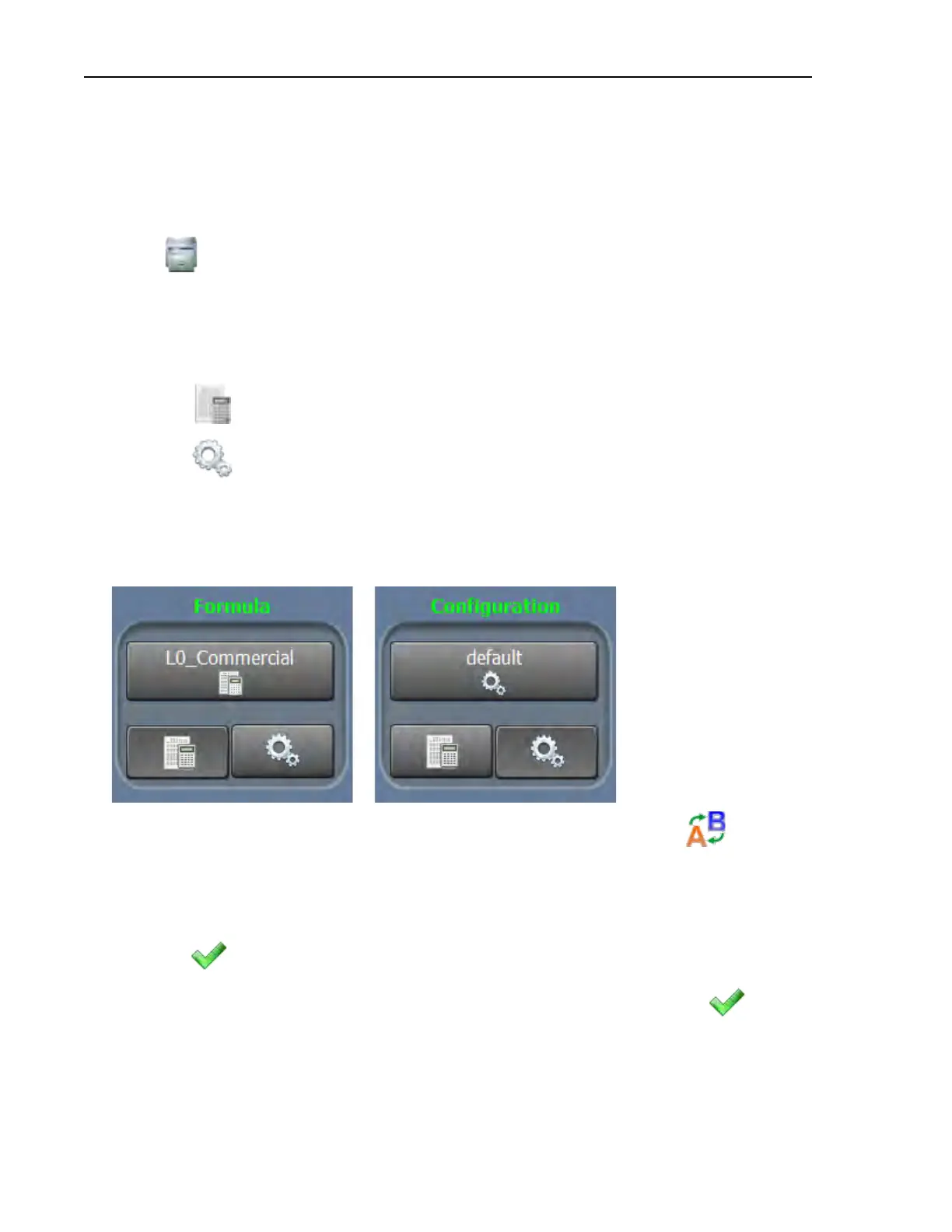
shown in the following figure.
Figure 46. The Two Alternative Internal Data Area Views
5. To change the name of the formula set or configuration file, if desired, touch . The File
Name window (not shown) appears. In the File Name window:
a. Touch the [Clear All] button to delete the current file name.
b. Use the keypad to enter a new file name.
c. Touch
to save the new file name and close the window.
6. A dialog box (not shown) appears, which indicates the file was renamed. Touch
to dis-
miss the dialog box.
7. Choose to export the files to either the USB flash drive or the SD card. In the External Data
Area:
Data Transfer


 To Next Page