Pellerin Milnor Corporation 25
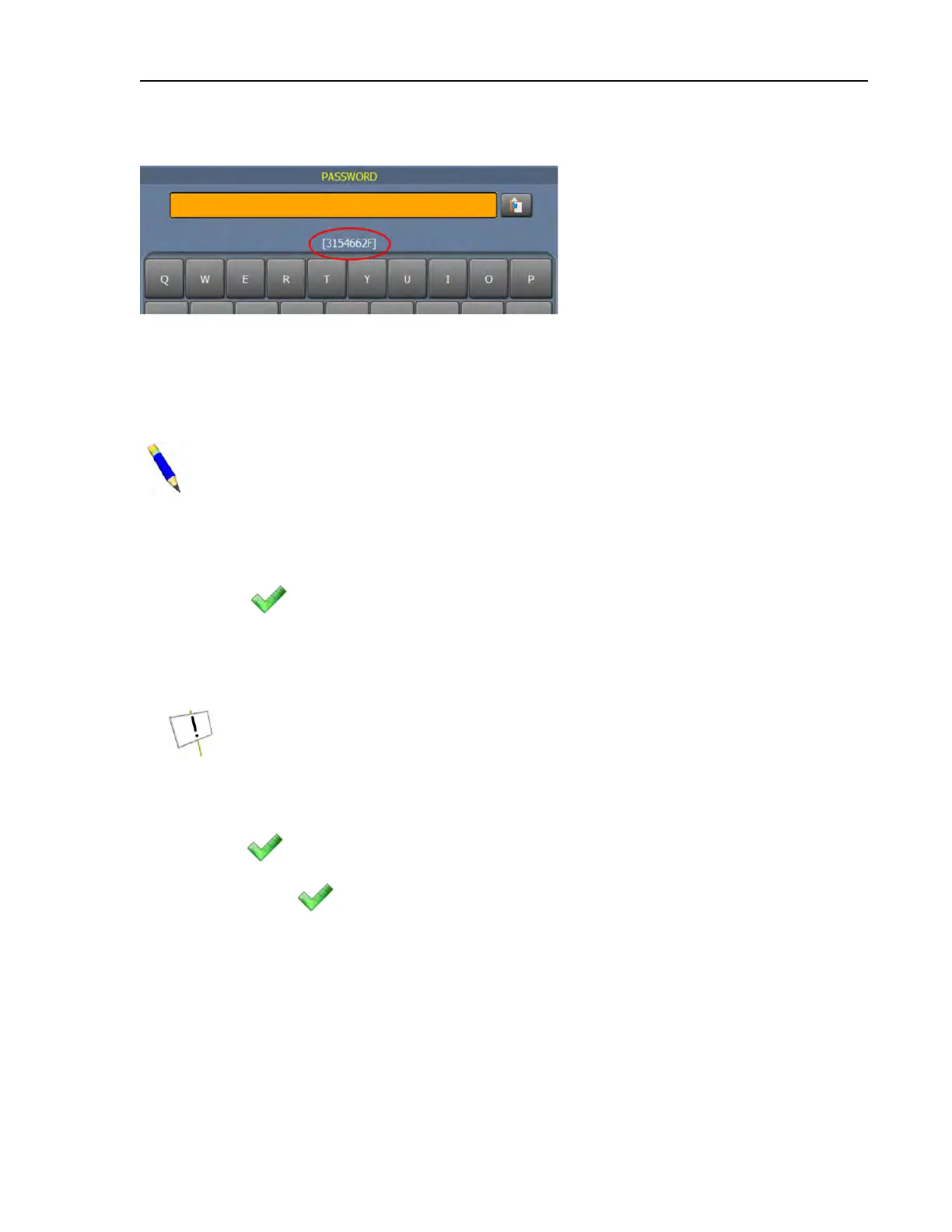
Figure 10. Sample Encrypted Password
2.2.2 Recalibrate the Touchscreen
BNCLJP07.T01 0000203579 E.2 F.2 4/12/21 9:33 AM Released
If the touchscreen becomes less responsive to touch, you can recalibrate it to improve touch input
accuracy.
NOTE: If you cannot access the recalibration screen because your touchscreen inputs
are too inaccurate, visit the milnor.com Technical Knowledge Base under “Support and
Safety” and search “force recalibration,” or contact Milnor
®
Customer Service/Technical
Support using the contact information in Section 6.4 : How to Contact Milnor
®
, page 117.
1. Touch the button labelled Recalibrate Touchscreen (R) on the System Settings display.
2. A dialog box (not shown) appears, which prompts you to confirm your decision. In the dialog
box, touch
to recalibrate the touchscreen.
3. The controller restarts, and the calibration screen appears.
4. Use a stylus or the end of a pen to touch each of the five crosshair symbols only one time as
they appear.
NOTICE: You can use your finger to calibrate the touchscreen, but it is less accu-
rate than a stylus and may generate multiple inputs with one touch. If you touch a
crosshair symbol more than one time, you must repeat the calibration procedure.
5. A timed dialog box (not shown) prompts you to confirm or reset your calibration. In the dia-
log box:
• Touch
before the timer expires to confirm the calibration. You have 12 seconds.
• Do not touch
and allow the dialog box timer to expire to calibrate the screen again.
Repeat steps 3 through 5.
6. The controller restarts after you confirm the calibration.
2.2.3 Set the System Date and System Time
BNCLJO06.T02 0000188139 E.2 F.2 E.3 1/2/20 1:22 PM Released
The date and time fields are displayed on the Home display and used when data is collected.
1. Touch the button labelled Date on the System Settings display. The System Date window
(not shown) appears. In the System Date window:
Configuration



 To Next Page