102
Pellerin Milnor Corporation
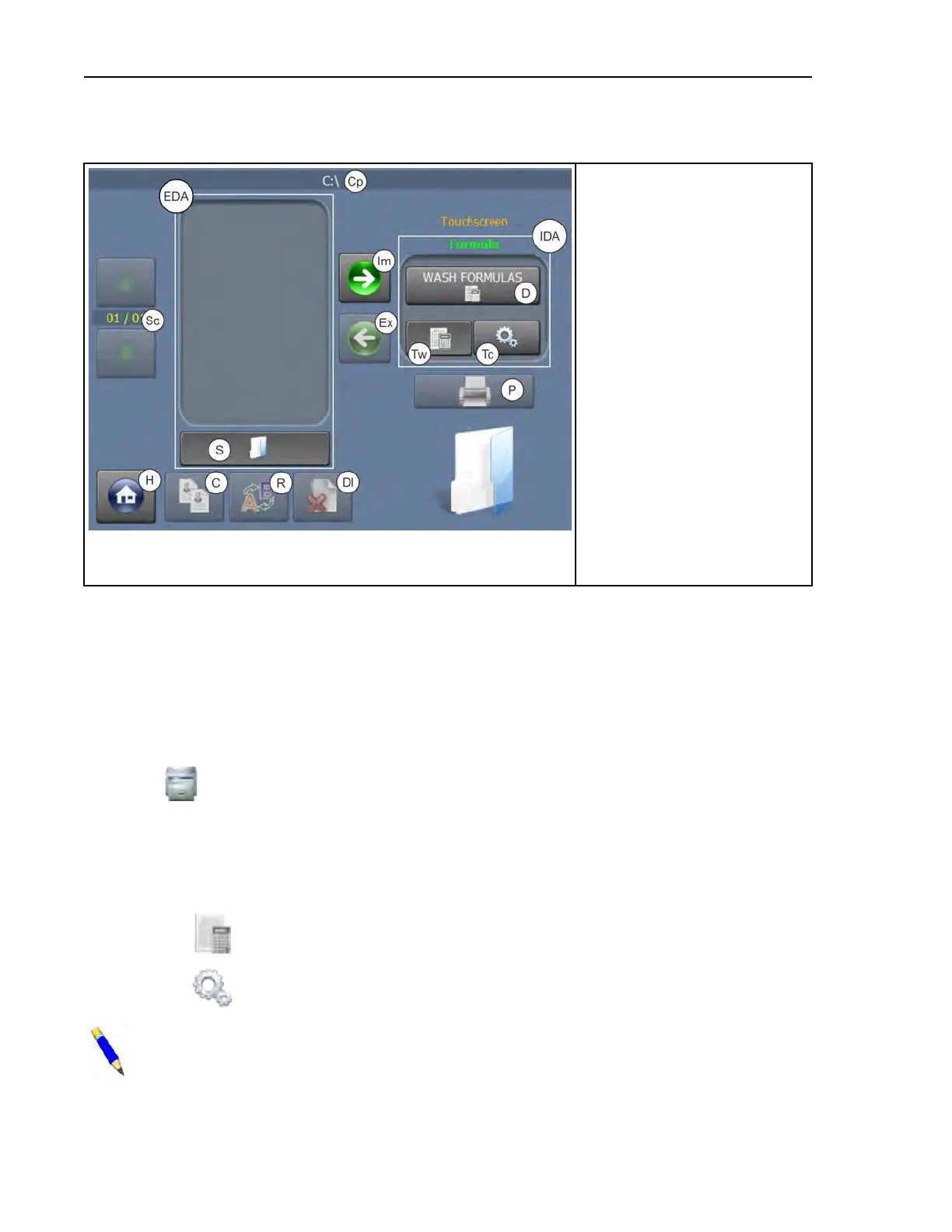
Figure 48. The Data Transfer Display on the PC Programmer Application
Legend
C. Touch to copy a data set
Cp. Current path to the external
data sets
D. Data set name
Dl. Touch to delete a data set
EDS. External Data Area
Ex. Touch to export a data set
H. Touch to return to the Home
display
IDA. Internal Data Area
Im. Touch to import a data set
P. Touch to print data to a text
file
R. Touch to rename a data set
S. Touch to launch the file
browser window
Sc. Touch to scroll between
pages
Tc. Touch to work with configu-
ration files
Tw. Touch to work with wash
formula sets
5.3.1 How to Export Files from the PC Programmer
Application
BNCLJO06.T15 0000194405 E.2 F.2 F.3 12/11/20 4:05 PM Released
To export wash formulas and configuration files prepared with the MilTouch™ PC programmer
application to a USB flash drive or to the hard drive of the computer running the programmer
application:
1. Touch
on the Home display to access the Data Transfer display.
2. If you are exporting files to a USB flash drive, insert the blank flash drive into the personal
computer running the MilTouch™ programmer application. If there is already a flash drive at-
tached to the computer, remove and re-insert it.
3. Choose to export either wash formulas or configuration files. In the Internal Data Area:
• Touch
to select the formula set as the data that will be exported.
• Touch
to select the configuration file as the data that will be exported.
NOTE: If your programmer application uses the formula groups feature, ensure that
you are exporting formulas from the correct formula group.
Data Transfer



 To Next Page