24
Pellerin Milnor Corporation
1. Touch a button in the left column of the password area, labelled Lockout Password, to enable
(
YES) or disable ( NO) a lockout password.
• Configuration (Pc) controls access to the Configuration display, the System Settings
display, and the Data Transfer display.
• Formulas (Pf) controls access to the Wash Formula Maintenance display.
• Manual (Pm) controls access to Formula Intervention on the Run display.
2. Touch a button in the right column of the password area to define a lockout password.
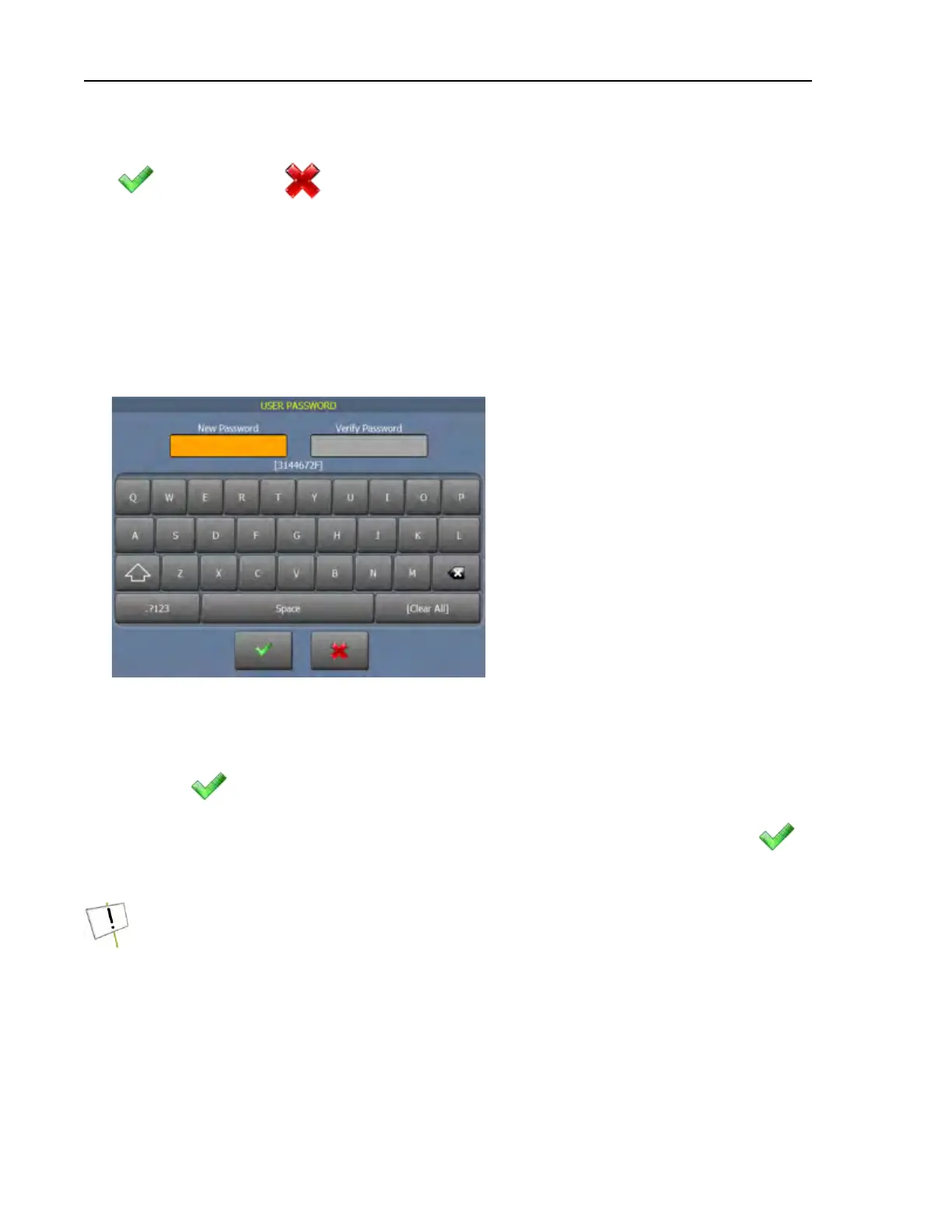
3. The User Password window (shown in the following figure) appears.
Figure 9. User Password Window
a. In the User Password window, touch the New Password box.
b. Enter the same password in both the New Password box and the Verify Password box.
The lockout passwords are not case-sensitive.
c. Touch
to save the password and return to the System Settings display.
4. A dialog box (not shown) will appear, which indicates the password was saved. Touch
to
dismiss the dialog box.
NOTICE: To recover a lost password, contact Milnor
®
Customer Service/Technical
Support using the contact information in Section 6.4 : How to Contact Milnor
®
, page 117.
Call or e-mail during normal business hours and provide the encrypted password below
the Password Entry box (shown in the following figure). The Milnor
®
staff can decode
the password for you.
Configuration



 To Next Page