Pellerin Milnor Corporation 97
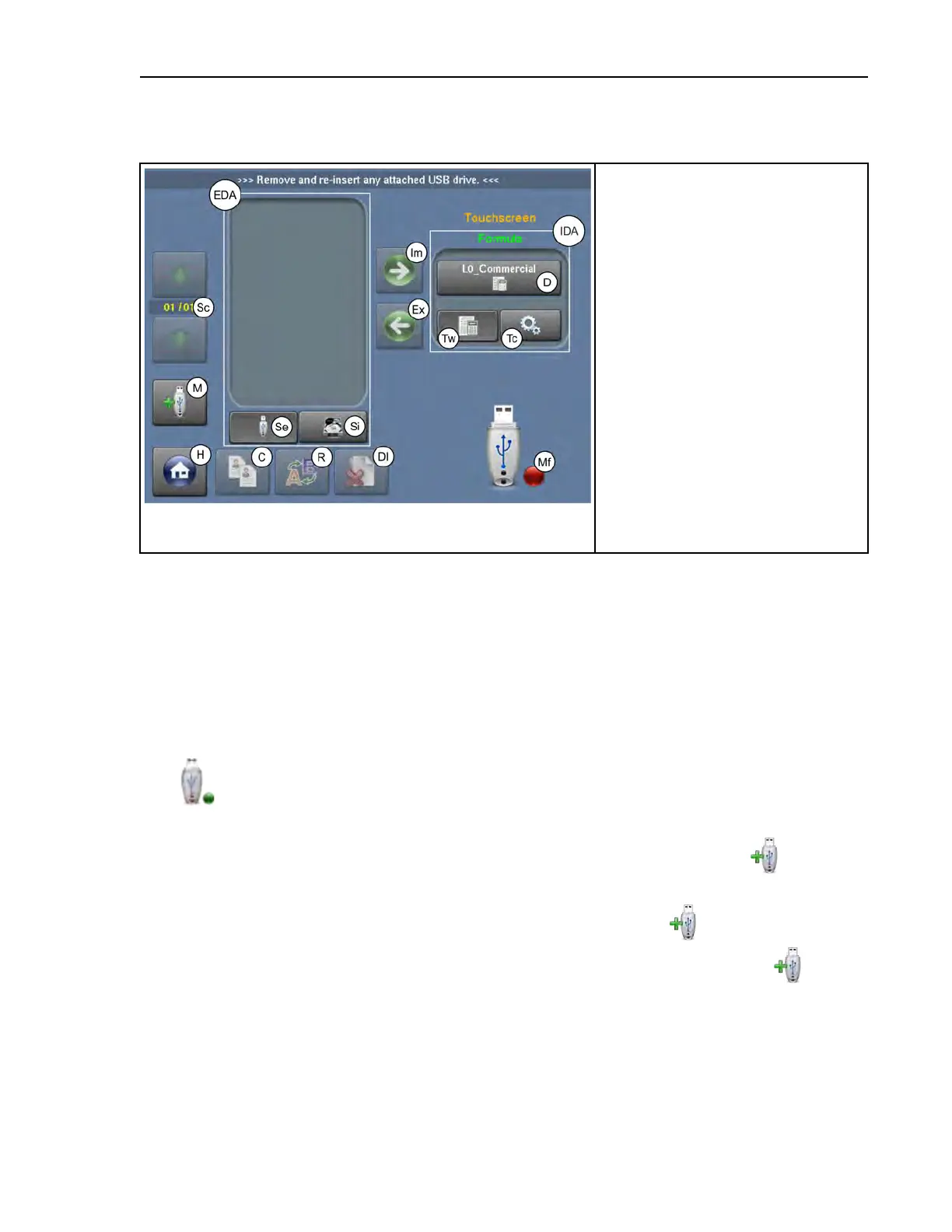
Figure 45. The Data Transfer Display on the Controller
Legend
C. Copy a data set
D. The name of the data set saved to
the machine’s internal memory
Dl. Delete a data set
EDA. External Data Area
Ex. Export a data set
H. Return to the Home display
IDA. Internal Data Area
Im. Import a data set
M. Mount or umount a USB flash
drive
Mf. The available media indicator
R. Rename a data set
Sc. Scroll between pages
Se. Transfer data in external storage
area
Si. Transfer data in internal storage
area
Tc. Transfer configuration files
Tw. Transfer wash formulas
5.2.1 How to Mount a USB Flash Drive to the MilTouch™
Controller
BNCLJO06.T11 0000194236 E.2 E.3 10/6/20 8:56 AM Released
Follow these instructions to mount a USB flash drive to the machine, and troubleshoot the con-
troller if it does not recognize a connected USB device after a few seconds.
1. Insert your USB flash drive to the machine’s USB port.
If the available media indicator in the bottom right of the display changes from red to green
, the controller recognizes a connected USB device and you have successfully mounted
the USB flash drive to the machine.
2. If the available media indicator does not turn green after a few seconds, touch
to mount
the USB flash drive to the controller.
3. If the available media indicator does not turn green after you touch
, remove the USB
flash drive, wait 10 seconds, reinsert the flash drive into the USB port, and touch
again.
4. If the controller does not recognize the USB flash drive after your remove and re-insert it,
you need to format your USB flash drive. To format your USB flash drive, follow the proce-
dure in Section 6.3.1 : Format your USB Flash Drive, page 113.
5. If you format your USB flash drive and the controller still does not recognize the device, use
a different USB flash drive.
Data Transfer



 To Next Page